Independent router help & how-tosHelping you find your connection.
The guide library

Why one Mac can look like a new device in your router’s client list

Explore the guide library · Mac network help

Match the Mac’s current private Wi-Fi address with the router record before treating an unfamiliar entry as an intruder.
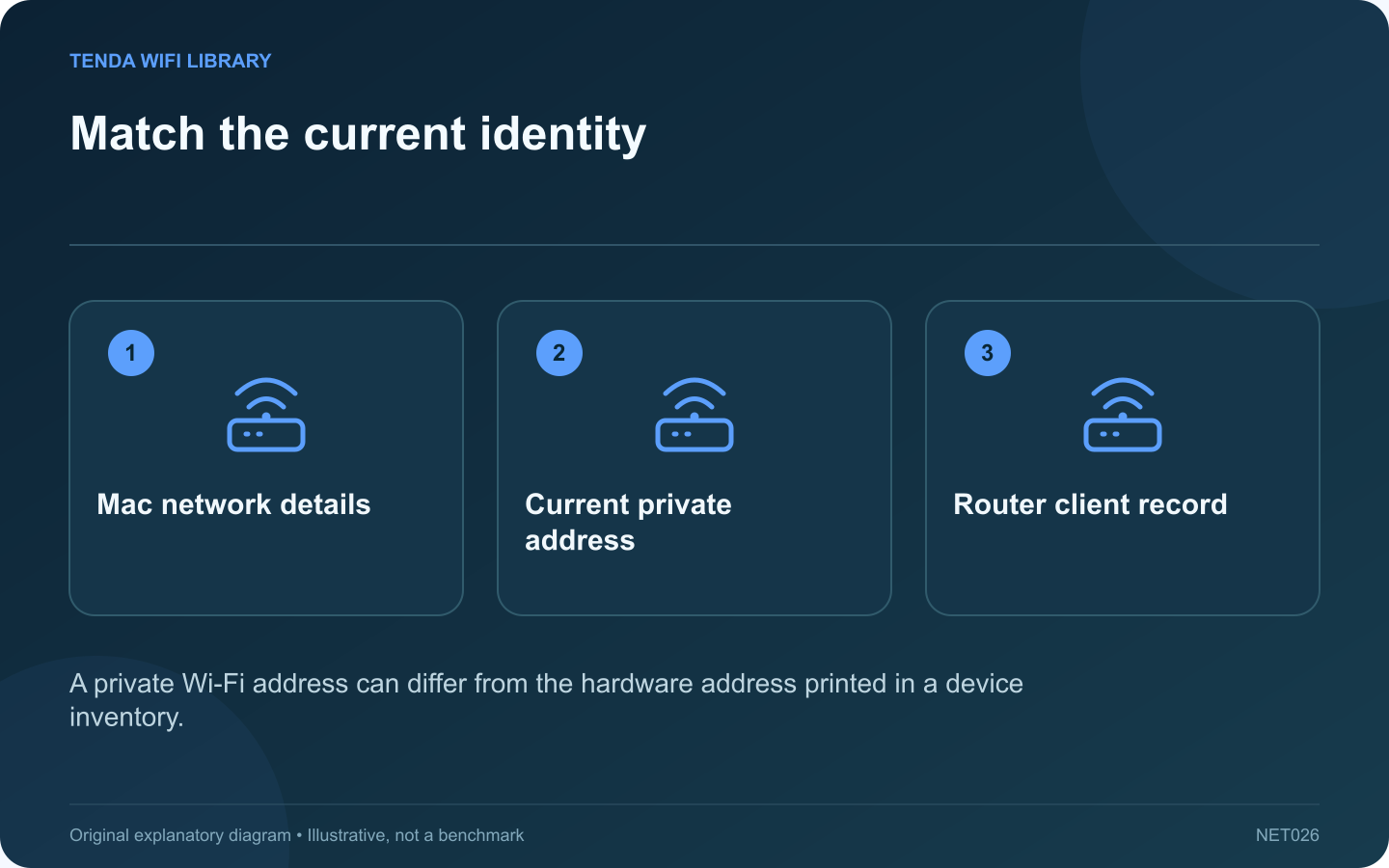
Match the current identity: Mac network details; Current private address; Router client record
A private Wi-Fi address can differ from the hardware address printed in a device inventory.

A router may display an unfamiliar client after your Mac reconnects or its network profile changes. One explanation is the Mac’s private Wi-Fi address. Before blocking the entry, compare the address currently used for that particular network with the router’s client record.

Read the current network identity

Open the Mac’s Wi-Fi details for the connected network. Record the current address privately and compare it with the router’s corresponding entry. A device name alone is not a reliable identifier because names can be missing, duplicated or changed.

Understand the privacy feature

Apple uses private addresses to reduce tracking across networks. On supported versions, Fixed and Rotating options provide different persistence behavior. A private address is not the same thing as the local IP address assigned for communication.

Review address-dependent rules

A reservation, parental-control assignment or approved-device rule may refer to an earlier address. If you administer the network, update the intended rule to match the client’s supported identity behavior. Avoid disabling privacy for every device merely to make the client list look tidier.

Investigate an unmatched entry

  • Compare the current address rather than a label from an old screenshot.
  • Check whether the record is online or only historical.
  • Consider other household devices before assigning ownership.
  • If the entry still cannot be identified, review access through the router’s supported controls.

Keep identification separate from trust

A matching address helps explain a record, but it is not a strong authentication method by itself. Retain appropriate Wi-Fi security and administrator protection.

Apple recommends keeping private addresses enabled on networks that support them and updating software before treating the feature as a compatibility problem. On managed equipment, use the organization’s intended configuration. The desired outcome is an accurate device inventory without sacrificing privacy simply because an older rule assumed that every client would always present one permanent hardware address.

Sources and editorial notes

Sources checked 8–9 October 2026. Independent guidance and original illustrations; product comparisons use published specifications rather than hands-on benchmarks. Check the exact model, revision and regional documentation before changing settings.

Related guides

300 FAQs across our guide libraries

Quick answers

100 practical questions from Tenda WiFi Library.

Browse all 100 FAQs
Why does the same Mac sometimes appear as a new router client?

A router may display an unfamiliar client after your Mac reconnects or its network profile changes. One explanation is the Mac's private Wi-Fi address. Before blocking the entry, compare the address currently used for that particular network with the router's client record. Open the Mac's Wi-Fi details for the connected network. Record the current address privately and compare it with the router's corresponding entry. A device name alone is not a reliable identifier because names can be missing, duplicated or changed.

Read the full guide and sources
Are Mac DNS servers and search domains the same setting?

The DNS panel on a Mac contains a server list and a search-domain list. Both affect name resolution, but they are not interchangeable. Putting the same value into both fields can leave a configuration that looks complete while failing to resolve the intended resource. A DNS server entry identifies a resolver by its IPv4 or IPv6 address. That service answers name queries according to its configuration. Apple provides separate controls for adding or removing these server addresses in the selected network service's DNS settings.

Read the full guide and sources
Why can a Mac app fail to discover a device on the local network?

A Mac application may load internet content successfully yet fail to discover a speaker, printer or local server. In supported macOS versions, Local Network privacy controls can limit whether a particular app finds and communicates with nearby network devices. Check that the target is powered on and connected to the intended network. Compare its own status display or official app guidance. A guest network with intentional isolation can prevent local access even when both devices have excellent internet connectivity.

Read the full guide and sources
How can Mac Wireless Diagnostics help with intermittent Wi-Fi?

Intermittent Wi-Fi failures are difficult to describe after they disappear. Wireless Diagnostics on a Mac can collect information and identify possible issues while preserving the current network configuration. Its output is most useful when you connect it to an observed task failure. Write down when the problem occurred, the room, whether the Mac was moving and which application failed. Note whether another device continued working. Save open work before following the diagnostic workflow so the investigation does not create an unrelated loss.

Read the full guide and sources
Independent. Practical. Clear.

Tenda WiFi Library is an independent information website. We are not affiliated with or endorsed by Tenda. Product names belong to their respective owners.