Independent router help & how-tosHelping you find your connection.
The guide library

Mac DNS servers and search domains: two settings with different jobs

Explore the guide library · Mac network help

Understand why a resolver address and a search suffix are not interchangeable when configuring a Mac.
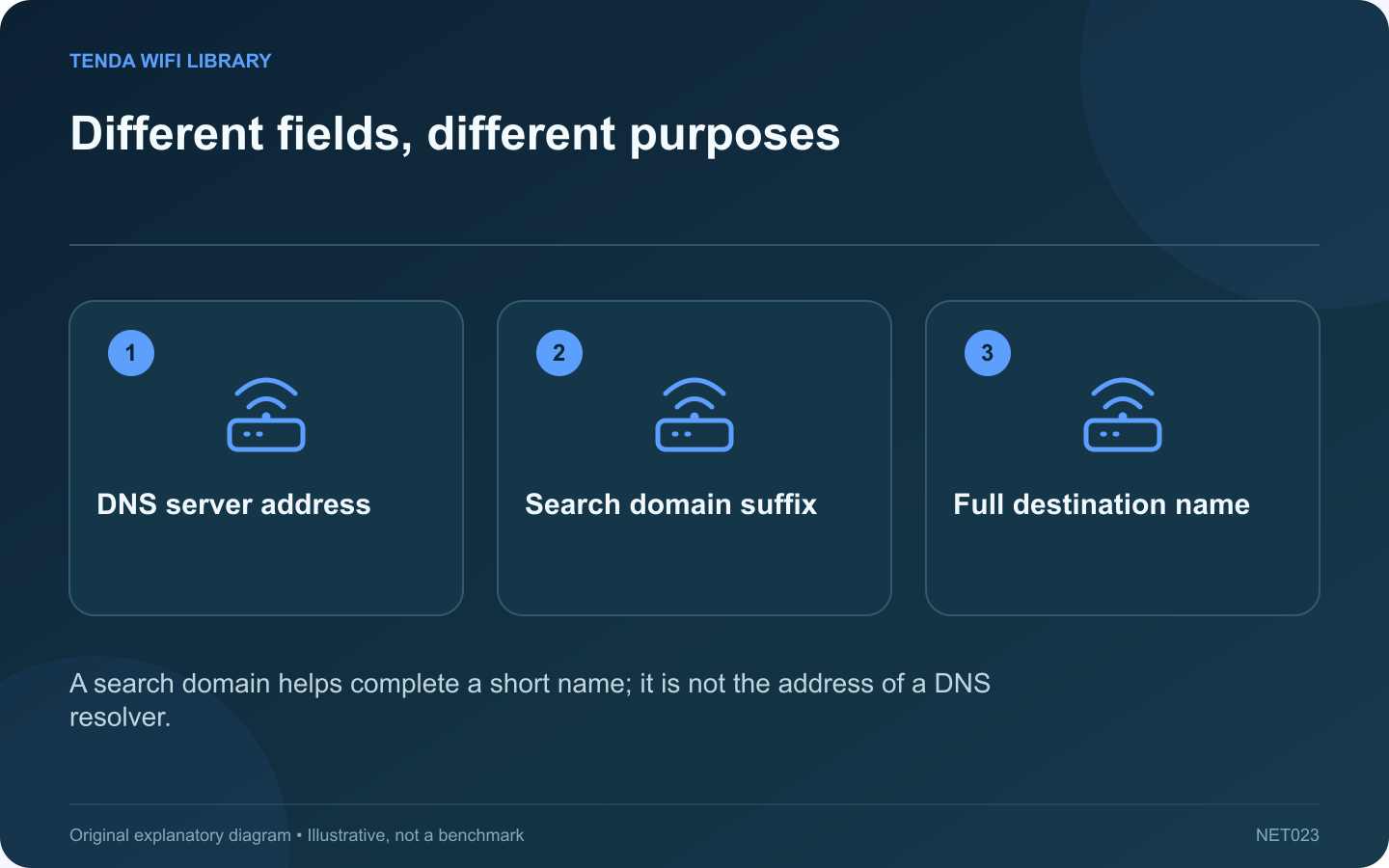
Different fields, different purposes: DNS server address; Search domain suffix; Full destination name
A search domain helps complete a short name; it is not the address of a DNS resolver.

The DNS panel on a Mac contains a server list and a search-domain list. Both affect name resolution, but they are not interchangeable. Putting the same value into both fields can leave a configuration that looks complete while failing to resolve the intended resource.

Understand the server field

A DNS server entry identifies a resolver by its IPv4 or IPv6 address. That service answers name queries according to its configuration. Apple provides separate controls for adding or removing these server addresses in the selected network service’s DNS settings.

Understand a search domain

A search domain is a suffix used when resolving certain short names. For example, an organization may provide a search suffix for its internal resources. It does not replace the resolver, and entering a public website’s address here is not a general method for making that website load faster.

Choose the active service

In System Settings, select Network, the relevant service, Details and DNS. A dock’s Ethernet configuration can differ from Wi-Fi. Record any existing manual entries before making an authorized change, and keep workplace details private.

Test a precise symptom

  • If a full hostname works but its short form does not, review the expected search-domain behavior.
  • If ordinary public names fail broadly, inspect the intended resolver and connection.
  • If only a work resource fails, confirm the approved VPN and organization guidance.

Restore the intended configuration

Use addresses and suffixes supplied by the network administrator or trusted service documentation. Avoid collecting arbitrary resolver entries from several tutorials. More entries do not necessarily produce clearer or more reliable behavior.

After the change, test both the exact previously failing name and a normal public destination. A successful web search alone may hide a continuing internal-name problem. Document the purpose of any manual setting so a later move between home, office and travel networks does not turn it into an unexplained dependency.

Sources and editorial notes

Sources checked 8–9 October 2026. Independent guidance and original illustrations; product comparisons use published specifications rather than hands-on benchmarks. Check the exact model, revision and regional documentation before changing settings.

Related guides

300 FAQs across our guide libraries

Quick answers

100 practical questions from Tenda WiFi Library.

Browse all 100 FAQs
Are Mac DNS servers and search domains the same setting?

The DNS panel on a Mac contains a server list and a search-domain list. Both affect name resolution, but they are not interchangeable. Putting the same value into both fields can leave a configuration that looks complete while failing to resolve the intended resource. A DNS server entry identifies a resolver by its IPv4 or IPv6 address. That service answers name queries according to its configuration. Apple provides separate controls for adding or removing these server addresses in the selected network service's DNS settings.

Read the full guide and sources
Which Mac interface should receive a renewed DHCP lease?

A Mac can have several network services, including Wi-Fi, a dock's Ethernet connection and virtual interfaces. When investigating an address problem, renew the DHCP lease on the service actually carrying the affected connection. Changing a different service may produce no useful effect. Open System Settings, choose Network, select the relevant service and inspect its Details and TCP/IP settings. Record the address, router value and configuration method privately. Apple documents that the renewal control is available when the service uses DHCP.

Read the full guide and sources
How can Mac network locations preserve different connection settings?

A Mac that moves between home and an office may need different network settings. An old manual value can follow the computer into a place where it no longer belongs. Network locations provide a way to organize separate sets of settings and preserve a known configuration during testing. Write down whether the environments use different service order, proxy behavior, DNS details or manual addressing. Do not assume every failed connection needs a new location. The feature is most useful when a concrete configuration difference explains the problem.

Read the full guide and sources
Why does the same Mac sometimes appear as a new router client?

A router may display an unfamiliar client after your Mac reconnects or its network profile changes. One explanation is the Mac's private Wi-Fi address. Before blocking the entry, compare the address currently used for that particular network with the router's client record. Open the Mac's Wi-Fi details for the connected network. Record the current address privately and compare it with the router's corresponding entry. A device name alone is not a reliable identifier because names can be missing, duplicated or changed.

Read the full guide and sources
Independent. Practical. Clear.

Tenda WiFi Library is an independent information website. We are not affiliated with or endorsed by Tenda. Product names belong to their respective owners.