Independent router help & how-tosHelping you find your connection.
The guide library

Mac app cannot find a local device: check its Local Network permission

Explore the guide library · Mac network help

Separate per-app discovery permission from Wi-Fi connectivity and router isolation.
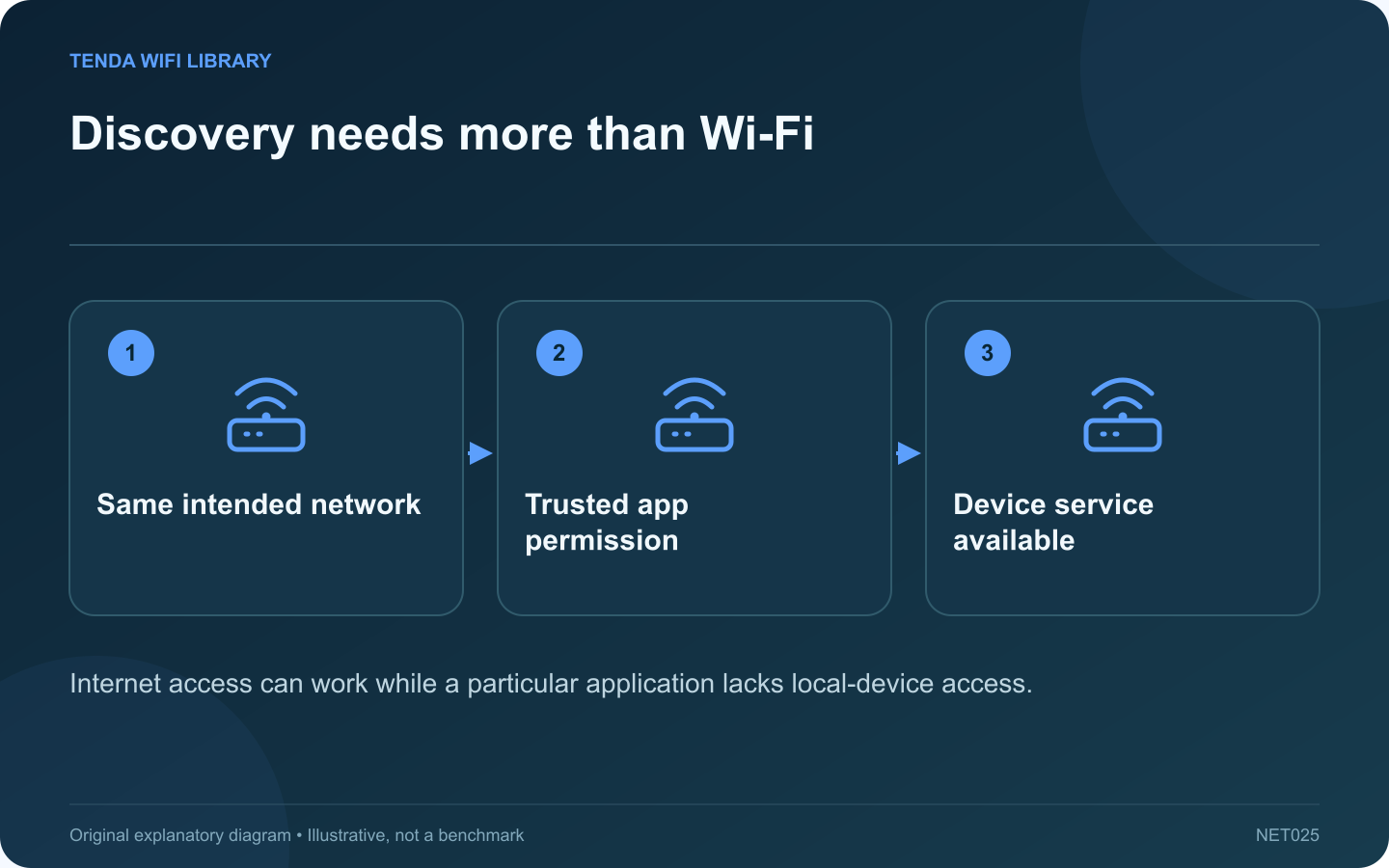
Discovery needs more than Wi-Fi: Same intended network; Trusted app permission; Device service available
Internet access can work while a particular application lacks local-device access.

A Mac application may load internet content successfully yet fail to discover a speaker, printer or local server. In supported macOS versions, Local Network privacy controls can limit whether a particular app finds and communicates with nearby network devices.

Confirm the device is reachable in principle

Check that the target is powered on and connected to the intended network. Compare its own status display or official app guidance. A guest network with intentional isolation can prevent local access even when both devices have excellent internet connectivity.

Review the application’s permission

Apple places per-app Local Network controls under System Settings, Privacy & Security. Find the specific application and consider whether local access is appropriate for its function. A media controller has a different reason to request discovery than an unrelated utility.

Grant only justified access

If the trusted app needs to manage your own device, enable its permission and retry the documented discovery workflow. Do not grant access to every listed app as a general repair. Review the developer’s privacy information when the reason for access is unclear.

Distinguish permission from network design

  • Permission allows the app to attempt local communication.
  • It does not move the Mac onto a different subnet.
  • It does not override a router’s guest isolation.
  • It does not start a stopped service on the target device.

Verify the intended operation

After discovery succeeds, perform a small real task such as printing a test page or opening the device’s supported control interface. If discovery still fails, inspect the device’s service state and the network layout rather than broadening unrelated privacy permissions.

On an organization-managed Mac, ask support about the intended policy. Keep a record of why the app needs local access and remove that access when the application is no longer used. Successful discovery should come with a permission choice that remains understandable later.

Sources and editorial notes

Sources checked 8–9 October 2026. Independent guidance and original illustrations; product comparisons use published specifications rather than hands-on benchmarks. Check the exact model, revision and regional documentation before changing settings.

Related guides

300 FAQs across our guide libraries

Quick answers

100 practical questions from Tenda WiFi Library.

Browse all 100 FAQs
Why can a Mac app fail to discover a device on the local network?

A Mac application may load internet content successfully yet fail to discover a speaker, printer or local server. In supported macOS versions, Local Network privacy controls can limit whether a particular app finds and communicates with nearby network devices. Check that the target is powered on and connected to the intended network. Compare its own status display or official app guidance. A guest network with intentional isolation can prevent local access even when both devices have excellent internet connectivity.

Read the full guide and sources
Why does the same Mac sometimes appear as a new router client?

A router may display an unfamiliar client after your Mac reconnects or its network profile changes. One explanation is the Mac's private Wi-Fi address. Before blocking the entry, compare the address currently used for that particular network with the router's client record. Open the Mac's Wi-Fi details for the connected network. Record the current address privately and compare it with the router's corresponding entry. A device name alone is not a reliable identifier because names can be missing, duplicated or changed.

Read the full guide and sources
How can Mac Wireless Diagnostics help with intermittent Wi-Fi?

Intermittent Wi-Fi failures are difficult to describe after they disappear. Wireless Diagnostics on a Mac can collect information and identify possible issues while preserving the current network configuration. Its output is most useful when you connect it to an observed task failure. Write down when the problem occurred, the room, whether the Mac was moving and which application failed. Note whether another device continued working. Save open work before following the diagnostic workflow so the investigation does not create an unrelated loss.

Read the full guide and sources
Why might a Mac use Wi-Fi while Ethernet is connected?

A Mac with both Wi-Fi and Ethernet available may not use the connection you expected. Network service order helps establish which ordinary service the computer tries first. This is especially useful for a desk setup where a dock provides the preferred wired connection. Check the dock's network service and its connection status before changing priorities. An attached cable is not proof that the service has a usable address or route. Inspect the far-end port and compare a known-working cable if the wired service appears disconnected.

Read the full guide and sources
Independent. Practical. Clear.

Tenda WiFi Library is an independent information website. We are not affiliated with or endorsed by Tenda. Product names belong to their respective owners.