Independent router help & how-tosHelping you find your connection.
The guide library

GeForce NOW network planning: match resolution and latency before upgrading Wi-Fi

Explore the guide library · Gaming connections

Use NVIDIA’s current mode-specific requirements and the service’s network test to evaluate the actual path.
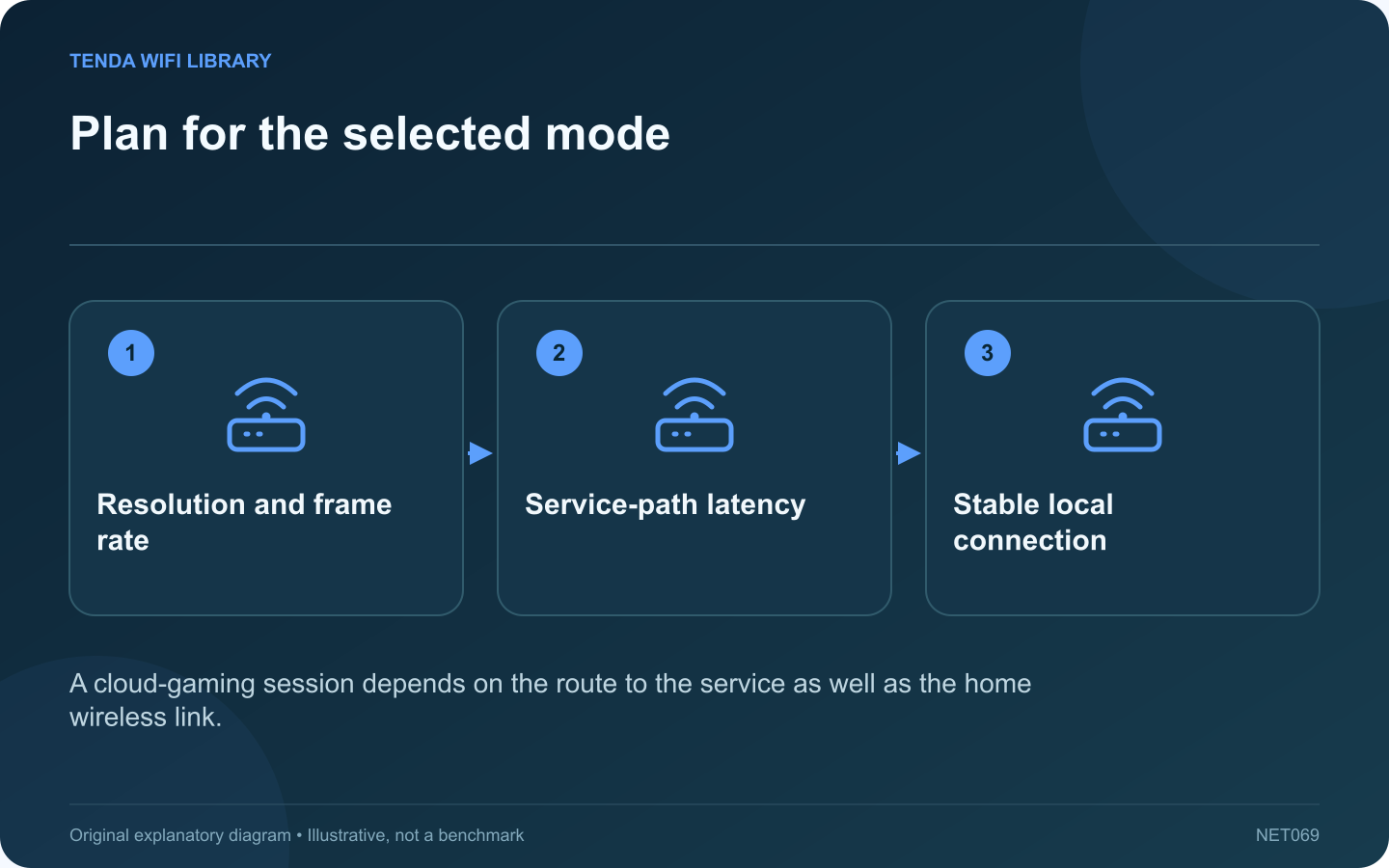
Plan for the selected mode: Resolution and frame rate; Service-path latency; Stable local connection
A cloud-gaming session depends on the route to the service as well as the home wireless link.

Cloud gaming sends an interactive video stream from a remote service while returning your inputs. Planning for GeForce NOW therefore requires more than checking whether a router advertises gigabit Wi-Fi. Start with the streaming mode and supported client you intend to use.

Choose the target mode

NVIDIA’s current requirements vary by resolution, frame rate and platform. For example, its cited desktop guidance lists 25 Mbps for full-HD at 60 frames per second and 45 Mbps for 4K at 120 frames per second. Those are service requirements, not a guarantee that every device or membership enables each mode.

Check delay to the service

NVIDIA specifies a latency requirement to its data center and recommends Ethernet or an appropriate 5 GHz Wi-Fi connection. Use the service’s supported network test. A low ping to the home router does not measure the longer route to the gaming service.

Test the actual play location

  1. Use the intended client and display mode.
  2. Run the test where you normally play.
  3. Compare quiet and ordinary household conditions.
  4. Try a suitable wired path if practical.

Identify the upgrade boundary

If the wired test improves stability, investigate local wireless placement or client support. If both paths show a similar service-route limitation, a newer Wi-Fi generation may not solve it. Reducing the requested streaming mode can be a useful controlled comparison.

Include the full client requirements

Check supported operating systems, decoding hardware, peripherals and membership features for the chosen mode. Do not infer compatibility from network throughput alone.

These recommendations use NVIDIA’s published requirements rather than our own latency or image-quality benchmarks. Recheck the linked page before purchasing because supported modes can change. A good setup is one that sustains the selected experience under normal household load, with enough practical margin for other essential traffic.

Sources and editorial notes

Sources checked 8–9 October 2026. Independent guidance and original illustrations; product comparisons use published specifications rather than hands-on benchmarks. Check the exact model, revision and regional documentation before changing settings.

Related guides

300 FAQs across our guide libraries

Quick answers

100 practical questions from Tenda WiFi Library.

Browse all 100 FAQs
What should I check before upgrading Wi-Fi for GeForce NOW?

Cloud gaming sends an interactive video stream from a remote service while returning your inputs. Planning for GeForce NOW therefore requires more than checking whether a router advertises gigabit Wi-Fi. Start with the streaming mode and supported client you intend to use. NVIDIA's current requirements vary by resolution, frame rate and platform. For example, its cited desktop guidance lists 25 Mbps for full-HD at 60 frames per second and 45 Mbps for 4K at 120 frames per second. Those are service requirements, not a guarantee that every device or membership enables each mode.

Read the full guide and sources
Why can wireless PC VR stutter despite fast broadband?

A fast internet plan does not automatically produce a smooth wireless PC VR session. When a supported system streams rendered content from a local PC to a headset, the local network and both devices are central parts of the experience. Confirm that you are using a supported local PC streaming mode rather than a standalone headset application or a remote cloud service. Meta's Air Link technical material describes wireless delivery of PC VR content and the effect of late frames. These are distinct from simply downloading a game.

Read the full guide and sources
How do I separate game frame stutter from network lag?

Players often use lag to describe several different problems. A delayed online action can involve the network, while a frozen frame can originate in the computer's rendering or storage workload. Identify the symptom before buying a gaming router. When the game offers a suitable offline mode, compare the same style of scene without online interaction. If similar frame stalls remain, investigate the computer and game workload. This does not rule out a second network issue, but it prevents treating every pause as packet loss.

Read the full guide and sources
What should I verify before buying a Wi-Fi adapter for Linux?

For Linux, a Wi-Fi adapter's retail speed class is only part of the purchase decision. The exact chipset, available driver and firmware package determine whether the distribution can use it reliably. A Windows driver download does not establish Linux support. Record the chipset and product revision, not only the marketing name. Different revisions can use different components. For an internal module, also confirm the laptop's electrical interface and manufacturer support; matching the physical socket is insufficient.

Read the full guide and sources
Independent. Practical. Clear.

Tenda WiFi Library is an independent information website. We are not affiliated with or endorsed by Tenda. Product names belong to their respective owners.