Explore the guide library · Windows connection help
Compare sleep, restart and ordinary use so the repair targets a resume problem rather than the whole router.
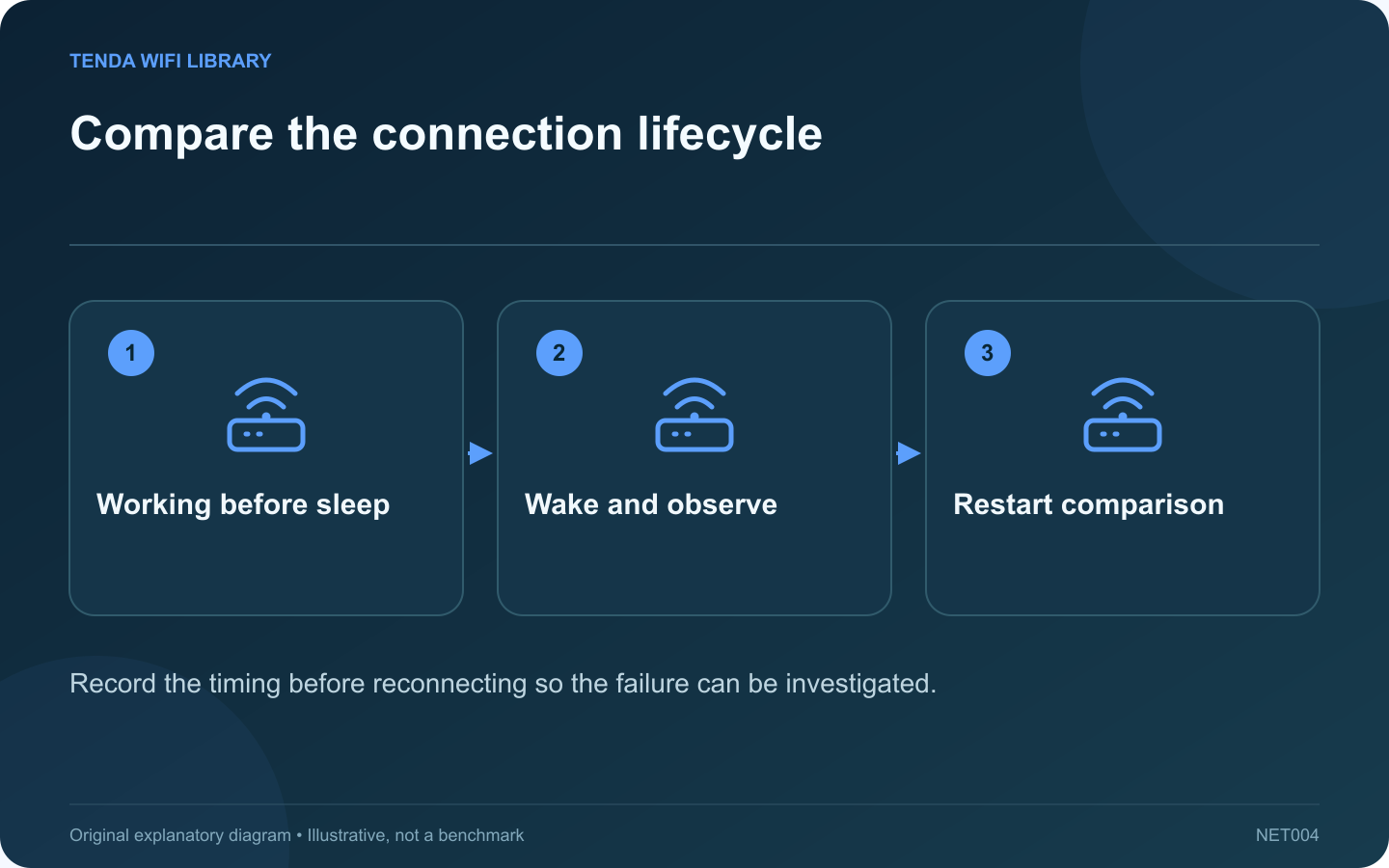
A connection that fails only after sleep deserves a different investigation from Wi-Fi that is unstable all day. Record the laptop’s behavior immediately after waking and compare it with a normal restart. Avoid changing the router while the failure appears tied to one client’s resume cycle.
Write a repeatable sequence
Note whether the laptop was on battery or external power, whether a USB dock was connected and how long it slept. Record whether the network disappears, authentication fails or the client connects without application access.
Check another client at the same moment
If another device remains connected normally, that helps narrow the issue to the laptop or its interface path. If all clients lose service, investigate the shared network event instead of assuming sleep caused it.
Collect the Windows report
Microsoft documents the wireless network report and recommends collecting connection evidence before resetting profiles or drivers. Generate the report after reproducing the issue and correlate the event time with your notes. Keep the report private because it contains network and device information.
Review supported updates
- Laptop manufacturer’s firmware and driver guidance.
- Current operating-system updates.
- Dock or USB-adapter support when relevant.
- Any recent change that preceded the failure.
Intel advises attempting ordinary troubleshooting before a clean driver reinstall. Download the correct recovery package before removing a driver that provides your only internet connection.
Verify a proposed fix
Repeat the same sleep-and-wake sequence under comparable power and dock conditions. Also confirm normal roaming and restart behavior. One successful reconnect immediately after changing a setting is weaker evidence than several consistent resume tests.
On a managed laptop, give the administrator the reproduction sequence and redacted event details. A focused report makes it easier to identify a driver, power-state or policy interaction without weakening unrelated router security settings.
Sources and editorial notes
Sources checked 8–9 October 2026. Independent guidance and original illustrations; product comparisons use published specifications rather than hands-on benchmarks. Check the exact model, revision and regional documentation before changing settings.
- Microsoft: evidence-based wireless connection diagnosis
- Microsoft: analyzing the wireless network report
- Intel: clean wireless-driver installation precautions