Independent router help & how-tosHelping you find your connection.
The guide library

Your home Wi-Fi is missing in Windows, but other networks appear

Explore the guide library · Windows connection help

Check band support and the router’s actual broadcast before treating a missing network as a password problem.
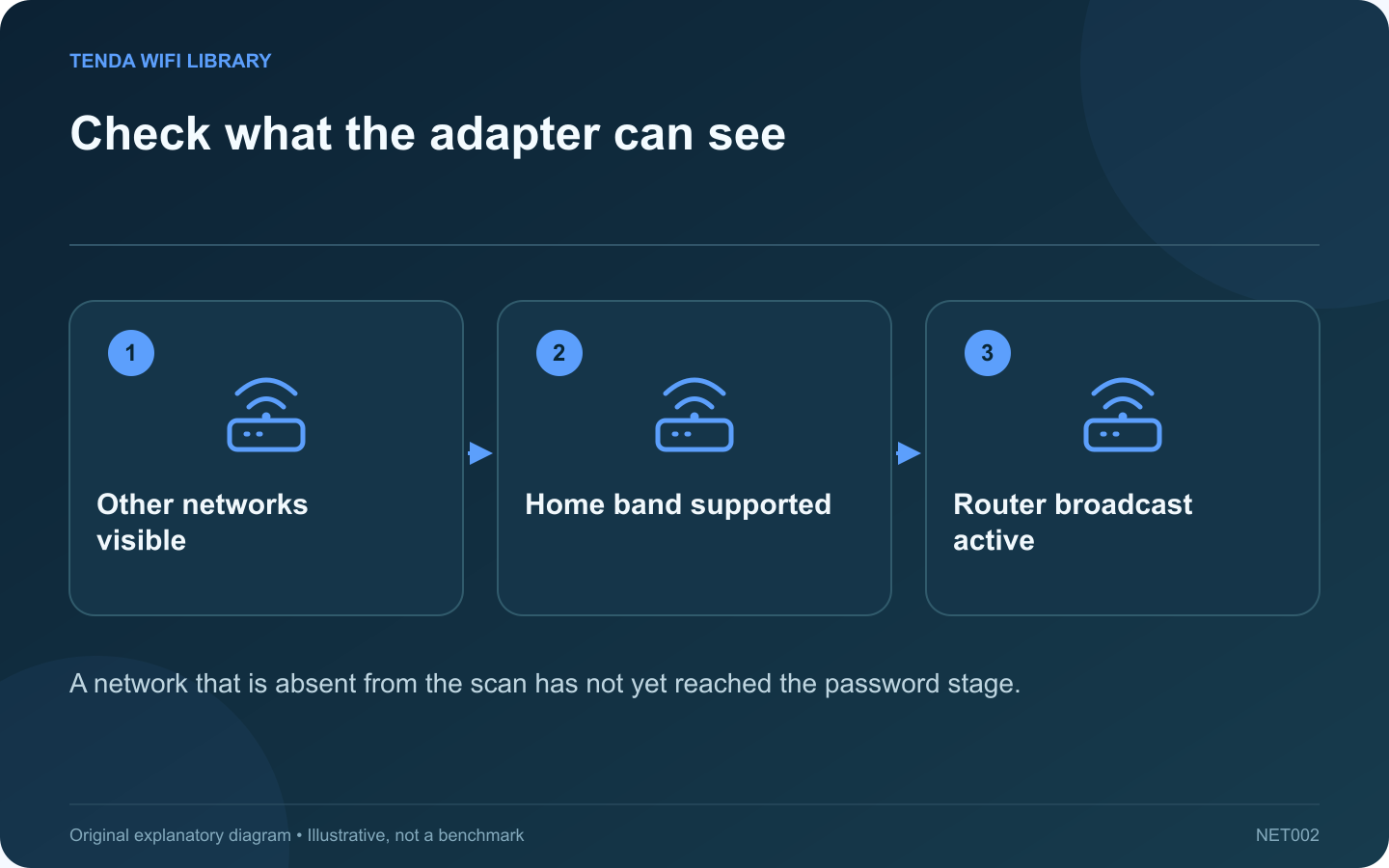
Check what the adapter can see: Other networks visible; Home band supported; Router broadcast active
A network that is absent from the scan has not yet reached the password stage.

If Windows lists neighboring networks but not your home network, the wireless adapter is doing at least some scanning. Focus on the missing broadcast’s band, channel and configuration before changing a password that Windows has not yet tried.

Confirm the router is broadcasting

Use another compatible device near the router to check for the exact network name. Inspect the router’s wireless status and any schedule. If no device sees the network, investigate the router’s radio state rather than only the laptop.

Check the laptop’s capabilities

Record the adapter model and driver version. Compare supported bands with the router’s active network. A 6 GHz-only network requires an appropriate client and supported regional platform configuration; Intel documents additional requirements beyond simply owning a newer router.

Compare at a known location

  1. Move the laptop close enough for a practical test.
  2. Refresh the normal Windows network list.
  3. Check a supported other band broadcast by your own router.
  4. Record which networks appear and which remain absent.
  5. Return to the original location only after the basic compatibility check.

Review recent changes

Did the router change channel, security mode or network name? Was a client driver updated? Keep those changes separate. A DFS-related channel event or a regional compatibility difference can have a different explanation from a disabled wireless adapter.

Use supported settings

Do not force an incorrect country setting or install untrusted driver packages to reveal more channels. Use the laptop manufacturer’s supported driver and the router’s permitted regional configuration.

When reporting the issue, provide the adapter model, firmware and observed band comparison without exposing passwords or full device identifiers. A useful diagnosis explains why this particular network is absent, rather than treating every invisible SSID as a reason to factory-reset the gateway.

Sources and editorial notes

Sources checked 8–9 October 2026. Independent guidance and original illustrations; product comparisons use published specifications rather than hands-on benchmarks. Check the exact model, revision and regional documentation before changing settings.

Related guides

300 FAQs across our guide libraries

Quick answers

100 practical questions from Tenda WiFi Library.

Browse all 100 FAQs
Why can Windows see nearby Wi-Fi but not my home network?

If Windows lists neighboring networks but not your home network, the wireless adapter is doing at least some scanning. Focus on the missing broadcast's band, channel and configuration before changing a password that Windows has not yet tried. Use another compatible device near the router to check for the exact network name. Inspect the router's wireless status and any schedule. If no device sees the network, investigate the router's radio state rather than only the laptop.

Read the full guide and sources
What should I check before sharing Wi-Fi through a Windows QR code?

Supported Windows versions can display saved Wi-Fi connection details with a QR code for another device to scan. This is convenient, but the code grants access just as typing the password would. Verify the network and recipient before displaying it. If the router provides a guest network intended for visitors, share that connection rather than the household's main credentials. Confirm its name in Windows. A laptop may remember several similarly named networks from previous homes or workplaces.

Read the full guide and sources
How should I investigate a firewall-blocked trusted application?

When a home application cannot communicate, disabling the entire Windows firewall is a poor diagnostic shortcut. It changes protection for unrelated services and still may not address the actual problem. Begin by confirming what the application needs to reach. Use the official application and its documented network requirements. Record whether the failure concerns an outgoing connection, discovery of another device or an incoming service on your computer. Those are different tasks and do not automatically require the same exception.

Read the full guide and sources
How can I investigate Wi-Fi failures after Windows resumes from sleep?

A connection that fails only after sleep deserves a different investigation from Wi-Fi that is unstable all day. Record the laptop's behavior immediately after waking and compare it with a normal restart. Avoid changing the router while the failure appears tied to one client's resume cycle. Note whether the laptop was on battery or external power, whether a USB dock was connected and how long it slept. Record whether the network disappears, authentication fails or the client connects without application access.

Read the full guide and sources
Independent. Practical. Clear.

Tenda WiFi Library is an independent information website. We are not affiliated with or endorsed by Tenda. Product names belong to their respective owners.