Independent router help & how-tosHelping you find your connection.
The guide library

Plan a phone-hotspot backup session before starting large laptop tasks

Explore the guide library · Mobile data and hotspots

Estimate which tasks belong on temporary mobile internet and prevent optional background transfers from consuming the allowance.
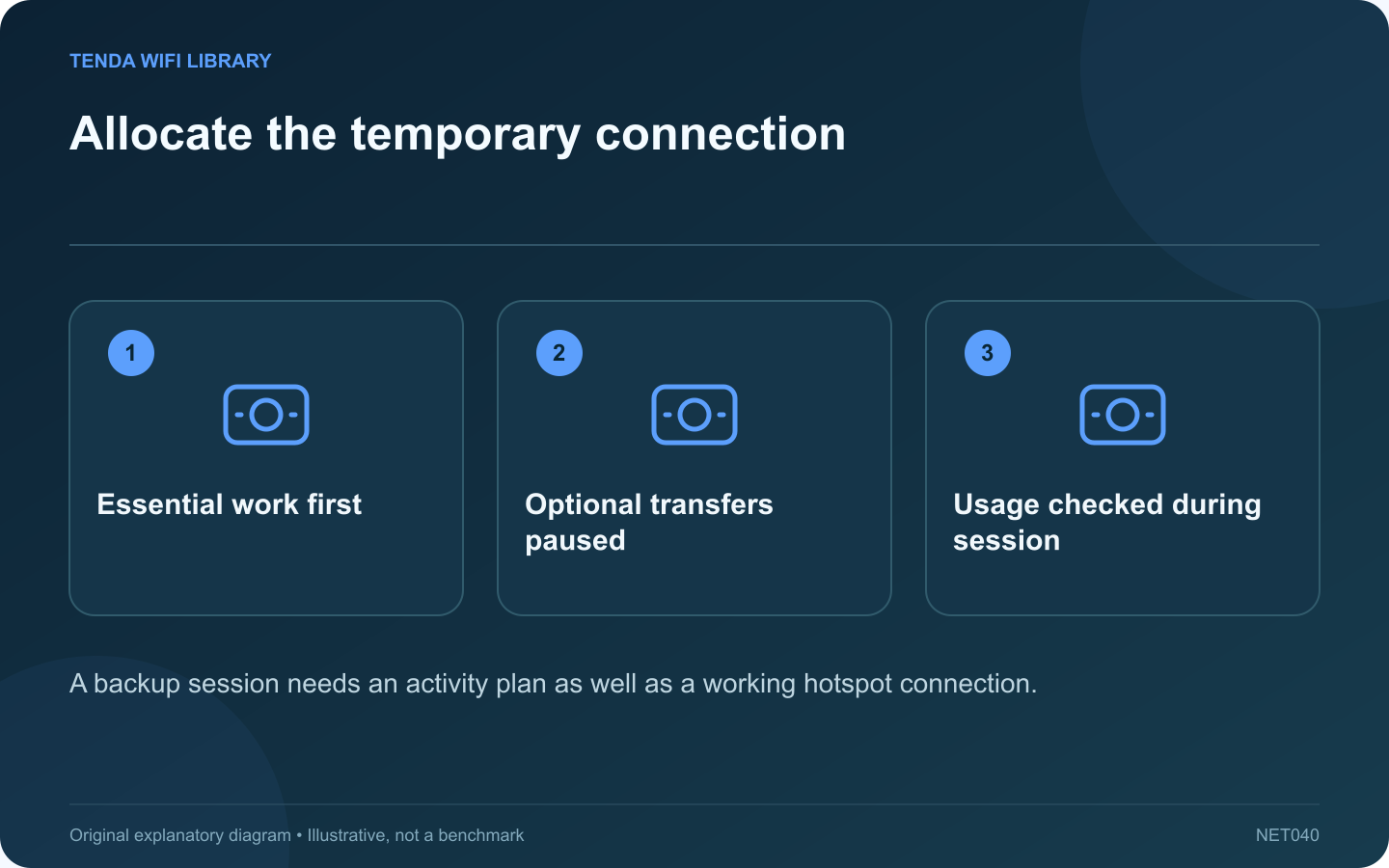
Allocate the temporary connection: Essential work first; Optional transfers paused; Usage checked during session
A backup session needs an activity plan as well as a working hotspot connection.

A phone hotspot can restore internet access quickly, but a laptop may behave as though it has returned to unlimited broadband. Before starting a long session, decide which activities are essential and how the mobile allowance will be monitored.

Confirm the plan’s actual limits

Check the carrier’s tethering allowance and any restrictions through its official account information. Google and Apple both note that hotspot availability and charges can depend on the carrier. Do not infer unlimited tethering from an unlimited-data label without reading the plan details.

Inventory likely background traffic

  • Cloud folders waiting to upload changes.
  • Game launchers with pending downloads.
  • Operating-system or application updates.
  • Automatic photo, video or device backups.
  • Other clients that know the hotspot password.

Choose a temporary usage policy

Use the laptop’s supported metered-connection setting where appropriate, and pause optional transfers through their own applications. Keep essential security work scheduled for a suitable connection instead of disabling it indefinitely. Reduce video quality when that still satisfies the task.

Check progress during the session

Inspect the provider’s usage information and supported device counters. Counters may update at different times, so avoid planning right up to the last reported unit of allowance. Record when the session started so a surprising increase has useful context.

Return to normal deliberately

Once fixed broadband is restored, verify that the laptop has actually switched back before resuming large transfers. Turn off the temporary hotspot and review tasks that were paused.

For repeated outages, keep a short priority list: essential communication, work applications and time-sensitive uploads first, entertainment downloads later. This is a practical planning framework rather than a claim that every application consumes a fixed amount. A reliable backup arrangement combines a permitted data plan, controlled client activity and a clear end-of-session check, not merely a strong hotspot signal.

Sources and editorial notes

Sources checked 8–9 October 2026. Independent guidance and original illustrations; product comparisons use published specifications rather than hands-on benchmarks. Check the exact model, revision and regional documentation before changing settings.

Related guides

300 FAQs across our guide libraries

Quick answers

100 practical questions from Tenda WiFi Library.

Browse all 100 FAQs
How should I prepare for a laptop session on a phone hotspot?

A phone hotspot can restore internet access quickly, but a laptop may behave as though it has returned to unlimited broadband. Before starting a long session, decide which activities are essential and how the mobile allowance will be monitored. Check the carrier's tethering allowance and any restrictions through its official account information. Google and Apple both note that hotspot availability and charges can depend on the carrier. Do not infer unlimited tethering from an unlimited-data label without reading the plan details.

Read the full guide and sources
When is iPhone hotspot Maximize Compatibility helpful?

Maximize Compatibility can help certain devices connect to a supported iPhone Personal Hotspot. Its purpose is broader compatibility, not maximum performance. Before enabling it, identify whether the problem is discovering the hotspot, joining it or reaching the internet afterward. Check that the carrier plan supports tethering, mobile data works on the phone and the intended hotspot is available to the client. Use the current network name and password displayed by the phone. An outdated saved password needs a different correction from band incompatibility.

Read the full guide and sources
Should one laptop use Android USB tethering or a Wi-Fi hotspot?

For one laptop during a broadband outage, Android USB tethering and a Wi-Fi hotspot are two possible ways to use the phone's mobile connection. The best choice depends on the actual computer and phone, not a guarantee that one method always produces a faster internet result. Google documents USB, Bluetooth and Wi-Fi tethering on supported Android phones, with carrier restrictions possible. Its general guidance specifically notes that Mac computers cannot use Android USB tethering through that standard workflow. Check the current instructions for your exact devices.

Read the full guide and sources
How do I rule out cellular fallback when comparing iPhone and laptop Wi-Fi?

When a laptop cannot get online, testing a phone is a sensible first comparison. But a phone with mobile data available may reach the website through its cellular provider. That result does not establish that the home router or broadband connection is working. Check the phone's connection indicators and network settings during the test. Apple's Wi-Fi Assist can switch supported activity to cellular when Wi-Fi performs poorly. Feature names and behavior can vary with software version, so inspect the setting actually present on your device.

Read the full guide and sources
Independent. Practical. Clear.

Tenda WiFi Library is an independent information website. We are not affiliated with or endorsed by Tenda. Product names belong to their respective owners.