Independent router help & how-tosHelping you find your connection.
The guide library

Android USB tethering versus Wi-Fi hotspot for one laptop

Explore the guide library · Mobile data and hotspots

Choose the connection method by laptop support, cable availability and the working environment rather than a universal speed claim.
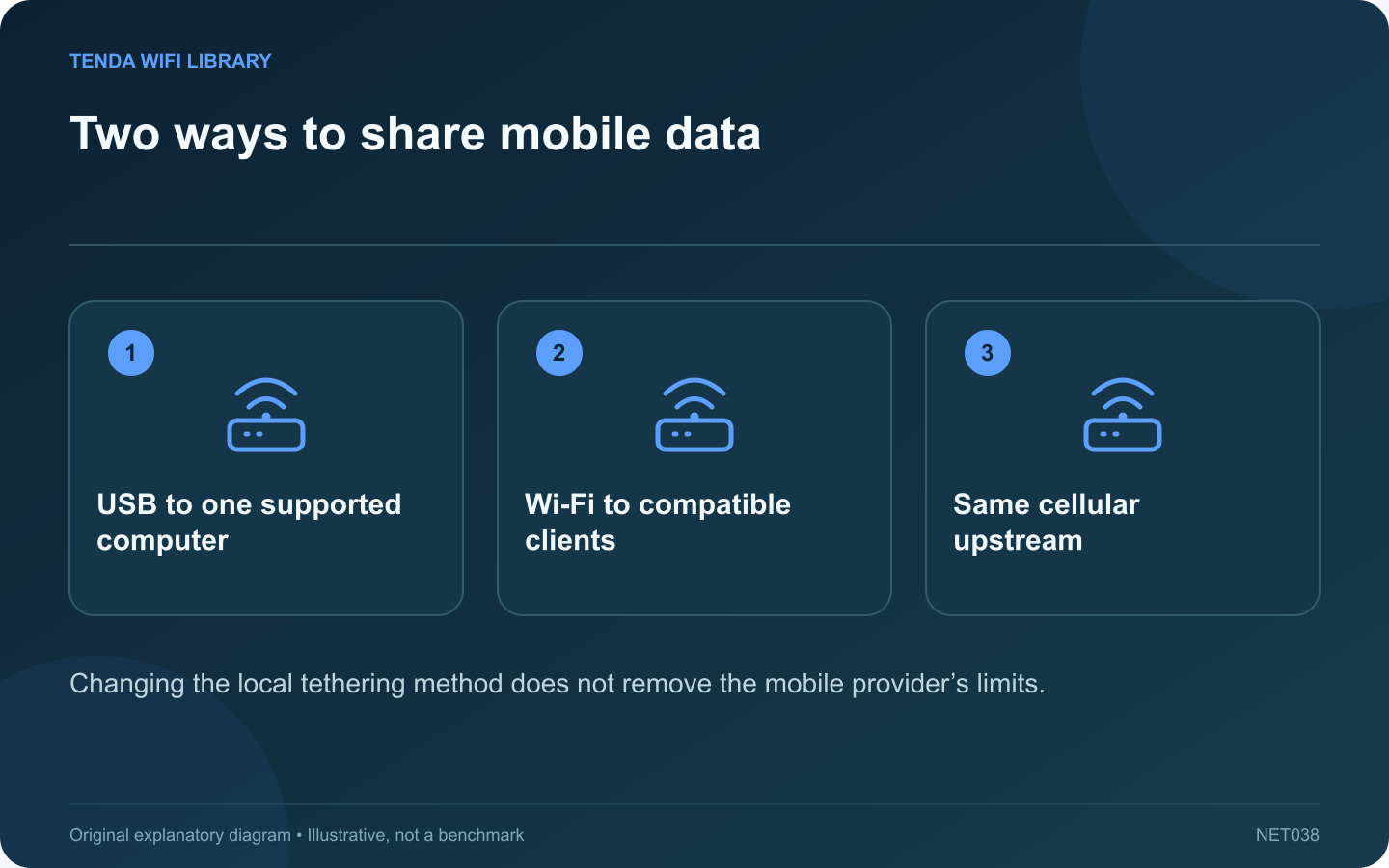
Two ways to share mobile data: USB to one supported computer; Wi-Fi to compatible clients; Same cellular upstream
Changing the local tethering method does not remove the mobile provider’s limits.

For one laptop during a broadband outage, Android USB tethering and a Wi-Fi hotspot are two possible ways to use the phone’s mobile connection. The best choice depends on the actual computer and phone, not a guarantee that one method always produces a faster internet result.

Check support before choosing

Google documents USB, Bluetooth and Wi-Fi tethering on supported Android phones, with carrier restrictions possible. Its general guidance specifically notes that Mac computers cannot use Android USB tethering through that standard workflow. Check the current instructions for your exact devices.

Consider USB for a supported desk setup

A suitable data cable can provide a direct local connection to one supported computer. Charging alone does not prove that the cable carries data. Confirm the tethering interface appears and use the phone’s normal USB tethering control.

Consider Wi-Fi for flexibility

A hotspot lets compatible clients connect without a cable. Use a strong password and confirm the client selected your actual hotspot. Placement now has two concerns: the phone needs usable cellular reception, and the laptop needs a reliable local wireless connection to it.

Compare with a small real task

  1. Keep the phone in a similar location.
  2. Use the same application and destination.
  3. Record stability and practical usability.
  4. Watch mobile-data usage and device temperature.

Plan the end of the session

Turn tethering off when it is no longer needed. Review postponed laptop transfers before returning to ordinary broadband. A background backup can consume the mobile allowance regardless of which tethering method carried it.

Keep the phone on an appropriate power arrangement for a long session and follow its temperature guidance. Choose the method that works reliably with the hardware already available. Buying a new router will not resolve an unsupported tethering interface or a carrier plan that does not permit the intended use.

Sources and editorial notes

Sources checked 8–9 October 2026. Independent guidance and original illustrations; product comparisons use published specifications rather than hands-on benchmarks. Check the exact model, revision and regional documentation before changing settings.

Related guides

300 FAQs across our guide libraries

Quick answers

100 practical questions from Tenda WiFi Library.

Browse all 100 FAQs
Should one laptop use Android USB tethering or a Wi-Fi hotspot?

For one laptop during a broadband outage, Android USB tethering and a Wi-Fi hotspot are two possible ways to use the phone's mobile connection. The best choice depends on the actual computer and phone, not a guarantee that one method always produces a faster internet result. Google documents USB, Bluetooth and Wi-Fi tethering on supported Android phones, with carrier restrictions possible. Its general guidance specifically notes that Mac computers cannot use Android USB tethering through that standard workflow. Check the current instructions for your exact devices.

Read the full guide and sources
How should I prepare for a laptop session on a phone hotspot?

A phone hotspot can restore internet access quickly, but a laptop may behave as though it has returned to unlimited broadband. Before starting a long session, decide which activities are essential and how the mobile allowance will be monitored. Check the carrier's tethering allowance and any restrictions through its official account information. Google and Apple both note that hotspot availability and charges can depend on the carrier. Do not infer unlimited tethering from an unlimited-data label without reading the plan details.

Read the full guide and sources
When is iPhone hotspot Maximize Compatibility helpful?

Maximize Compatibility can help certain devices connect to a supported iPhone Personal Hotspot. Its purpose is broader compatibility, not maximum performance. Before enabling it, identify whether the problem is discovering the hotspot, joining it or reaching the internet afterward. Check that the carrier plan supports tethering, mobile data works on the phone and the intended hotspot is available to the client. Use the current network name and password displayed by the phone. An outdated saved password needs a different correction from band incompatibility.

Read the full guide and sources
How do I rule out cellular fallback when comparing iPhone and laptop Wi-Fi?

When a laptop cannot get online, testing a phone is a sensible first comparison. But a phone with mobile data available may reach the website through its cellular provider. That result does not establish that the home router or broadband connection is working. Check the phone's connection indicators and network settings during the test. Apple's Wi-Fi Assist can switch supported activity to cellular when Wi-Fi performs poorly. Feature names and behavior can vary with software version, so inspect the setting actually present on your device.

Read the full guide and sources
Independent. Practical. Clear.

Tenda WiFi Library is an independent information website. We are not affiliated with or endorsed by Tenda. Product names belong to their respective owners.