Explore the guide library · Printer networking
A printer and laptop can use different connection media while sharing the same permitted local network.
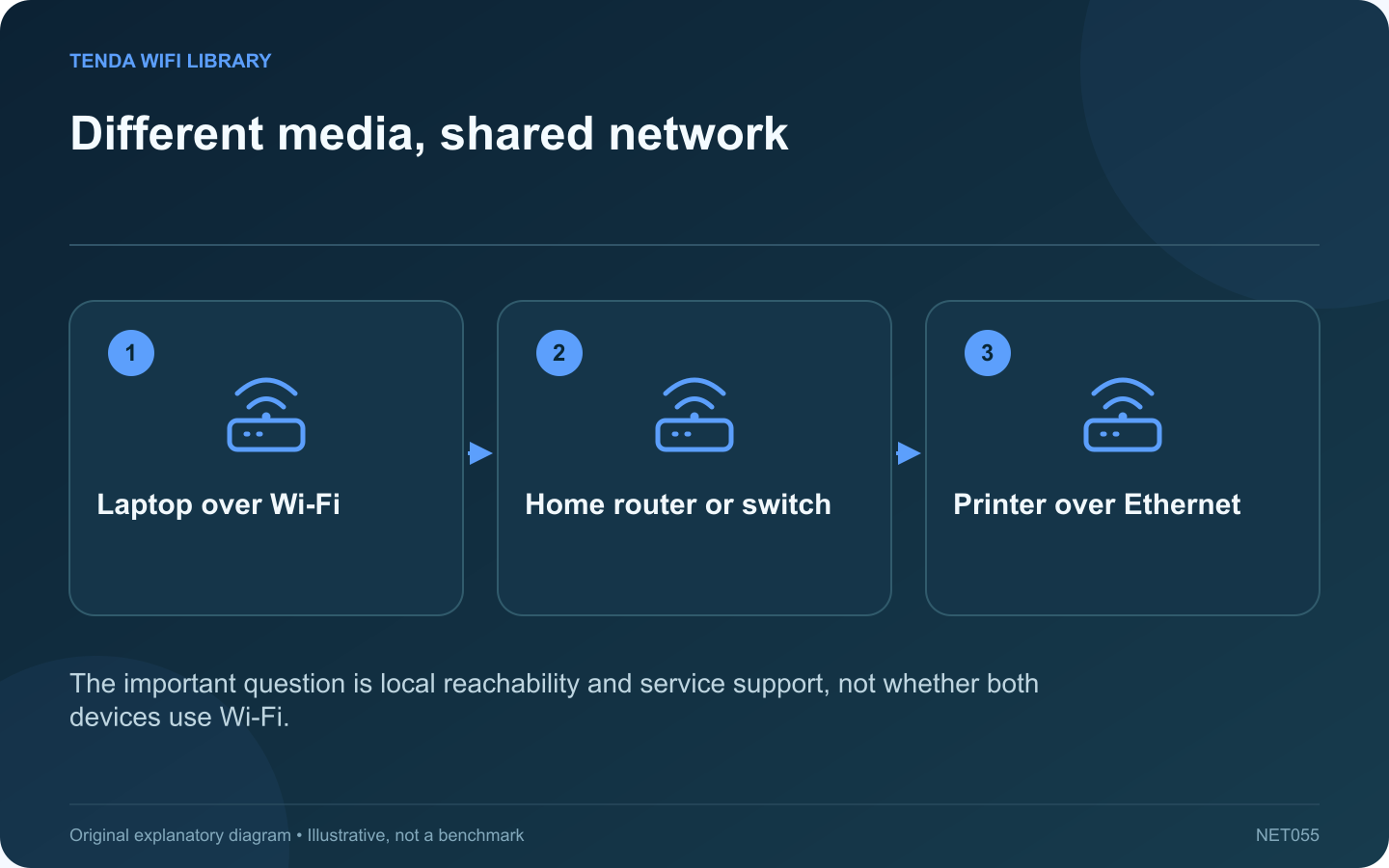
A printer connected by Ethernet can serve a laptop using Wi-Fi when the network and printing service allow communication between them. Both devices do not need the same physical connection type. The important distinction is whether they belong to the intended accessible local network.
Confirm the printer’s wired connection
Follow the model’s Ethernet setup procedure and inspect its network status. HP’s setup guidance calls for connecting the printer to the same network as the computer. Check the actual router or switch port rather than plugging into an unrelated isolated network.
Confirm the laptop’s network
Inspect the selected Wi-Fi name and whether it is a guest or restricted connection. A guest network may deliberately prevent access to wired household devices. That is a network policy issue, not evidence that Ethernet and Wi-Fi are incompatible.
Use the supported printing method
Install or select the printer through the operating system’s normal supported workflow. AirPrint, a manufacturer application and a specific driver can have different discovery and feature requirements. Choose the method documented for the printer and computer.
Test the complete job
- Confirm the printer is ready and has paper.
- Select it from the laptop’s print dialog.
- Send a small test page.
- Inspect the queue if the page does not appear.
Avoid unnecessary dual connections
Some printers change their wireless behavior when Ethernet is connected. Read the model’s manual before trying to activate every interface simultaneously. One well-understood connection is easier to maintain than several paths with unclear priorities.
If the printer is reachable by its supported management interface but jobs fail, inspect the print service and queue rather than moving every device to a new Wi-Fi name. Keep intentional network isolation intact and place approved devices on a suitable trusted segment. A stable wired printer can simplify the setup without requiring the laptop to give up wireless mobility.
Sources and editorial notes
Sources checked 8–9 October 2026. Independent guidance and original illustrations; product comparisons use published specifications rather than hands-on benchmarks. Check the exact model, revision and regional documentation before changing settings.