Explore the guide library · Printer networking
Compare the printer’s current address with the computer’s configured destination after a router change or lease update.
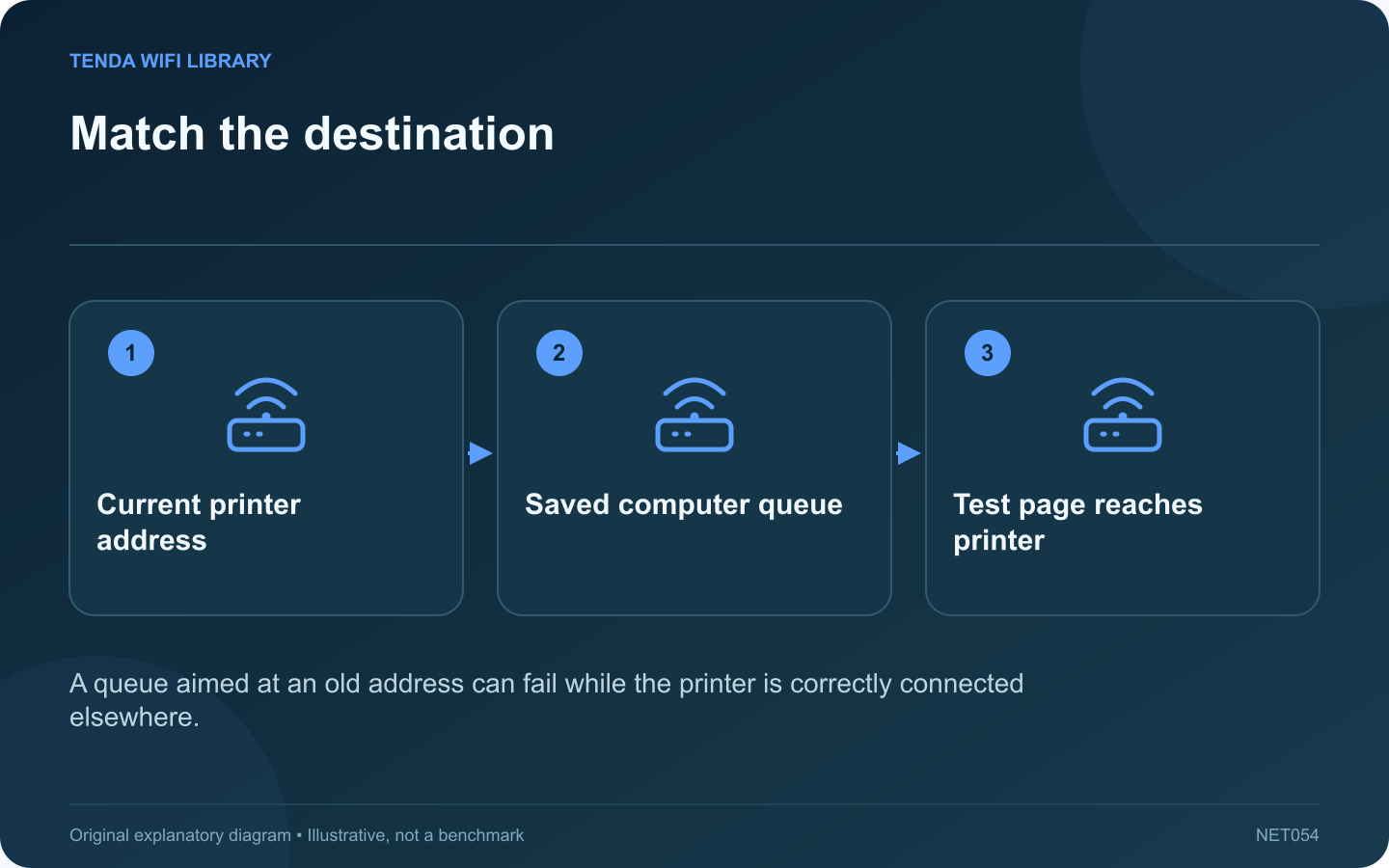
A network printer can be online and reachable while a computer keeps sending jobs to an obsolete address. This can happen after a router replacement, a changed local subnet or an addressing change. Compare the current device information with the saved destination before reinstalling unrelated software.
Find the printer’s current details
Use its supported display or network report. Confirm the address belongs to the intended printer and network. Avoid assuming that an address from an old browser bookmark is still correct.
Inspect the queue’s destination
Use the operating system’s printer settings or the manufacturer’s setup tool to review how the printer is configured. Some queues use discovery or names; others refer to a specific address. Follow the supported repair method for that queue type rather than replacing values blindly.
Perform a small correction
If the queue demonstrably points to an old address, update or recreate that destination through the normal printer workflow. Preserve any needed paper, duplex and scan settings. Print one simple page before sending a large document.
Consider address stability
When a stable address is appropriate, a supported router DHCP reservation can associate the printer’s intended network identity with a planned address. Follow the router’s own rules and avoid assigning an address that conflicts with another device.
Check what the reservation does not solve
- It does not fix a printer that cannot join Wi-Fi.
- It does not remove a paper or ink error.
- It does not authorize a user to print.
- It does not automatically repair a queue already pointing elsewhere.
Finish by documenting the printer name, connection method and intended address arrangement privately. Retest after an ordinary printer restart. The result should be a repeatable printing path, not a temporary success that depends on a stale address happening to be available again during one troubleshooting session.
Sources and editorial notes
Sources checked 8–9 October 2026. Independent guidance and original illustrations; product comparisons use published specifications rather than hands-on benchmarks. Check the exact model, revision and regional documentation before changing settings.