Independent router help & how-tosHelping you find your connection.
The guide library

Share Wi-Fi with a QR code on Windows without exposing the wrong network

Explore the guide library · Windows connection help

Treat a Wi-Fi QR code as a credential and verify the selected network before showing it to a guest.
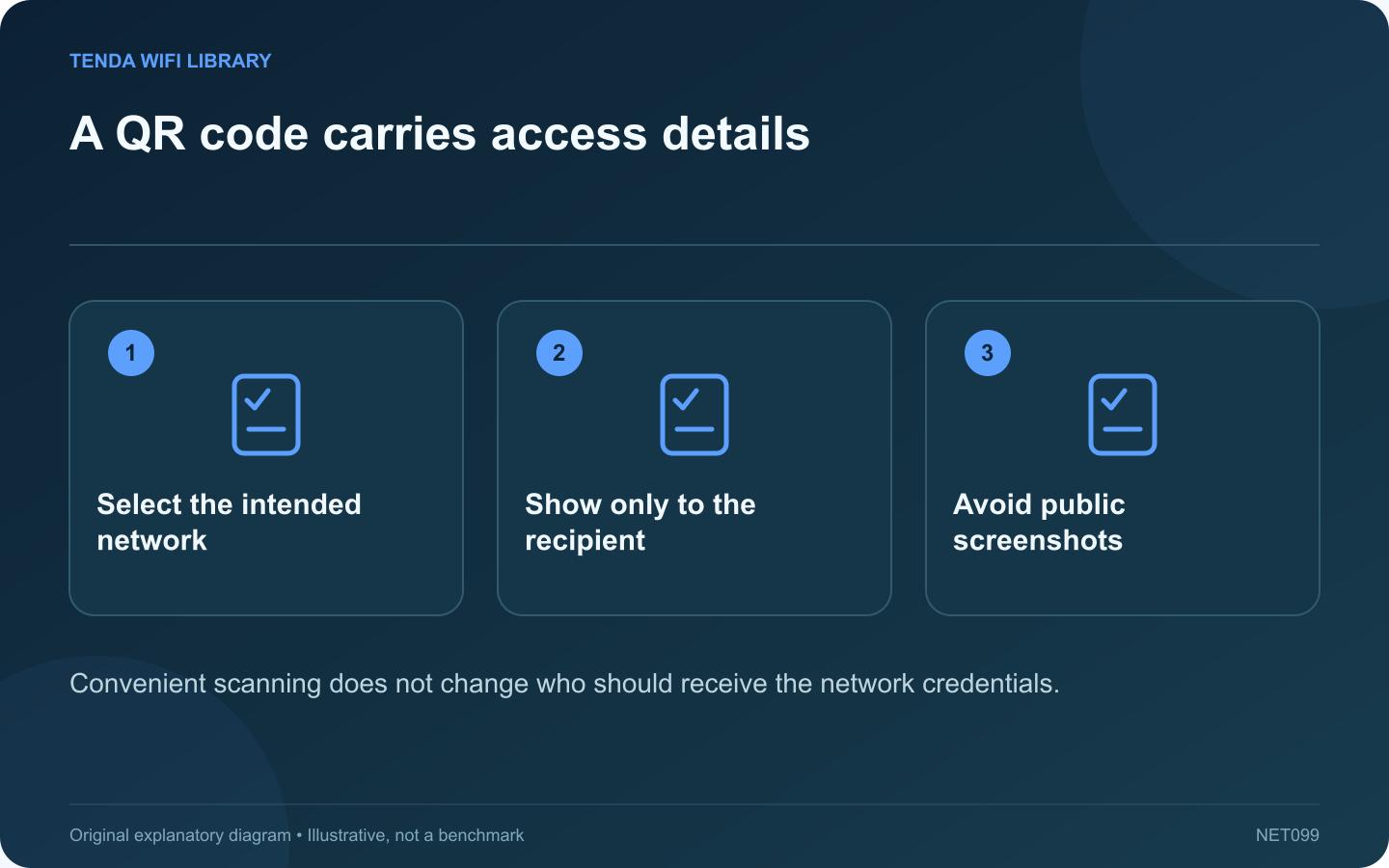
A QR code carries access details: Select the intended network; Show only to the recipient; Avoid public screenshots
Convenient scanning does not change who should receive the network credentials.

Supported Windows versions can display saved Wi-Fi connection details with a QR code for another device to scan. This is convenient, but the code grants access just as typing the password would. Verify the network and recipient before displaying it.

Select the appropriate network

If the router provides a guest network intended for visitors, share that connection rather than the household’s main credentials. Confirm its name in Windows. A laptop may remember several similarly named networks from previous homes or workplaces.

Use the built-in controls

Microsoft documents viewing a Wi-Fi network’s password through its properties and supported QR-code sharing. Available controls depend on the Windows version and device policy. Avoid uploading the password to an online QR generator merely to recreate a feature the device already provides.

Share in a controlled setting

Show the code directly to the intended person or use an approved private method. Keep it out of screen recordings, support screenshots and public posts. Anyone who obtains the connection details may be able to use them while the credentials remain valid.

Confirm the receiving connection

  1. Have the recipient scan the displayed code.
  2. Check the network name before connecting.
  3. Verify ordinary internet access.
  4. Confirm the guest network’s intended access restrictions remain in place.

A scanner opening an unexpected website is different from a normal Wi-Fi connection prompt. Review the result rather than approving it automatically.

Handle outdated codes

If the Wi-Fi password changes, previously saved or printed codes may no longer work. Replace only the copies you intentionally maintain and avoid leaving obsolete credential notices around shared spaces.

A QR code simplifies entry; it does not create a separate temporary permission by itself. Use the router’s supported guest-access features when you need a separate access policy. For a managed workplace network, follow the administrator’s sharing process instead of revealing saved credentials from a connected laptop.

Sources and editorial notes

Sources checked 8–9 October 2026. Independent guidance and original illustrations; product comparisons use published specifications rather than hands-on benchmarks. Check the exact model, revision and regional documentation before changing settings.

Related guides

300 FAQs across our guide libraries

Quick answers

100 practical questions from Tenda WiFi Library.

Browse all 100 FAQs
What should I check before sharing Wi-Fi through a Windows QR code?

Supported Windows versions can display saved Wi-Fi connection details with a QR code for another device to scan. This is convenient, but the code grants access just as typing the password would. Verify the network and recipient before displaying it. If the router provides a guest network intended for visitors, share that connection rather than the household's main credentials. Confirm its name in Windows. A laptop may remember several similarly named networks from previous homes or workplaces.

Read the full guide and sources
Why will Windows not reconnect after a Wi-Fi password change?

After a Wi-Fi password change, a laptop may keep trying the old saved connection. Confirm the new credential and the intended network name before removing a profile. If you also changed the wireless security mode, treat that as a separate compatibility question. Use an authorized device or the router's supported local interface to confirm the network details. Check capitalization and easily confused characters. Do not share the password in a public support post or screenshot.

Read the full guide and sources
How can I investigate Wi-Fi failures after Windows resumes from sleep?

A connection that fails only after sleep deserves a different investigation from Wi-Fi that is unstable all day. Record the laptop's behavior immediately after waking and compare it with a normal restart. Avoid changing the router while the failure appears tied to one client's resume cycle. Note whether the laptop was on battery or external power, whether a USB dock was connected and how long it slept. Record whether the network disappears, authentication fails or the client connects without application access.

Read the full guide and sources
What should I prepare before updating a wireless driver?

A driver update can fix a wireless problem, but a failed installation can also leave the laptop without its usual internet connection. Prepare the correct package and a recovery route before uninstalling anything. Record the laptop model, wireless-adapter model, Windows version and installed driver version. Use the computer manufacturer's support guidance first when it supplies a customized or validated driver. An adapter brand alone is not enough to choose the package.

Read the full guide and sources
Independent. Practical. Clear.

Tenda WiFi Library is an independent information website. We are not affiliated with or endorsed by Tenda. Product names belong to their respective owners.