Independent router help & how-tosHelping you find your connection.
The guide library

iPhone hotspot Maximize Compatibility: when the tradeoff is useful

Explore the guide library · Mobile data and hotspots

Help an older client join a supported iPhone hotspot while understanding the effect on band and security options.
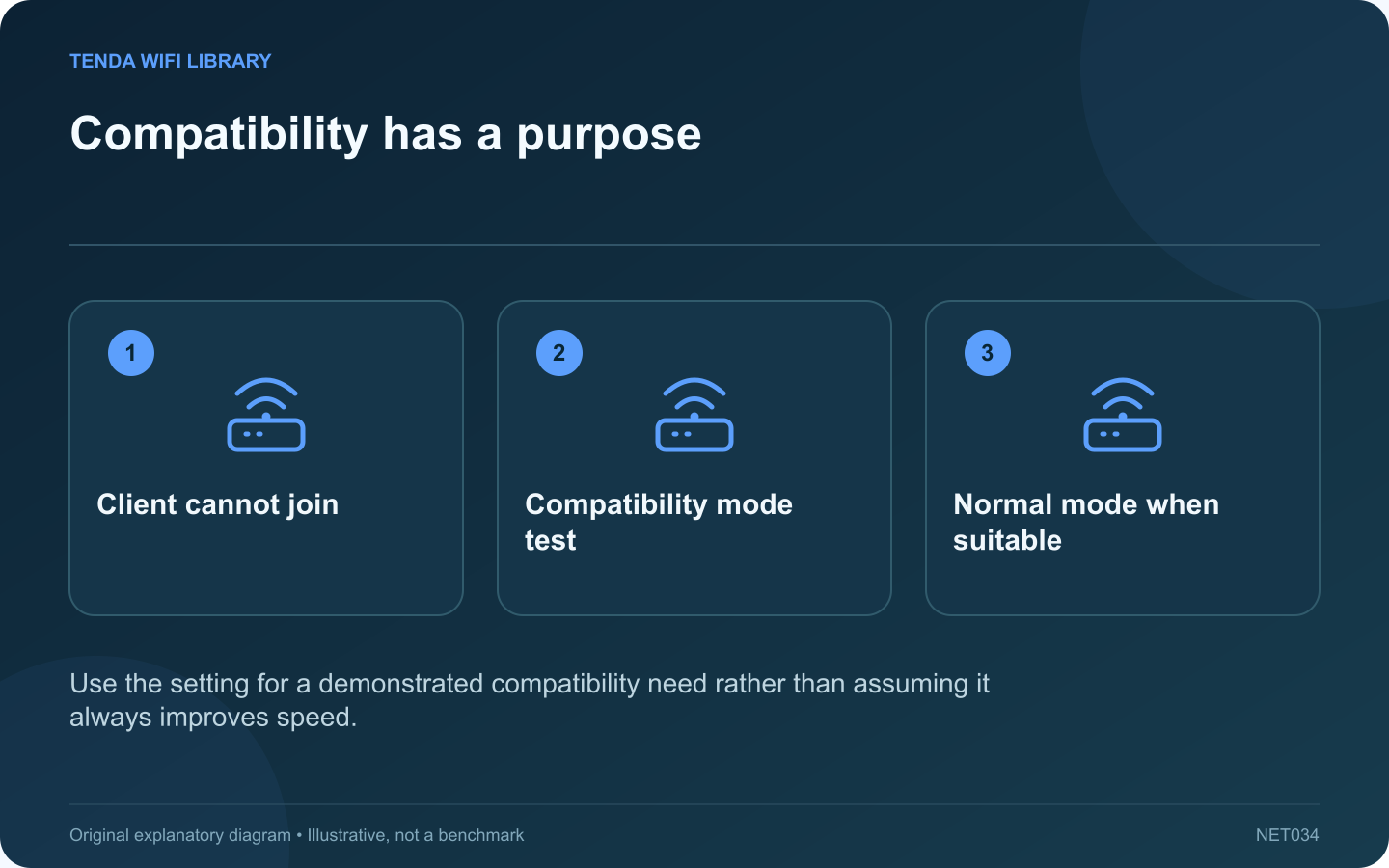
Compatibility has a purpose: Client cannot join; Compatibility mode test; Normal mode when suitable
Use the setting for a demonstrated compatibility need rather than assuming it always improves speed.

Maximize Compatibility can help certain devices connect to a supported iPhone Personal Hotspot. Its purpose is broader compatibility, not maximum performance. Before enabling it, identify whether the problem is discovering the hotspot, joining it or reaching the internet afterward.

Confirm the basic hotspot state

Check that the carrier plan supports tethering, mobile data works on the phone and the intended hotspot is available to the client. Use the current network name and password displayed by the phone. An outdated saved password needs a different correction from band incompatibility.

Understand the documented change

Apple’s platform-security guidance explains that compatibility mode restricts supported hotspot operation to 2.4 GHz and uses WPA2 Personal. Apple also warns that performance and security characteristics may be reduced compared with normal operation.

Make a narrow comparison

  1. Try the client with the ordinary supported hotspot settings.
  2. If it cannot join, enable Maximize Compatibility where the option is available.
  3. Reconnect the same client using the correct credentials.
  4. Test a small ordinary internet task.

Read the outcome carefully

If joining succeeds only in compatibility mode, investigate the client’s supported bands and security capabilities. If it joins in both modes but internet access fails in both, examine mobile service and tethering entitlement rather than repeatedly changing wireless settings.

Keep the temporary network controlled

Use a strong hotspot password and share it only with intended users. Turn the hotspot off when finished and inspect connected-device or usage information through the supported interface.

Do not leave compatibility mode enabled solely because its name sounds safer or faster. Retain it when the connected equipment requires it, and return to the normal supported mode when that need ends. For long work sessions, also account for the phone’s power, temperature and data allowance rather than treating it as an unlimited replacement for a fixed broadband connection.

Sources and editorial notes

Sources checked 8–9 October 2026. Independent guidance and original illustrations; product comparisons use published specifications rather than hands-on benchmarks. Check the exact model, revision and regional documentation before changing settings.

Related guides

300 FAQs across our guide libraries

Quick answers

100 practical questions from Tenda WiFi Library.

Browse all 100 FAQs
When is iPhone hotspot Maximize Compatibility helpful?

Maximize Compatibility can help certain devices connect to a supported iPhone Personal Hotspot. Its purpose is broader compatibility, not maximum performance. Before enabling it, identify whether the problem is discovering the hotspot, joining it or reaching the internet afterward. Check that the carrier plan supports tethering, mobile data works on the phone and the intended hotspot is available to the client. Use the current network name and password displayed by the phone. An outdated saved password needs a different correction from band incompatibility.

Read the full guide and sources
How should I prepare for a laptop session on a phone hotspot?

A phone hotspot can restore internet access quickly, but a laptop may behave as though it has returned to unlimited broadband. Before starting a long session, decide which activities are essential and how the mobile allowance will be monitored. Check the carrier's tethering allowance and any restrictions through its official account information. Google and Apple both note that hotspot availability and charges can depend on the carrier. Do not infer unlimited tethering from an unlimited-data label without reading the plan details.

Read the full guide and sources
How do I rule out cellular fallback when comparing iPhone and laptop Wi-Fi?

When a laptop cannot get online, testing a phone is a sensible first comparison. But a phone with mobile data available may reach the website through its cellular provider. That result does not establish that the home router or broadband connection is working. Check the phone's connection indicators and network settings during the test. Apple's Wi-Fi Assist can switch supported activity to cellular when Wi-Fi performs poorly. Feature names and behavior can vary with software version, so inspect the setting actually present on your device.

Read the full guide and sources
Should one laptop use Android USB tethering or a Wi-Fi hotspot?

For one laptop during a broadband outage, Android USB tethering and a Wi-Fi hotspot are two possible ways to use the phone's mobile connection. The best choice depends on the actual computer and phone, not a guarantee that one method always produces a faster internet result. Google documents USB, Bluetooth and Wi-Fi tethering on supported Android phones, with carrier restrictions possible. Its general guidance specifically notes that Mac computers cannot use Android USB tethering through that standard workflow. Check the current instructions for your exact devices.

Read the full guide and sources
Independent. Practical. Clear.

Tenda WiFi Library is an independent information website. We are not affiliated with or endorsed by Tenda. Product names belong to their respective owners.