Independent router help & how-tosHelping you find your connection.
The guide library

Apple “limited compatibility” on Wi-Fi 6E or Wi-Fi 7: inspect the network names

Explore the guide library · Apple device connections

Check how the router names its bands before treating a compatibility notice as a failed wireless adapter.
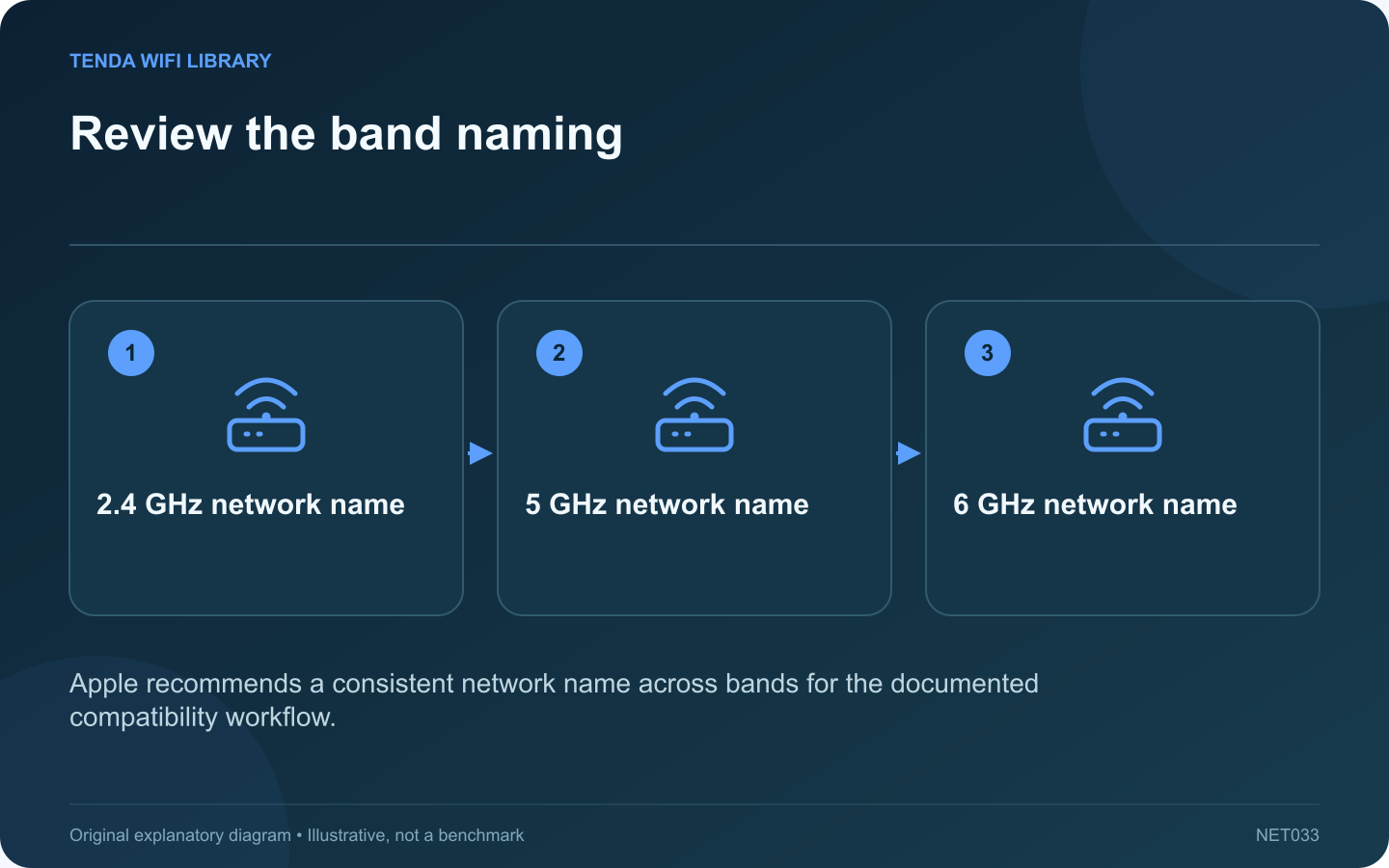
Review the band naming: 2.4 GHz network name; 5 GHz network name; 6 GHz network name
Apple recommends a consistent network name across bands for the documented compatibility workflow.

A supported Apple device can display a limited-compatibility message when joining a newer Wi-Fi network. This is different from a simple wrong-password error. Apple’s current guidance links this behavior to how the router names its 2.4, 5 and 6 GHz bands.

Confirm the client supports the feature

Check the exact device model against Apple’s current compatibility information. A recent product name does not guarantee every variant supports the same bands. Regional availability also matters, particularly for features using 6 GHz.

Inspect the router’s band names

Apple recommends one network name across the relevant bands. If the bands use separate names, the device can offer a corresponding 5 GHz network for compatibility. Record the present configuration before considering a change that will affect other household clients.

Plan any naming adjustment

  • Inventory devices with saved network profiles.
  • Check whether specialized equipment relies on a particular name.
  • Keep the intended security settings in place.
  • Make the change during a suitable maintenance window.

Use a client-specific comparison

Apple also documents a per-network Wi-Fi 6E mode setting on supported devices and networks. Turning that mode off avoids the network’s 6 GHz band for that client. Treat it as a focused compatibility comparison, not proof that 6 GHz is inherently unsuitable everywhere.

Evaluate the actual application

Retry the affected call, transfer or local-device task after one change. Compare stability in the location where the problem occurred. A connection icon alone does not establish that the original experience improved.

Do not use a different regulatory region to expose unavailable channels. Keep the router and client updated through their official support paths. The useful outcome is a compatible configuration for the actual device mix, with any remaining tradeoff documented, rather than a network designed solely to display the newest Wi-Fi label.

Sources and editorial notes

Sources checked 8–9 October 2026. Independent guidance and original illustrations; product comparisons use published specifications rather than hands-on benchmarks. Check the exact model, revision and regional documentation before changing settings.

Related guides

300 FAQs across our guide libraries

Quick answers

100 practical questions from Tenda WiFi Library.

Browse all 100 FAQs
What can an Apple limited-compatibility warning mean on Wi-Fi 6E?

A supported Apple device can display a limited-compatibility message when joining a newer Wi-Fi network. This is different from a simple wrong-password error. Apple's current guidance links this behavior to how the router names its 2.4, 5 and 6 GHz bands. Check the exact device model against Apple's current compatibility information. A recent product name does not guarantee every variant supports the same bands. Regional availability also matters, particularly for features using 6 GHz.

Read the full guide and sources
Does working AirDrop prove that internet access is working?

A successful AirDrop transfer can be reassuring when a Mac or iPhone has network trouble. However, it does not establish that the home router's internet connection is working. Nearby sharing and a web request are different tasks with different requirements. Apple's guidance calls for Wi-Fi and Bluetooth to be enabled on nearby participating devices, along with suitable receiving settings. Confirm the intended recipient and use a harmless test file. Do not broaden receiving availability indefinitely just to diagnose another network problem.

Read the full guide and sources
Why can an iPhone casting app fail to see a television?

A streaming application can play video on an iPhone yet show no television in its casting list. Internet playback and local-device discovery are separate operations. A denied Local Network permission is one possible explanation when the TV and phone are otherwise correctly connected. Confirm that the television or streaming receiver supports the casting method used by the app. A generic smart-TV label does not mean every protocol is supported. Open the receiver's relevant feature and check its connection state.

Read the full guide and sources
Could Low Data Mode pause iPhone backups or downloads?

An iPhone can browse normally while photo synchronization or automatic backups remain paused. That pattern may reflect intentional data-saving behavior. Low Data Mode can restrict background activity even when the phone is connected to Wi-Fi with a strong signal. Read the reason shown beside the paused task. Storage limits, power conditions and account issues can also affect synchronization. Do not assume every pending upload is a network fault simply because the task needs the internet.

Read the full guide and sources
Independent. Practical. Clear.

Tenda WiFi Library is an independent information website. We are not affiliated with or endorsed by Tenda. Product names belong to their respective owners.