Independent router help & how-tosHelping you find your connection.
The guide library

One Android app fails on Wi-Fi while the browser works: narrow the problem

Explore the guide library · Android network help

Compare the app, service and connection before applying a phone-wide network reset.
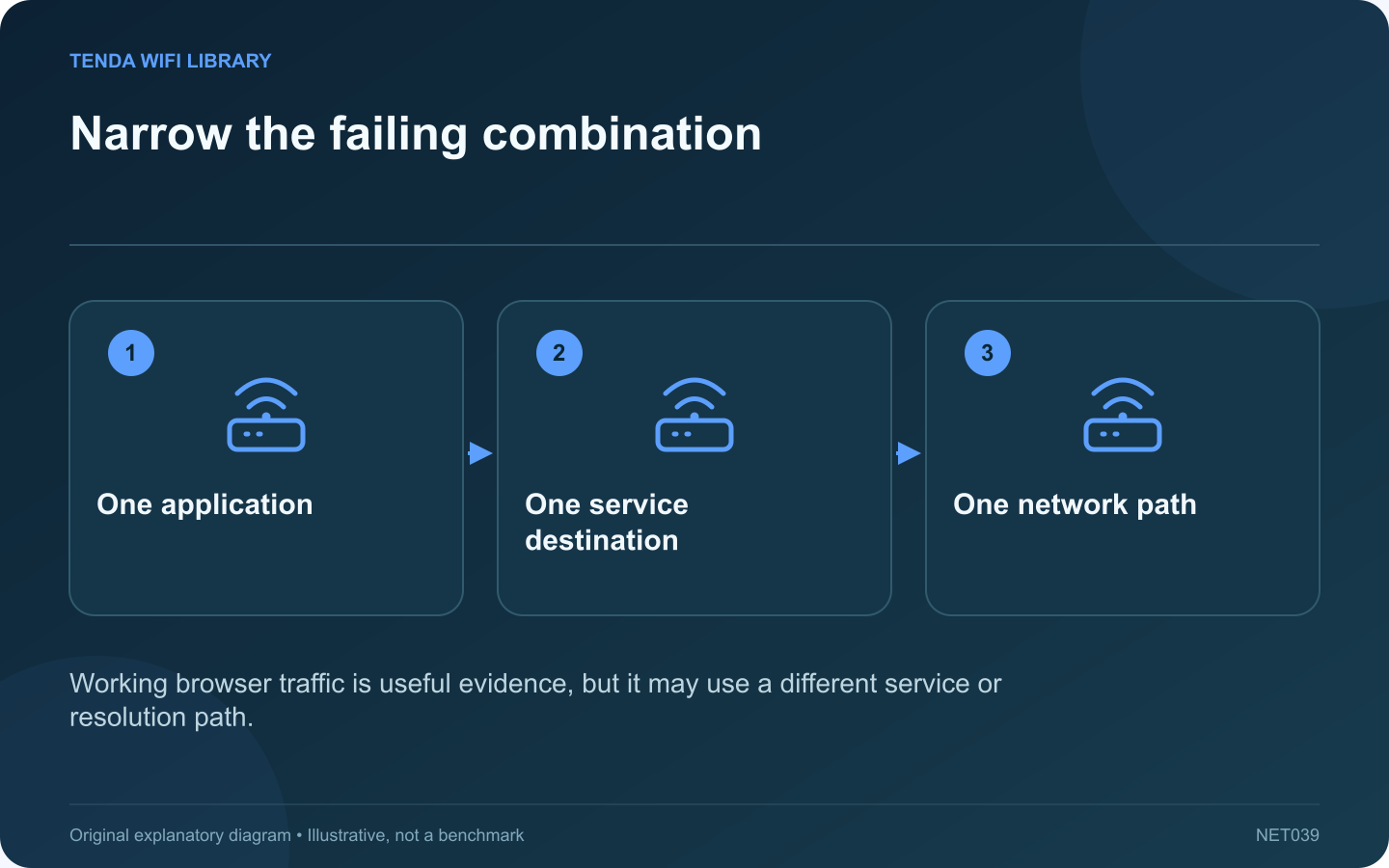
Narrow the failing combination: One application; One service destination; One network path
Working browser traffic is useful evidence, but it may use a different service or resolution path.

If only one Android app stops loading while ordinary websites work, the router is carrying at least some traffic successfully. Begin with the failing app and service combination. A whole-network reset can remove useful settings without explaining why this particular task failed.

Record the precise symptom

Distinguish a connection timeout from a sign-in failure, content restriction or service error. Check the application’s official status or support information when available. An account problem can look like a network problem if the app uses a vague loading screen.

Make a controlled path comparison

Google recommends comparing Wi-Fi and mobile data when diagnosing Android internet problems. Use a small task that fits your data plan. Keep the same account, app version and requested action so the network path is the main changed condition.

Interpret the comparison

  • The app fails on both paths: investigate the app, account or remote service.
  • The app fails only on home Wi-Fi: inspect network-specific filtering, DNS or reachability.
  • Many apps fail on Wi-Fi: broaden the investigation to the shared connection.

Check relevant settings selectively

Review any manually chosen Private DNS service, approved VPN or app-specific data restriction. Keep managed controls intact and ask the administrator about policy-related failures. Avoid disabling every protective feature simply because the application works on a different network.

Preserve useful app data

Before clearing storage or reinstalling, check what local data and sign-in state would be lost. Use the developer’s supported troubleshooting order and retain any required recovery information privately.

After a justified change, repeat the same failing action and confirm ordinary browsing still works. Record the version and time for support if the fault persists. A useful diagnosis identifies the narrow combination that fails; it does not treat a spinning app indicator as sufficient evidence that the whole router needs replacement.

Sources and editorial notes

Sources checked 8–9 October 2026. Independent guidance and original illustrations; product comparisons use published specifications rather than hands-on benchmarks. Check the exact model, revision and regional documentation before changing settings.

Related guides

300 FAQs across our guide libraries

Quick answers

100 practical questions from Tenda WiFi Library.

Browse all 100 FAQs
What if one Android app fails while websites still work?

If only one Android app stops loading while ordinary websites work, the router is carrying at least some traffic successfully. Begin with the failing app and service combination. A whole-network reset can remove useful settings without explaining why this particular task failed. Distinguish a connection timeout from a sign-in failure, content restriction or service error. Check the application's official status or support information when available. An account problem can look like a network problem if the app uses a vague loading screen.

Read the full guide and sources
What should I check when Android Private DNS cannot connect?

If an Android phone reports that a private DNS service cannot be reached, inspect the selected DNS configuration before resetting the router. A manually entered provider hostname can fail independently of the Wi-Fi radio connection. Google's Pixel guidance places Private DNS under Network & internet, with search available when menus differ. Other manufacturers may organize the controls differently. Record whether the phone uses Automatic or a specific provider hostname.

Read the full guide and sources
Why might router parental-control rules miss a Pixel phone?

A router schedule can appear ineffective when it is attached to a stale device entry. On a Pixel phone, the address used for a particular Wi-Fi network may be a randomized address rather than the hardware address shown elsewhere in device information. Google documents finding the randomized MAC address in the current network's settings. Compare that value privately with the router's active client record. Do not rely only on a generic label such as Android or an old device name.

Read the full guide and sources
Can saved website data cause a sign-in loop?

A website that loads its sign-in page repeatedly may have a browser-session or account problem rather than a Wi-Fi failure. If unrelated sites work, begin with the affected site's behavior and preserve useful browser data while investigating. Note the exact stage where the page returns to sign-in and whether an error message appears. Check the service's official support information. A rejected account, required verification or service outage cannot be repaired by changing the router's channel.

Read the full guide and sources
Independent. Practical. Clear.

Tenda WiFi Library is an independent information website. We are not affiliated with or endorsed by Tenda. Product names belong to their respective owners.