Independent router help & how-tosHelping you find your connection.
The guide library

Game stutter or network lag? Separate frame-time problems before replacing the router

Explore the guide library · Gaming connections

Compare local rendering symptoms with connection metrics so a graphics or storage issue is not mistaken for a Wi-Fi fault.
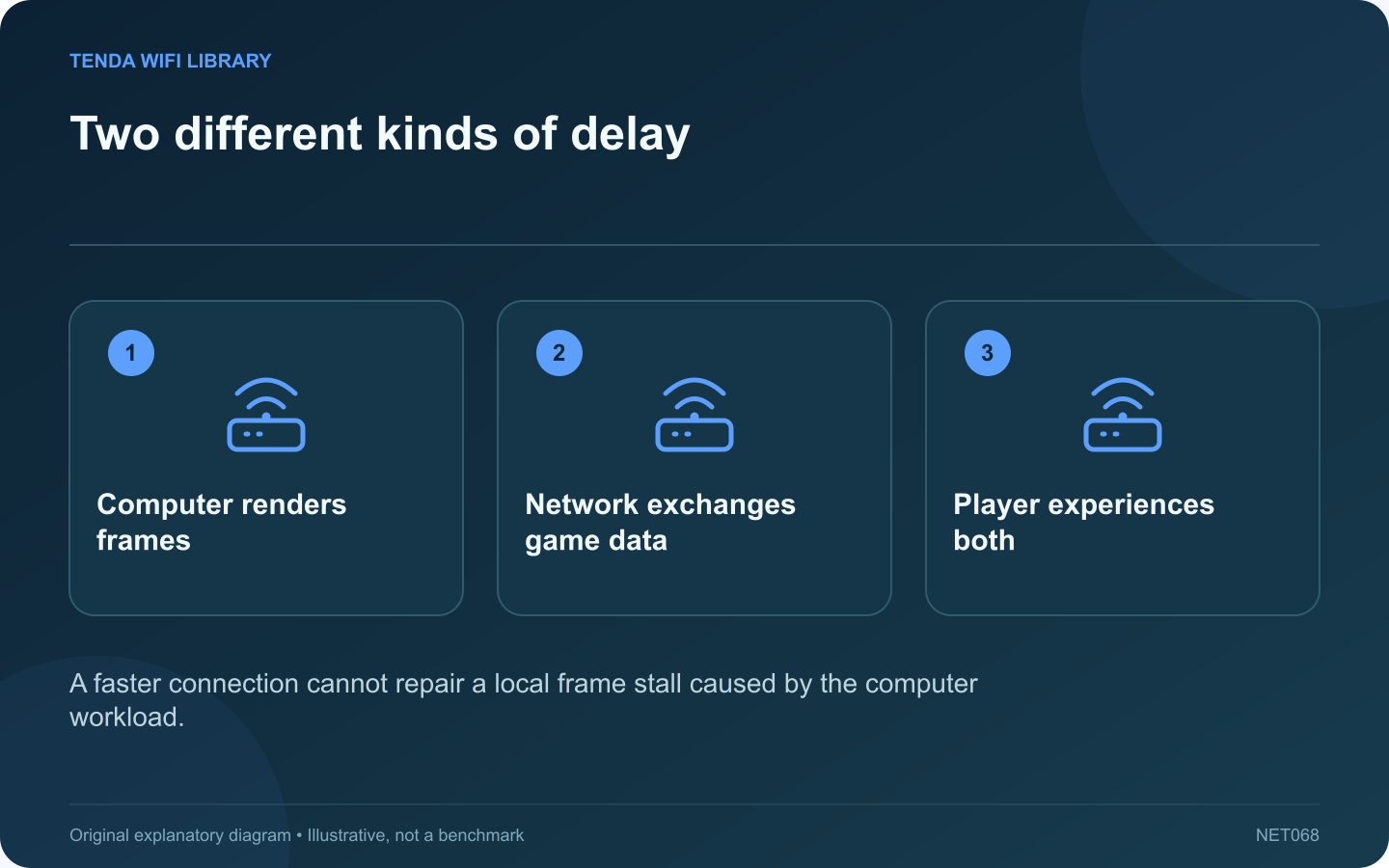
Two different kinds of delay: Computer renders frames; Network exchanges game data; Player experiences both
A faster connection cannot repair a local frame stall caused by the computer workload.

Players often use lag to describe several different problems. A delayed online action can involve the network, while a frozen frame can originate in the computer’s rendering or storage workload. Identify the symptom before buying a gaming router.

Observe an offline or local task

When the game offers a suitable offline mode, compare the same style of scene without online interaction. If similar frame stalls remain, investigate the computer and game workload. This does not rule out a second network issue, but it prevents treating every pause as packet loss.

Record frame and network information separately

Use the game’s supported performance display to observe frame behavior and its network statistics where available. Record the time of the incident. A high average frame rate can hide brief stalls, just as a good average connection delay can hide short bursts.

Check local workload

Valve’s performance guidance discusses memory and disk activity as possible sources of frame hitches. Inspect whether a download, installation or other heavy task is active. Keep protection software enabled and use supported performance troubleshooting rather than indiscriminately stopping system services.

Make a network comparison

  • Use the same game region and server type when practical.
  • Compare an appropriate wired connection with the ordinary wireless path.
  • Pause optional bulk transfers.
  • Record whether the symptom changes consistently.

Choose the repair that matches the evidence

If a wired path improves connection metrics but frame stalls persist, continue examining the local machine. If the game remains responsive locally but online actions degrade alongside loss or delay, investigate the connection path.

Do not promise that a branded gaming router will lower delay to every remote server. Distance, routing and service conditions remain relevant. The successful outcome is a reproducibly smoother game, supported by separate observations of frame timing and network behavior, rather than a purchase based on one ambiguous word.

Sources and editorial notes

Sources checked 8–9 October 2026. Independent guidance and original illustrations; product comparisons use published specifications rather than hands-on benchmarks. Check the exact model, revision and regional documentation before changing settings.

Related guides

300 FAQs across our guide libraries

Quick answers

100 practical questions from Tenda WiFi Library.

Browse all 100 FAQs
How do I separate game frame stutter from network lag?

Players often use lag to describe several different problems. A delayed online action can involve the network, while a frozen frame can originate in the computer's rendering or storage workload. Identify the symptom before buying a gaming router. When the game offers a suitable offline mode, compare the same style of scene without online interaction. If similar frame stalls remain, investigate the computer and game workload. This does not rule out a second network issue, but it prevents treating every pause as packet loss.

Read the full guide and sources
Why can wireless PC VR stutter despite fast broadband?

A fast internet plan does not automatically produce a smooth wireless PC VR session. When a supported system streams rendered content from a local PC to a headset, the local network and both devices are central parts of the experience. Confirm that you are using a supported local PC streaming mode rather than a standalone headset application or a remote cloud service. Meta's Air Link technical material describes wireless delivery of PC VR content and the effect of late frames. These are distinct from simply downloading a game.

Read the full guide and sources
What should I check before upgrading Wi-Fi for GeForce NOW?

Cloud gaming sends an interactive video stream from a remote service while returning your inputs. Planning for GeForce NOW therefore requires more than checking whether a router advertises gigabit Wi-Fi. Start with the streaming mode and supported client you intend to use. NVIDIA's current requirements vary by resolution, frame rate and platform. For example, its cited desktop guidance lists 25 Mbps for full-HD at 60 frames per second and 45 Mbps for 4K at 120 frames per second. Those are service requirements, not a guarantee that every device or membership enables each mode.

Read the full guide and sources
How can the Steam Link overlay help diagnose stutter?

Increasing Steam Link's bandwidth limit can sharpen a stream when the path has spare capacity, but it can make an unstable connection work harder. First determine whether the freeze coincides with a network-timing problem or another stage of the streaming process. Choose a familiar game section with predictable movement. Keep resolution, frame rate and host graphics settings unchanged during the first comparison. Testing a quiet menu and then a complex action scene creates a misleading before-and-after result.

Read the full guide and sources
Independent. Practical. Clear.

Tenda WiFi Library is an independent information website. We are not affiliated with or endorsed by Tenda. Product names belong to their respective owners.