Independent router help & how-tosHelping you find your connection.
The guide library

Steam Link stutters: use the performance overlay before raising bandwidth

Explore the guide library · Gaming connection help

Compare network timing with the visible freeze and test a sustainable streaming rate.
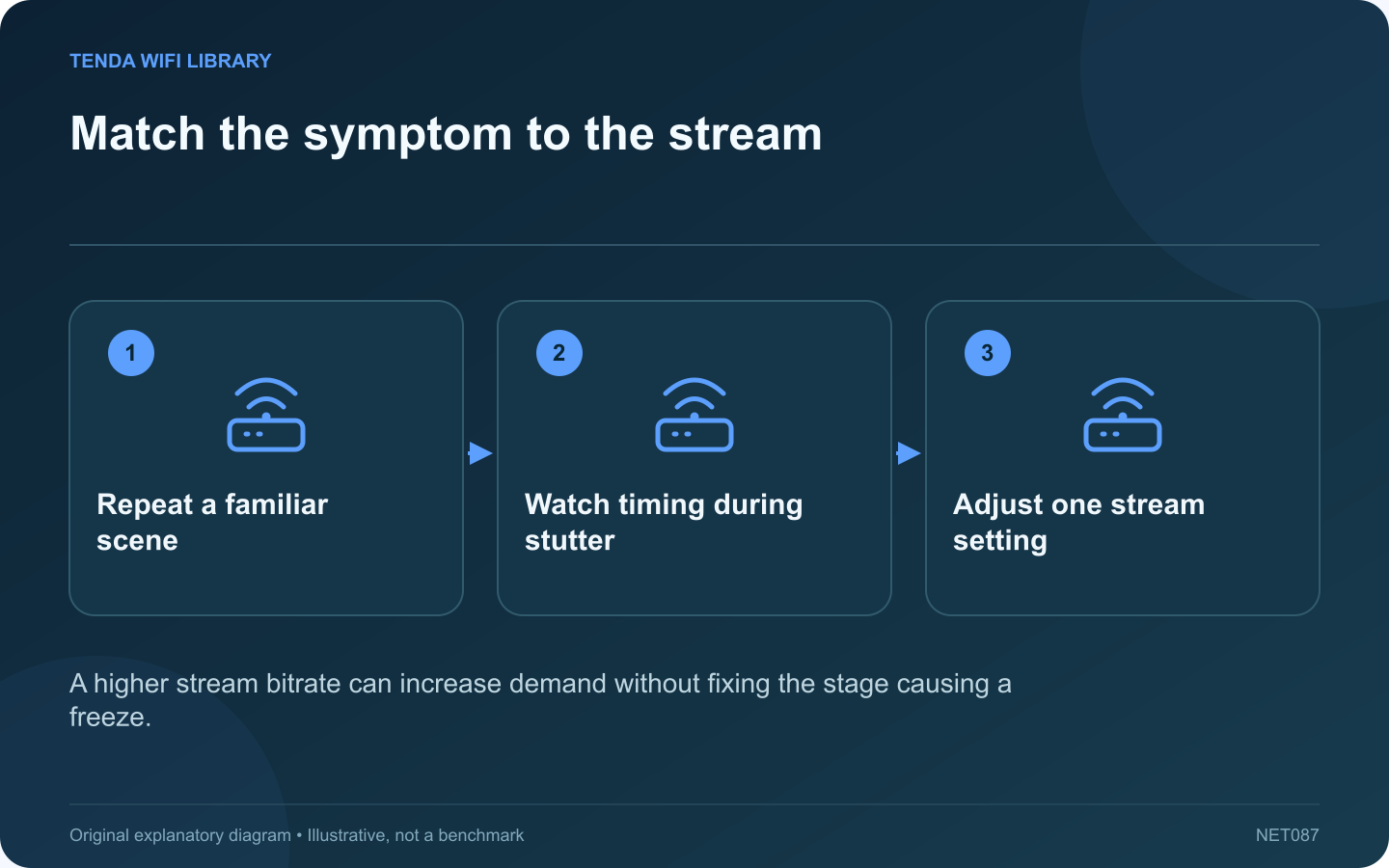
Match the symptom to the stream: Repeat a familiar scene; Watch timing during stutter; Adjust one stream setting
A higher stream bitrate can increase demand without fixing the stage causing a freeze.

Increasing Steam Link’s bandwidth limit can sharpen a stream when the path has spare capacity, but it can make an unstable connection work harder. First determine whether the freeze coincides with a network-timing problem or another stage of the streaming process.

Use a repeatable scene

Choose a familiar game section with predictable movement. Keep resolution, frame rate and host graphics settings unchanged during the first comparison. Testing a quiet menu and then a complex action scene creates a misleading before-and-after result.

Open the supported performance overlay

Valve documents the streaming performance overlay as a way to investigate network variation. Use the controls available in your current client version; labels and shortcuts can differ from older Steam Link hardware instructions. Record the timing of the symptom rather than relying on a single average.

Examine the physical path

If both the gaming PC and streaming client use Wi-Fi, the video crosses wireless links at both ends. A temporary wired connection for one end can test whether that arrangement is contributing to the problem. Keep the other end unchanged so the result remains interpretable.

Adjust demand gradually

  1. Note the original streaming settings.
  2. Choose a lower supported bandwidth or quality setting.
  3. Repeat the same scene.
  4. Increase cautiously only while the stream remains stable.

Do not change game rendering quality and streaming bandwidth simultaneously; that would obscure whether encoding load or network demand improved.

Judge the whole session

Try several minutes of normal play, including the busy household period when the issue usually appears. A setting that survives a short quiet test may still fail alongside a large upload.

If network timing stays steady while stutter remains, investigate host rendering, encoding and client decoding next. Keep required security tools active and use vendor troubleshooting for conflicts. The aim is stable control and readable motion, not the largest bandwidth value that the settings panel accepts.

Sources and editorial notes

Sources checked 8–9 October 2026. Independent guidance and original illustrations; product comparisons use published specifications rather than hands-on benchmarks. Check the exact model, revision and regional documentation before changing settings.

Related guides

300 FAQs across our guide libraries

Quick answers

100 practical questions from Tenda WiFi Library.

Browse all 100 FAQs
How can the Steam Link overlay help diagnose stutter?

Increasing Steam Link's bandwidth limit can sharpen a stream when the path has spare capacity, but it can make an unstable connection work harder. First determine whether the freeze coincides with a network-timing problem or another stage of the streaming process. Choose a familiar game section with predictable movement. Keep resolution, frame rate and host graphics settings unchanged during the first comparison. Testing a quiet menu and then a complex action scene creates a misleading before-and-after result.

Read the full guide and sources
Why might PlayStation Remote Play work at home but fail elsewhere?

Remote Play working on the sofa is a useful starting point, but it does not prove that the same console can be reached from a hotel or mobile network. The away-from-home session adds another internet connection and potentially restrictive network translation. Follow PlayStation's current setup guidance for Remote Play, account sign-in and connectivity in rest mode. Test the intended arrangement before leaving home. A powered-off or disconnected console cannot be repaired by changing settings on the remote phone.

Read the full guide and sources
How do local Remote Play and cloud gaming use different paths?

Game streaming can describe a PC sending video across your home, a console reached while travelling, or a cloud service rendering the game elsewhere. These arrangements may look similar on a handheld screen but depend on different network paths. A fast internet download does not measure the wireless path between a home PC and a television. Equally, a smooth local stream does not prove that the provider's route to a cloud-gaming region has suitable latency.

Read the full guide and sources
When does a laptop benefit from 2.5G rather than Gigabit Ethernet?

A laptop's Gigabit Ethernet connection may already handle video calls, browsing and a modest internet plan comfortably. Moving to 2.5G is most compelling when a frequent transfer actually runs into the existing wired link's capacity. Choose a real job such as copying a video project to a NAS. Record its size and elapsed time with the existing adapter. Keep the same files and destination for the comparison. A synthetic speed result matters less than whether the daily task finishes sooner.

Read the full guide and sources
Independent. Practical. Clear.

Tenda WiFi Library is an independent information website. We are not affiliated with or endorsed by Tenda. Product names belong to their respective owners.