Independent router help & how-tosHelping you find your connection.
The guide library

Archer TBE400UH MLO missing: check the hardware revision, driver and Windows build

Explore the guide library · Wi-Fi 7 client help

Verify the complete supported setup before assuming that a Wi-Fi 7 USB adapter is defective.
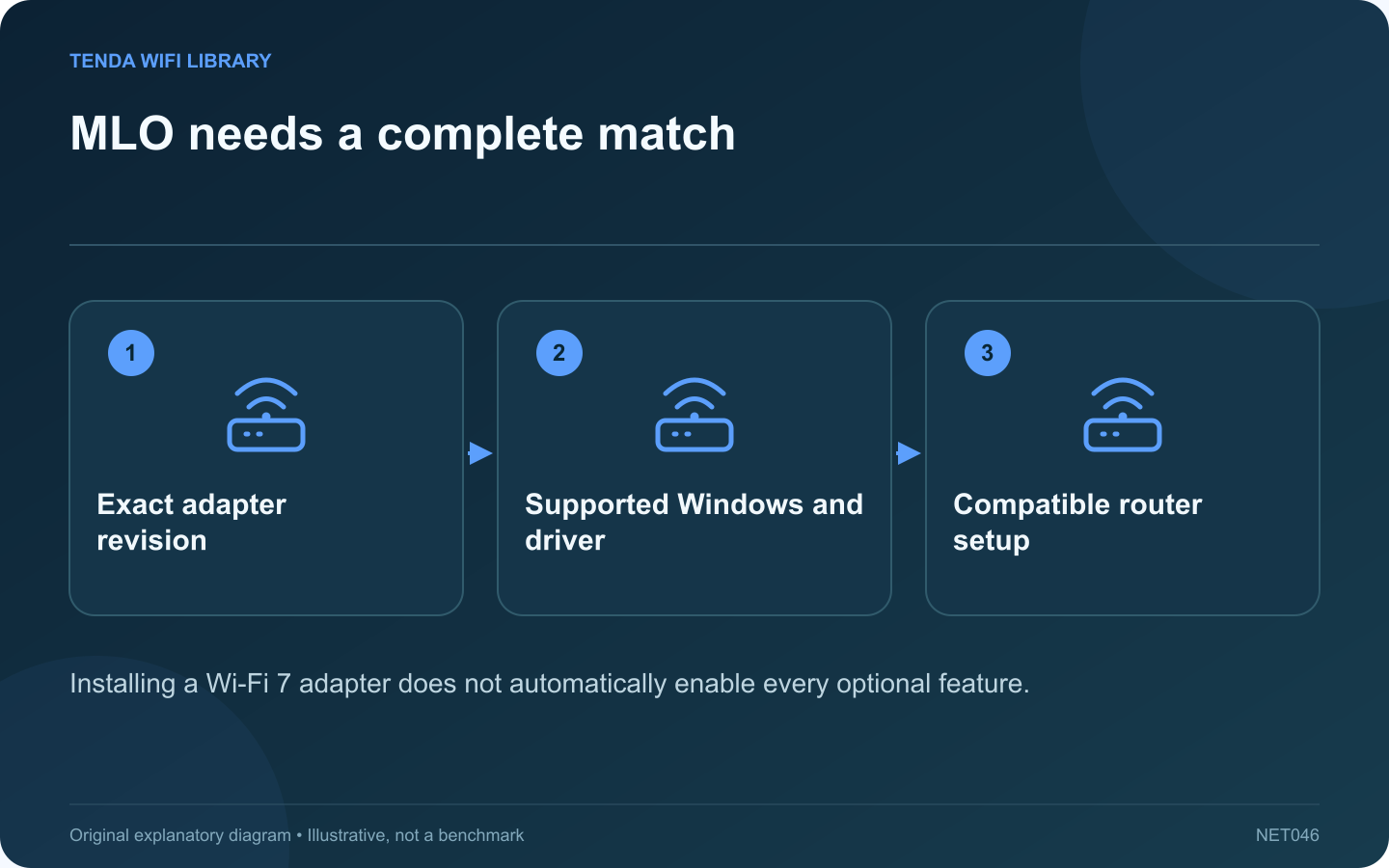
MLO needs a complete match: Exact adapter revision; Supported Windows and driver; Compatible router setup
Installing a Wi-Fi 7 adapter does not automatically enable every optional feature.

The Archer TBE400UH can provide an ordinary wireless connection while a newer capability such as Multi-Link Operation is unavailable. A working adapter and an active MLO connection are different milestones. Check the exact support conditions before replacing the hardware.

Identify the revision you own

Read the product label and use TP-Link’s corresponding regional support page. Hardware-version availability differs by region. Do not install a package chosen only because its filename contains a similar model number.

Compare the installed driver

The cited TBE400UH support page includes driver notes describing MLO support and a Windows 11 24H2-or-later requirement. Check the current stable release for your revision. An older package bundled with the adapter may not represent the feature support described by a later release.

Verify the router side

The router must support and expose the corresponding function under a compatible configuration. Record its model, firmware and network settings. A newer Wi-Fi label alone does not establish that the specific client and router combination uses the expected mode.

Avoid a speed-test shortcut

A higher download result is not proof that MLO became active. Compare the connection information exposed by the supported operating system or vendor tools, and then test the actual application. Internet service limits can conceal changes in the local wireless link.

Build a useful support record

  • Adapter model and hardware revision.
  • Windows version and build.
  • Installed driver version.
  • Router model and firmware.
  • Observed connection mode and reproducible symptom.

Keep serial numbers and private network details out of public screenshots. Use beta software only when there is a deliberate test reason and a recovery plan; a stable supported package is the normal starting point. If the combination remains unsupported, retain a reliable ordinary connection while seeking vendor guidance rather than changing unrelated router security settings.

Sources and editorial notes

Sources checked 8–9 October 2026. Independent guidance and original illustrations; product comparisons use published specifications rather than hands-on benchmarks. Check the exact model, revision and regional documentation before changing settings.

Related guides

300 FAQs across our guide libraries

Quick answers

100 practical questions from Tenda WiFi Library.

Browse all 100 FAQs
What should I check when Archer TBE400UH MLO is missing?

The Archer TBE400UH can provide an ordinary wireless connection while a newer capability such as Multi-Link Operation is unavailable. A working adapter and an active MLO connection are different milestones. Check the exact support conditions before replacing the hardware. Read the product label and use TP-Link's corresponding regional support page. Hardware-version availability differs by region. Do not install a package chosen only because its filename contains a similar model number.

Read the full guide and sources
How can I verify a Windows computer’s Wi-Fi 7 support?

Before buying a Wi-Fi 7 router for one computer, verify that computer's usable wireless support. A laptop advertisement may describe a product family with several adapter options, while an operating-system upgrade alone does not change the installed radio hardware. Use Device Manager or the computer's system information to record the installed wireless model. Compare it with the exact machine's support information. Do not rely only on the model advertised for a higher-priced configuration of the same laptop.

Read the full guide and sources
How should I choose between Archer TBE550E and TXE75E?

The Archer TBE550E and TXE75E target desktop wireless upgrades, but they suit different feature plans. The TBE550E adds Wi-Fi 7 capabilities; the TXE75E is a Wi-Fi 6E option. Neither should be selected only by adding the advertised rates across all bands. Use the regional support page for the hardware version being sold. Driver support and bundled Bluetooth details can vary across revisions. The current TBE550E US page specifies Windows 11; confirm the actual operating-system requirements before ordering either product.

Read the full guide and sources
What if the Wi-Fi adapter is missing from Device Manager?

If Windows does not show the wireless adapter, investigate the laptop's hardware and driver state before changing router settings. A router can broadcast normally while a particular computer has no usable wireless interface. Open Device Manager and inspect the network-adapter category. Note any warning, unknown device or disabled entry. Record the exact status message if one is available. Microsoft distinguishes an adapter that Windows does not detect from a network that merely fails to connect.

Read the full guide and sources
Independent. Practical. Clear.

Tenda WiFi Library is an independent information website. We are not affiliated with or endorsed by Tenda. Product names belong to their respective owners.