Independent router help & how-tosHelping you find your connection.
The guide library

How to verify Wi-Fi 7 support on a Windows PC before buying a router

Explore the guide library · Wi-Fi 7 client help

Check the operating system, adapter and driver so a new router purchase matches capabilities the computer can actually use.
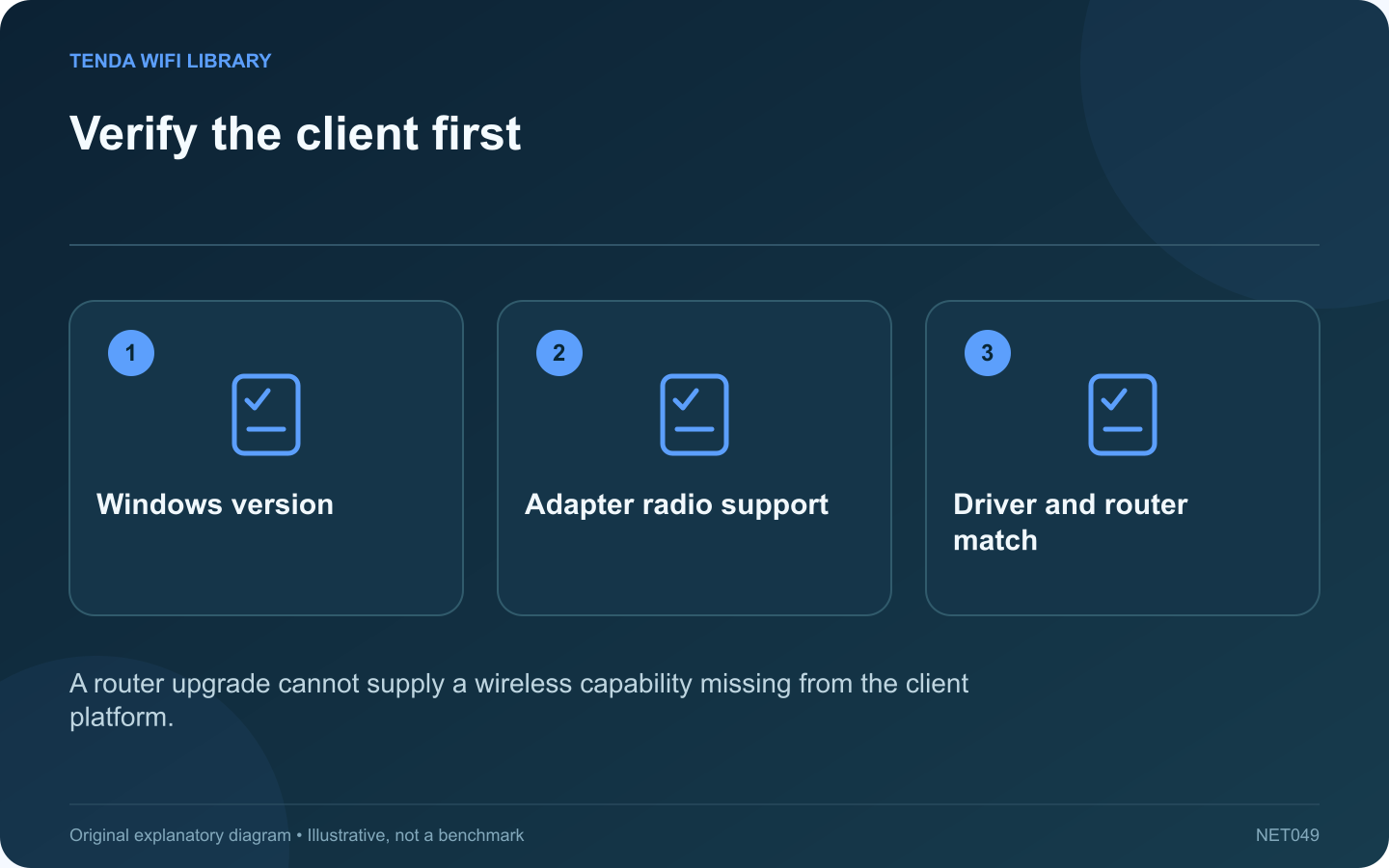
Verify the client first: Windows version; Adapter radio support; Driver and router match
A router upgrade cannot supply a wireless capability missing from the client platform.

Before buying a Wi-Fi 7 router for one computer, verify that computer’s usable wireless support. A laptop advertisement may describe a product family with several adapter options, while an operating-system upgrade alone does not change the installed radio hardware.

Identify the actual adapter

Use Device Manager or the computer’s system information to record the installed wireless model. Compare it with the exact machine’s support information. Do not rely only on the model advertised for a higher-priced configuration of the same laptop.

Check the operating system

Microsoft documents Wi-Fi 7 availability beginning with Windows 11 version 24H2. Check your installed version and the computer manufacturer’s supported update path. Keep the system’s normal security and management requirements in place.

Inspect reported radio support

Microsoft recommends netsh wlan show drivers as one way to view supported radio types. Look for the relevant 802.11be entry and compare it with official adapter documentation. The report reflects the installed driver and platform, so save its version alongside the result.

Distinguish capability from connection

An adapter capable of Wi-Fi 7 can still connect to an older router using a shared supported mode. Conversely, joining a router whose product name includes Wi-Fi 7 does not prove that the connection uses every newer feature.

Make the purchase conditional

  • Identify the application that needs improvement.
  • Verify the client’s supported bands and features.
  • Check matching router capabilities and regional availability.
  • Confirm the existing network is the actual bottleneck.

If the client lacks the required support, compare the total cost of an appropriate adapter and router with a wired solution or retaining the current setup. These checks turn a vague generation upgrade into a specific compatibility decision. Validate the final system with the real workload, not simply the presence of a newer label in a settings panel.

Sources and editorial notes

Sources checked 8–9 October 2026. Independent guidance and original illustrations; product comparisons use published specifications rather than hands-on benchmarks. Check the exact model, revision and regional documentation before changing settings.

Related guides

300 FAQs across our guide libraries

Quick answers

100 practical questions from Tenda WiFi Library.

Browse all 100 FAQs
How can I verify a Windows computer’s Wi-Fi 7 support?

Before buying a Wi-Fi 7 router for one computer, verify that computer's usable wireless support. A laptop advertisement may describe a product family with several adapter options, while an operating-system upgrade alone does not change the installed radio hardware. Use Device Manager or the computer's system information to record the installed wireless model. Compare it with the exact machine's support information. Do not rely only on the model advertised for a higher-priced configuration of the same laptop.

Read the full guide and sources
What should I check when Archer TBE400UH MLO is missing?

The Archer TBE400UH can provide an ordinary wireless connection while a newer capability such as Multi-Link Operation is unavailable. A working adapter and an active MLO connection are different milestones. Check the exact support conditions before replacing the hardware. Read the product label and use TP-Link's corresponding regional support page. Hardware-version availability differs by region. Do not install a package chosen only because its filename contains a similar model number.

Read the full guide and sources
What should I verify before buying a Wi-Fi adapter for Linux?

For Linux, a Wi-Fi adapter's retail speed class is only part of the purchase decision. The exact chipset, available driver and firmware package determine whether the distribution can use it reliably. A Windows driver download does not establish Linux support. Record the chipset and product revision, not only the marketing name. Different revisions can use different components. For an internal module, also confirm the laptop's electrical interface and manufacturer support; matching the physical socket is insufficient.

Read the full guide and sources
What should I check before sharing Wi-Fi through a Windows QR code?

Supported Windows versions can display saved Wi-Fi connection details with a QR code for another device to scan. This is convenient, but the code grants access just as typing the password would. Verify the network and recipient before displaying it. If the router provides a guest network intended for visitors, share that connection rather than the household's main credentials. Confirm its name in Windows. A laptop may remember several similarly named networks from previous homes or workplaces.

Read the full guide and sources
Independent. Practical. Clear.

Tenda WiFi Library is an independent information website. We are not affiliated with or endorsed by Tenda. Product names belong to their respective owners.