Independent router help & how-tosHelping you find your connection.
The guide library

Ethernet stuck at 100 Mbps: inspect the negotiated link before the speed test

Explore the guide library · Wired connection help

Trace the laptop, adapter, cable and switch port to find the component limiting the local connection.
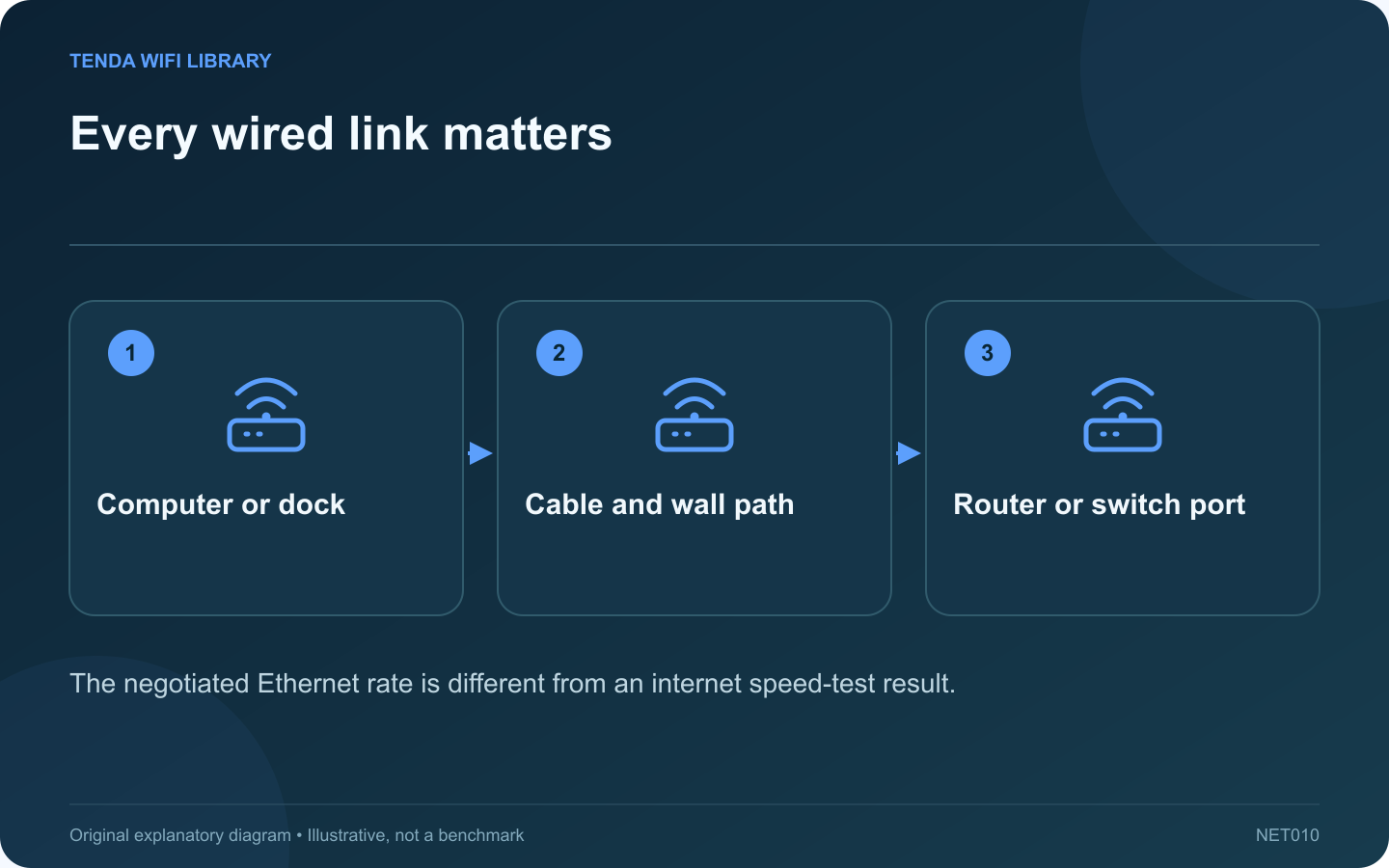
Every wired link matters: Computer or dock; Cable and wall path; Router or switch port
The negotiated Ethernet rate is different from an internet speed-test result.

If Windows reports a 100 Mbps Ethernet connection when you expect gigabit or faster, inspect the local wired path first. An internet speed test cannot make that local link negotiate at a higher rate.

Record the actual interface

Identify whether Ethernet comes from the computer, a USB adapter or a dock. Check its documented rate and the far-end router or switch port. Some equipment has mixed-rate interfaces, so the fastest specification on the box may not describe the socket in use.

Map the complete path

List the patch cable, wall socket, in-wall run, intermediate switch and final port. A fault or limitation anywhere along the relevant link can affect negotiation. Microsoft’s Ethernet troubleshooting guidance starts with checking the connection and comparing another cable or device.

Use a short isolation test

  1. Connect the computer directly to a known-compatible port using a known-good short cable.
  2. Inspect the negotiated rate again.
  3. If it improves, reintroduce the original path one component at a time.
  4. If it does not, compare the adapter and far-end port with another compatible device.

Avoid forcing a rate prematurely

Leave normal supported negotiation settings in place unless the manufacturer or administrator identifies a specific requirement. Forcing a speed can hide a cabling problem or produce an incompatible duplex arrangement.

Test performance after the link is correct

Once the expected local rate appears, test a suitable local transfer or internet connection according to the actual goal. Storage, USB bandwidth, service capacity and other traffic can still limit throughput below the negotiated rate.

Label the cable or port that failed the comparison and replace or repair it appropriately. A clear component test is more useful than buying a new router because one desk connection remained at an older Ethernet rate.

Sources and editorial notes

Sources checked 8–9 October 2026. Independent guidance and original illustrations; product comparisons use published specifications rather than hands-on benchmarks. Check the exact model, revision and regional documentation before changing settings.

Related guides

300 FAQs across our guide libraries

Quick answers

100 practical questions from Tenda WiFi Library.

Browse all 100 FAQs
Why does an Ethernet connection negotiate only 100 Mbps?

If Windows reports a 100 Mbps Ethernet connection when you expect gigabit or faster, inspect the local wired path first. An internet speed test cannot make that local link negotiate at a higher rate. Identify whether Ethernet comes from the computer, a USB adapter or a dock. Check its documented rate and the far-end router or switch port. Some equipment has mixed-rate interfaces, so the fastest specification on the box may not describe the socket in use.

Read the full guide and sources
What should I check if USB Ethernet is missing on a Mac?

A USB-C dock can charge a Mac while its Ethernet connection remains absent. Power delivery and data access are different functions. If the network service never appears, begin with accessory detection and approval before entering manual IP addresses. Record the dock or adapter model, cable and Mac model. Confirm that the accessory supports the installed macOS version and the intended port. A connector that physically fits does not guarantee every feature or cable capability is suitable.

Read the full guide and sources
Why might Wake on LAN work from sleep but not shutdown?

Wake on LAN can work from sleep and fail after shutdown without the router being faulty. The computer's firmware, operating system and adapter must support waking from the particular power state being tested. Record whether the computer entered sleep, hibernation, a normal shutdown or another manufacturer-defined standby mode. A dark screen is not enough to distinguish them. Microsoft documents different system power states and their Wake on LAN behavior.

Read the full guide and sources
Can a replacement USB-C cable slow a dock’s Ethernet connection?

A longer USB-C cable can make a desk neater while quietly changing a docking station's behavior. If Ethernet slows or disappears immediately after a cable replacement, investigate the laptop-to-dock connection before replacing the network cable. Save active work and reconnect the original manufacturer-supplied host cable. Use the same laptop port and Ethernet connection. If normal behavior returns, the replacement host cable becomes a strong suspect, although the result alone does not identify its exact electrical limitation.

Read the full guide and sources
Independent. Practical. Clear.

Tenda WiFi Library is an independent information website. We are not affiliated with or endorsed by Tenda. Product names belong to their respective owners.