Independent router help & how-tosHelping you find your connection.
The guide library

Wake on LAN works from sleep but not shutdown: check the supported power state

Explore the guide library · Wired connection help

A sleeping computer and a fully shut-down computer can leave the network adapter in different states.
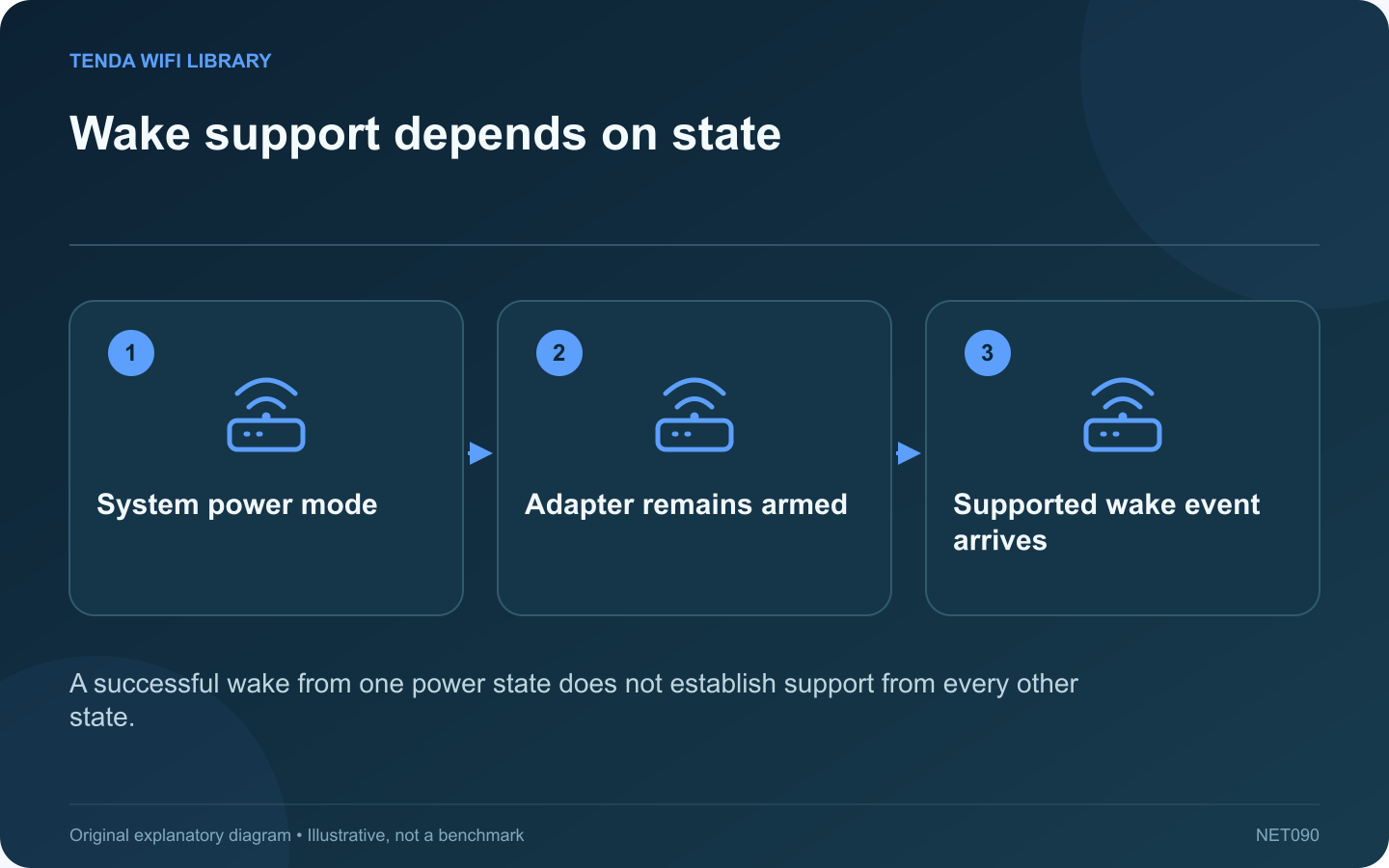
Wake support depends on state: System power mode; Adapter remains armed; Supported wake event arrives
A successful wake from one power state does not establish support from every other state.

Wake on LAN can work from sleep and fail after shutdown without the router being faulty. The computer’s firmware, operating system and adapter must support waking from the particular power state being tested.

Name the state precisely

Record whether the computer entered sleep, hibernation, a normal shutdown or another manufacturer-defined standby mode. A dark screen is not enough to distinguish them. Microsoft documents different system power states and their Wake on LAN behavior.

Check the computer manufacturer’s guidance

Use instructions for the exact desktop, motherboard or laptop. Supported behavior can differ between built-in Ethernet and a USB docking adapter. The adapter must retain the necessary power and wake capability while the rest of the system is inactive.

Keep modern standby separate

Microsoft cautions against enabling legacy S3 Wake on LAN settings on Modern Standby systems. Do not copy an older desktop procedure into a current laptop’s power configuration without verifying that it applies.

Run a local test first

  1. Verify ordinary connectivity while the target is awake.
  2. Enter a documented supported low-power state.
  3. Send the supported wake request from your own LAN.
  4. Record whether the system wakes and becomes usable.

Testing across the internet introduces routing and access-control questions that can conceal a basic endpoint limitation. Establish the local behavior before investigating any remote-access arrangement.

Keep the purpose narrow

Use wake features only for devices you administer and follow the owner’s power-management policy. Avoid broad inbound port exposure merely to make a remote wake utility function.

If sleep wake works but shutdown wake is unsupported, use a documented supported state or another manufacturer-supported management option. Repeatedly replacing Ethernet cables will not create a firmware capability the system lacks. Save the working combination of power state, adapter and connection so future troubleshooting starts from a known supported arrangement rather than an ambiguous “computer off” description.

Sources and editorial notes

Sources checked 8–9 October 2026. Independent guidance and original illustrations; product comparisons use published specifications rather than hands-on benchmarks. Check the exact model, revision and regional documentation before changing settings.

Related guides

300 FAQs across our guide libraries

Quick answers

100 practical questions from Tenda WiFi Library.

Browse all 100 FAQs
Why might Wake on LAN work from sleep but not shutdown?

Wake on LAN can work from sleep and fail after shutdown without the router being faulty. The computer's firmware, operating system and adapter must support waking from the particular power state being tested. Record whether the computer entered sleep, hibernation, a normal shutdown or another manufacturer-defined standby mode. A dark screen is not enough to distinguish them. Microsoft documents different system power states and their Wake on LAN behavior.

Read the full guide and sources
What should I check if USB Ethernet is missing on a Mac?

A USB-C dock can charge a Mac while its Ethernet connection remains absent. Power delivery and data access are different functions. If the network service never appears, begin with accessory detection and approval before entering manual IP addresses. Record the dock or adapter model, cable and Mac model. Confirm that the accessory supports the installed macOS version and the intended port. A connector that physically fits does not guarantee every feature or cable capability is suitable.

Read the full guide and sources
Why does an Ethernet connection negotiate only 100 Mbps?

If Windows reports a 100 Mbps Ethernet connection when you expect gigabit or faster, inspect the local wired path first. An internet speed test cannot make that local link negotiate at a higher rate. Identify whether Ethernet comes from the computer, a USB adapter or a dock. Check its documented rate and the far-end router or switch port. Some equipment has mixed-rate interfaces, so the fastest specification on the box may not describe the socket in use.

Read the full guide and sources
Can a replacement USB-C cable slow a dock’s Ethernet connection?

A longer USB-C cable can make a desk neater while quietly changing a docking station's behavior. If Ethernet slows or disappears immediately after a cable replacement, investigate the laptop-to-dock connection before replacing the network cable. Save active work and reconnect the original manufacturer-supplied host cable. Use the same laptop port and Ethernet connection. If normal behavior returns, the replacement host cable becomes a strong suspect, although the result alone does not identify its exact electrical limitation.

Read the full guide and sources
Independent. Practical. Clear.

Tenda WiFi Library is an independent information website. We are not affiliated with or endorsed by Tenda. Product names belong to their respective owners.