Independent router help & how-tosHelping you find your connection.
The guide library

PlayStation Remote Play works at home but fails away: compare both ends

Explore the guide library · Gaming connection help

Check console readiness, the remote connection and NAT restrictions separately before changing the router.
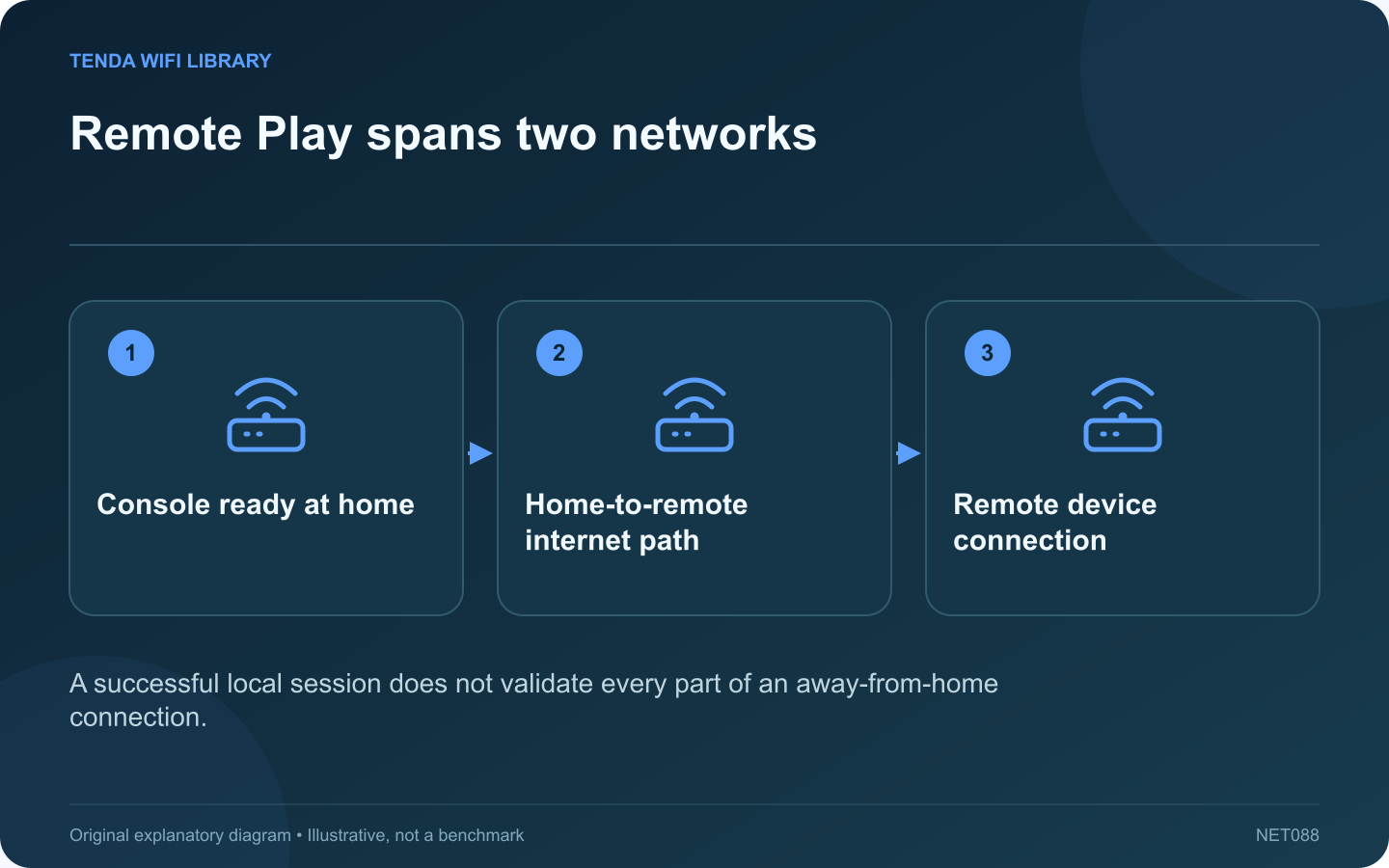
Remote Play spans two networks: Console ready at home; Home-to-remote internet path; Remote device connection
A successful local session does not validate every part of an away-from-home connection.

Remote Play working on the sofa is a useful starting point, but it does not prove that the same console can be reached from a hotel or mobile network. The away-from-home session adds another internet connection and potentially restrictive network translation.

Confirm the home console is ready

Follow PlayStation’s current setup guidance for Remote Play, account sign-in and connectivity in rest mode. Test the intended arrangement before leaving home. A powered-off or disconnected console cannot be repaired by changing settings on the remote phone.

Separate connection from performance

Record whether the app cannot sign in, cannot find the console, or connects with poor video. These are different failure stages. Check PlayStation’s service status when account sign-in itself fails.

Measure both directions

The home connection must send the stream while the remote connection receives it. Sony currently lists 5 Mbps in both directions as a minimum and recommends at least 15 Mbps for better performance. Those figures are requirements, not guarantees of low latency or stable wireless coverage.

Read the NAT information

PlayStation warns that NAT Type 3 or unavailable NAT information can prevent Remote Play. If that matches the app’s result, contact the relevant provider or network administrator with the observation. Do not place the console in an unrestricted router DMZ as a generic shortcut.

Use a controlled remote comparison

  • Try another permitted connection on the same client.
  • Keep the console and app settings unchanged.
  • Record whether sign-in, discovery or video changes.
  • Consider cellular usage before a long streaming test.

A connection that works on one remote network but fails on another narrows the investigation. It does not automatically identify a fault in the home router.

Keep a short record of the console state, remote network and exact error. That makes provider support more effective and avoids accumulating unrelated port or firewall changes that remain after the travel session ends.

Sources and editorial notes

Sources checked 8–9 October 2026. Independent guidance and original illustrations; product comparisons use published specifications rather than hands-on benchmarks. Check the exact model, revision and regional documentation before changing settings.

Related guides

300 FAQs across our guide libraries

Quick answers

100 practical questions from Tenda WiFi Library.

Browse all 100 FAQs
Why might PlayStation Remote Play work at home but fail elsewhere?

Remote Play working on the sofa is a useful starting point, but it does not prove that the same console can be reached from a hotel or mobile network. The away-from-home session adds another internet connection and potentially restrictive network translation. Follow PlayStation's current setup guidance for Remote Play, account sign-in and connectivity in rest mode. Test the intended arrangement before leaving home. A powered-off or disconnected console cannot be repaired by changing settings on the remote phone.

Read the full guide and sources
How do local Remote Play and cloud gaming use different paths?

Game streaming can describe a PC sending video across your home, a console reached while travelling, or a cloud service rendering the game elsewhere. These arrangements may look similar on a handheld screen but depend on different network paths. A fast internet download does not measure the wireless path between a home PC and a television. Equally, a smooth local stream does not prove that the provider's route to a cloud-gaming region has suitable latency.

Read the full guide and sources
How can the Steam Link overlay help diagnose stutter?

Increasing Steam Link's bandwidth limit can sharpen a stream when the path has spare capacity, but it can make an unstable connection work harder. First determine whether the freeze coincides with a network-timing problem or another stage of the streaming process. Choose a familiar game section with predictable movement. Keep resolution, frame rate and host graphics settings unchanged during the first comparison. Testing a quiet menu and then a complex action scene creates a misleading before-and-after result.

Read the full guide and sources
What should I check before sharing Wi-Fi through a Windows QR code?

Supported Windows versions can display saved Wi-Fi connection details with a QR code for another device to scan. This is convenient, but the code grants access just as typing the password would. Verify the network and recipient before displaying it. If the router provides a guest network intended for visitors, share that connection rather than the household's main credentials. Confirm its name in Windows. A laptop may remember several similarly named networks from previous homes or workplaces.

Read the full guide and sources
Independent. Practical. Clear.

Tenda WiFi Library is an independent information website. We are not affiliated with or endorsed by Tenda. Product names belong to their respective owners.