Independent router help & how-tosHelping you find your connection.
The guide library

A Windows Wi-Fi analyzer shows no networks: check its location permission

Explore the guide library · Windows connection help

An app can lack permission to read nearby Wi-Fi information even while Windows itself connects normally.
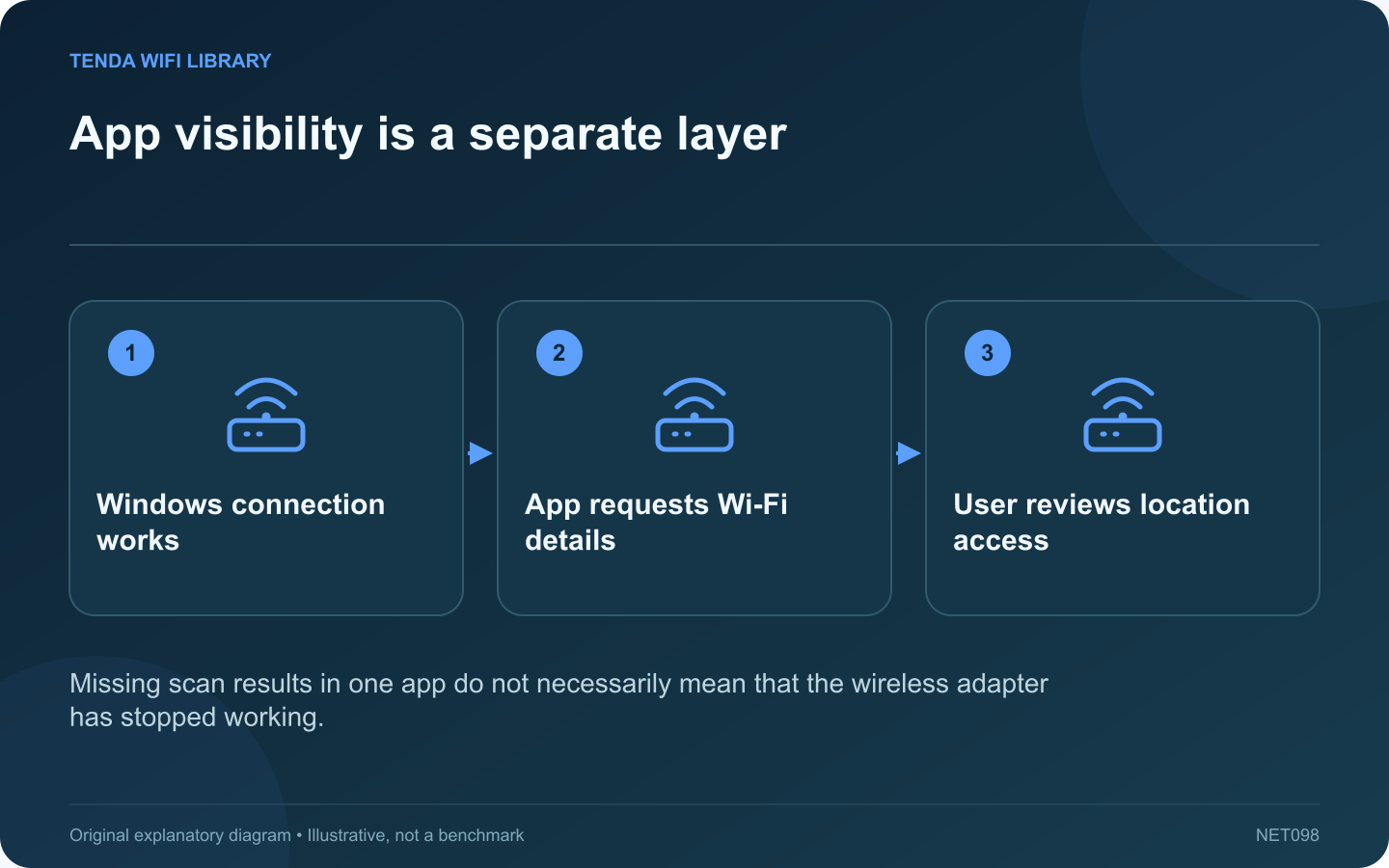
App visibility is a separate layer: Windows connection works; App requests Wi-Fi details; User reviews location access
Missing scan results in one app do not necessarily mean that the wireless adapter has stopped working.

A Wi-Fi analyzer can display an empty list while the laptop remains connected and ordinary browsing works. On Windows, access to some nearby wireless information is tied to location privacy controls. Check the application’s permissions before reinstalling the adapter.

Compare with Windows settings

Open the normal Wi-Fi connection list and confirm whether Windows sees nearby networks. If the operating system cannot see them either, investigate the adapter and radio state. If only the analyzer is empty, focus first on that application’s requirements.

Understand the permission

Microsoft explains that nearby wireless information can contribute to determining device location, and some apps cannot access Wi-Fi information when location services are off. A location request from a network tool therefore needs review rather than automatic acceptance or automatic suspicion.

Evaluate the application

Check that it came from its official publisher and that scanning nearby networks is necessary for the task you asked it to perform. Read the relevant privacy information. Do not grant broad access to an unknown utility simply because it promises faster internet.

Make a deliberate choice

  • Use built-in connection information if that is sufficient.
  • Grant the supported permission only when you accept its purpose.
  • Respect organization-controlled settings.
  • Review access again when the diagnostic task is finished.

Retest the specific function

If you authorize the required access, reopen the app and check whether scanning now works. Record the result. Do not also change channels, reset profiles and update drivers in the same step, because that would conceal which change mattered.

If the app still fails while Windows sees networks, check its current version and compatibility guidance. The absence of a scan list in a third-party tool is not itself proof of poor coverage or defective router hardware. Keep the permission decision separate from the underlying connection diagnosis so you can preserve privacy while collecting only the information the task needs.

Sources and editorial notes

Sources checked 8–9 October 2026. Independent guidance and original illustrations; product comparisons use published specifications rather than hands-on benchmarks. Check the exact model, revision and regional documentation before changing settings.

Related guides

300 FAQs across our guide libraries

Quick answers

100 practical questions from Tenda WiFi Library.

Browse all 100 FAQs
Why might a Windows Wi-Fi analyzer need location permission?

A Wi-Fi analyzer can display an empty list while the laptop remains connected and ordinary browsing works. On Windows, access to some nearby wireless information is tied to location privacy controls. Check the application's permissions before reinstalling the adapter. Open the normal Wi-Fi connection list and confirm whether Windows sees nearby networks. If the operating system cannot see them either, investigate the adapter and radio state. If only the analyzer is empty, focus first on that application's requirements.

Read the full guide and sources
What should I check before sharing Wi-Fi through a Windows QR code?

Supported Windows versions can display saved Wi-Fi connection details with a QR code for another device to scan. This is convenient, but the code grants access just as typing the password would. Verify the network and recipient before displaying it. If the router provides a guest network intended for visitors, share that connection rather than the household's main credentials. Confirm its name in Windows. A laptop may remember several similarly named networks from previous homes or workplaces.

Read the full guide and sources
Why can Windows see nearby Wi-Fi but not my home network?

If Windows lists neighboring networks but not your home network, the wireless adapter is doing at least some scanning. Focus on the missing broadcast's band, channel and configuration before changing a password that Windows has not yet tried. Use another compatible device near the router to check for the exact network name. Inspect the router's wireless status and any schedule. If no device sees the network, investigate the router's radio state rather than only the laptop.

Read the full guide and sources
Why will Windows not reconnect after a Wi-Fi password change?

After a Wi-Fi password change, a laptop may keep trying the old saved connection. Confirm the new credential and the intended network name before removing a profile. If you also changed the wireless security mode, treat that as a separate compatibility question. Use an authorized device or the router's supported local interface to confirm the network details. Check capitalization and easily confused characters. Do not share the password in a public support post or screenshot.

Read the full guide and sources
Independent. Practical. Clear.

Tenda WiFi Library is an independent information website. We are not affiliated with or endorsed by Tenda. Product names belong to their respective owners.