Independent router help & how-tosHelping you find your connection.
The guide library

USB Wi-Fi adapter in a cradle or directly in the port: test placement before upgrading

Explore the guide library · Network adapter buying

Compare practical desk placement with the same adapter so radio position is not confused with a hardware-generation advantage.
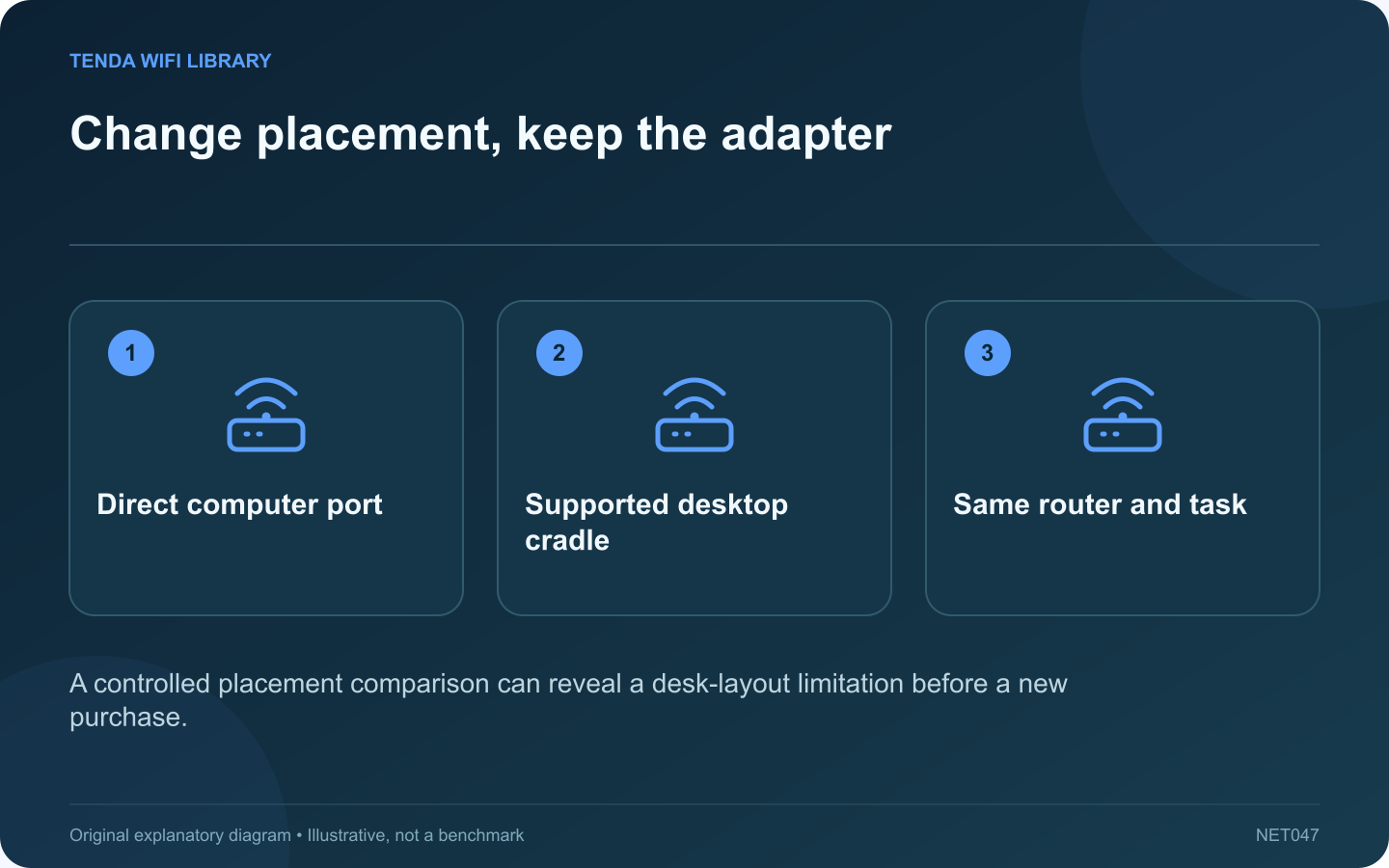
Change placement, keep the adapter: Direct computer port; Supported desktop cradle; Same router and task
A controlled placement comparison can reveal a desk-layout limitation before a new purchase.

A USB wireless adapter inserted behind a desktop may sit close to metal, cables and furniture. A supported cradle can place it elsewhere on the desk. Before buying a more expensive wireless generation, test whether the current position is the limitation.

Check the supported accessories

Use the adapter’s supplied cradle or a connection arrangement approved by its manufacturer. TP-Link documents a desktop cradle for the TBE400UH. Do not assume any long USB cable preserves the required data rate or power behavior.

Choose two realistic positions

Compare the ordinary direct-port position with a practical raised desk location. Keep the adapter clear of accidental knocks and avoid routing a cable across a walkway. The best location must remain usable after the test equipment is put away.

Keep the comparison fair

  1. Use the same computer, adapter and driver.
  2. Keep the router configuration unchanged.
  3. Run the same local transfer or application task.
  4. Repeat each position more than once.
  5. Record interruptions as well as throughput.

Interpret a change carefully

If the alternate position improves consistency, it supports a placement explanation. If both positions behave similarly, inspect the USB interface, driver and broader network path. A single fast result in one position is weaker evidence than a repeatable improvement during the actual workload.

Include everyday usability

A protruding adapter can obstruct adjacent ports or be damaged during transport. A cradle uses desk space and adds a cable. Choose the arrangement that is stable and convenient for the computer’s normal role.

This is a practical test method rather than a claim that every cradle increases range. Vendor specifications describe capabilities, while the desk environment determines how they are experienced. If relocation solves the task, keep the working setup and spend an upgrade budget only when another clearly identified limitation remains.

Sources and editorial notes

Sources checked 8–9 October 2026. Independent guidance and original illustrations; product comparisons use published specifications rather than hands-on benchmarks. Check the exact model, revision and regional documentation before changing settings.

Related guides

300 FAQs across our guide libraries

Quick answers

100 practical questions from Tenda WiFi Library.

Browse all 100 FAQs
Can moving a USB Wi-Fi adapter improve its connection?

A USB wireless adapter inserted behind a desktop may sit close to metal, cables and furniture. A supported cradle can place it elsewhere on the desk. Before buying a more expensive wireless generation, test whether the current position is the limitation. Use the adapter's supplied cradle or a connection arrangement approved by its manufacturer. TP-Link documents a desktop cradle for the TBE400UH. Do not assume any long USB cable preserves the required data rate or power behavior.

Read the full guide and sources
What should I test during a Wi-Fi adapter’s return period?

A new wireless adapter can pass an initial speed test yet fail after sleep, reconnect poorly at the desk or interfere with the user's normal workflow. Use the return period to test the behaviors that matter every day. Describe the task that justified the purchase: a dropped call, inadequate local-transfer performance or an unsupported band. Record the previous adapter and test location. Without a baseline, a change in provider conditions can be mistaken for an improvement caused by the new hardware.

Read the full guide and sources
Why does an Ethernet connection negotiate only 100 Mbps?

If Windows reports a 100 Mbps Ethernet connection when you expect gigabit or faster, inspect the local wired path first. An internet speed test cannot make that local link negotiate at a higher rate. Identify whether Ethernet comes from the computer, a USB adapter or a dock. Check its documented rate and the far-end router or switch port. Some equipment has mixed-rate interfaces, so the fastest specification on the box may not describe the socket in use.

Read the full guide and sources
Why might Wake on LAN work from sleep but not shutdown?

Wake on LAN can work from sleep and fail after shutdown without the router being faulty. The computer's firmware, operating system and adapter must support waking from the particular power state being tested. Record whether the computer entered sleep, hibernation, a normal shutdown or another manufacturer-defined standby mode. A dark screen is not enough to distinguish them. Microsoft documents different system power states and their Wake on LAN behavior.

Read the full guide and sources
Independent. Practical. Clear.

Tenda WiFi Library is an independent information website. We are not affiliated with or endorsed by Tenda. Product names belong to their respective owners.