Independent router help & how-tosHelping you find your connection.
The guide library

iperf3 single stream, parallel streams and reverse mode: ask the right question

Explore the guide library · Performance testing

Use test options deliberately instead of increasing streams until the result looks impressive.
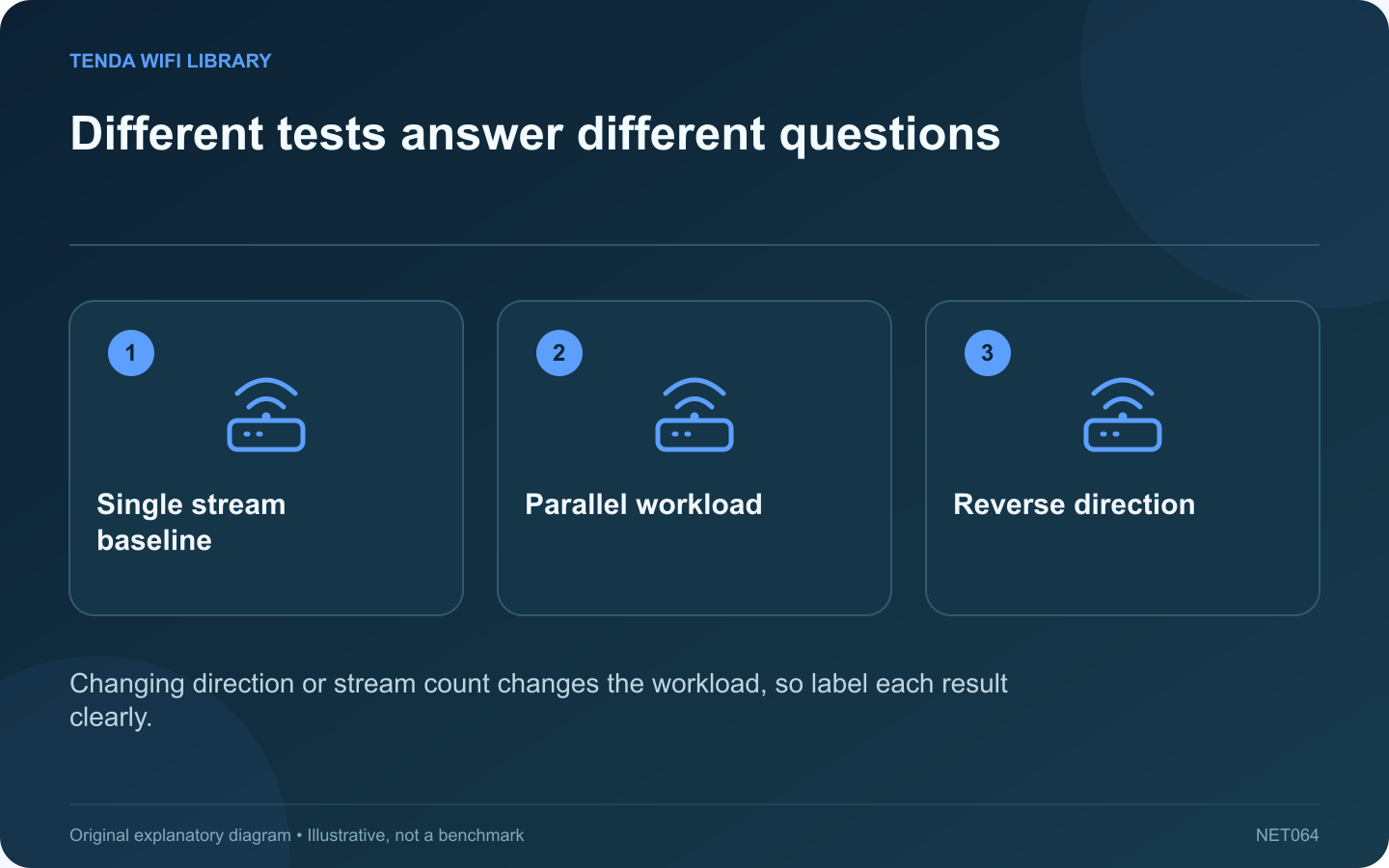
Different tests answer different questions: Single stream baseline; Parallel workload; Reverse direction
Changing direction or stream count changes the workload, so label each result clearly.

Two iperf3 results can differ greatly because they used different options. A single stream, several parallel streams and a reverse-direction test are different workloads. Label the configuration before comparing numbers or declaring one router faster than another.

Keep a simple baseline

Begin with the ordinary client-to-server test between authorized local computers. Record duration, software version and connection type. Avoid introducing several performance flags before establishing a repeatable baseline that resembles the task you want to improve.

Use reverse mode for direction

ESnet documents -R to make the server send data to the client. This is useful when receive and transmit behavior differ. Keep the same endpoints and location so the change in direction remains interpretable.

Use parallel streams for a specific reason

The -P option sets the number of parallel streams. Multiple streams can exercise the path differently and, with supported versions, distribute work across threads. A higher result does not mean a single ordinary file transfer will automatically achieve that rate.

Compare a small test matrix

Test Record
Ordinary single stream Baseline throughput and stability
Reverse single stream Direction-dependent difference
Deliberate parallel test Stream count and endpoint load

Watch the endpoints

Inspect whether either computer reaches a processing limit. A test utility cannot exceed a bottleneck in the host or its network interface. Keep the server private and stop it after the comparison.

Report the range across repeated runs and explain which workload matters to the user. Choosing only the largest parallel-stream result can conceal poor single-transfer behavior or an unstable connection. A useful test plan identifies why the measurements differ and links the relevant result to a real application, rather than turning every available option into a contest for the largest number.

Sources and editorial notes

Sources checked 8–9 October 2026. Independent guidance and original illustrations; product comparisons use published specifications rather than hands-on benchmarks. Check the exact model, revision and regional documentation before changing settings.

Related guides

300 FAQs across our guide libraries

Quick answers

100 practical questions from Tenda WiFi Library.

Browse all 100 FAQs
When should I compare single-stream, parallel and reverse iperf3 tests?

Two iperf3 results can differ greatly because they used different options. A single stream, several parallel streams and a reverse-direction test are different workloads. Label the configuration before comparing numbers or declaring one router faster than another. Begin with the ordinary client-to-server test between authorized local computers. Record duration, software version and connection type. Avoid introducing several performance flags before establishing a repeatable baseline that resembles the task you want to improve.

Read the full guide and sources
What does a local iperf3 test measure?

An internet speed test combines your local network with provider and remote-server conditions. A local iperf3 test can examine the path between two computers you control. It is useful when deciding whether Wi-Fi itself limits a transfer. Use a supported iperf3 installation from a trusted package source on both computers. Connect the test server through a suitable wired path when the goal is to isolate the other computer's wireless connection. Record the interface rates and software versions.

Read the full guide and sources
Why is Windows Wi-Fi link rate higher than download speed?

Windows may display a wireless link rate much higher than the result from a speed test. These figures describe different things. The first concerns the radio connection; the second measures useful traffic across a longer path that includes additional equipment and services. Use Windows network properties or the documented netsh wlan show interfaces command to inspect the active connection. Note the band, receive and transmit rates when available, adapter model and test location. These values can change as radio conditions change.

Read the full guide and sources
Why does gaming lag appear only during large downloads?

A home connection can produce a low ping when idle and still feel unresponsive during a download. The useful question is how delay changes under load. This helps explain why a faster headline download rate does not always translate into a smoother call or game. Use a consistent test method and destination when the household connection is relatively quiet. Record latency and the current connection type. A wireless result beside the router should not be compared directly with a later result from a distant bedroom.

Read the full guide and sources
Independent. Practical. Clear.

Tenda WiFi Library is an independent information website. We are not affiliated with or endorsed by Tenda. Product names belong to their respective owners.