Explore the guide library · Travel connection help
Recognize a captive portal and verify the network operator before entering information or changing security settings.
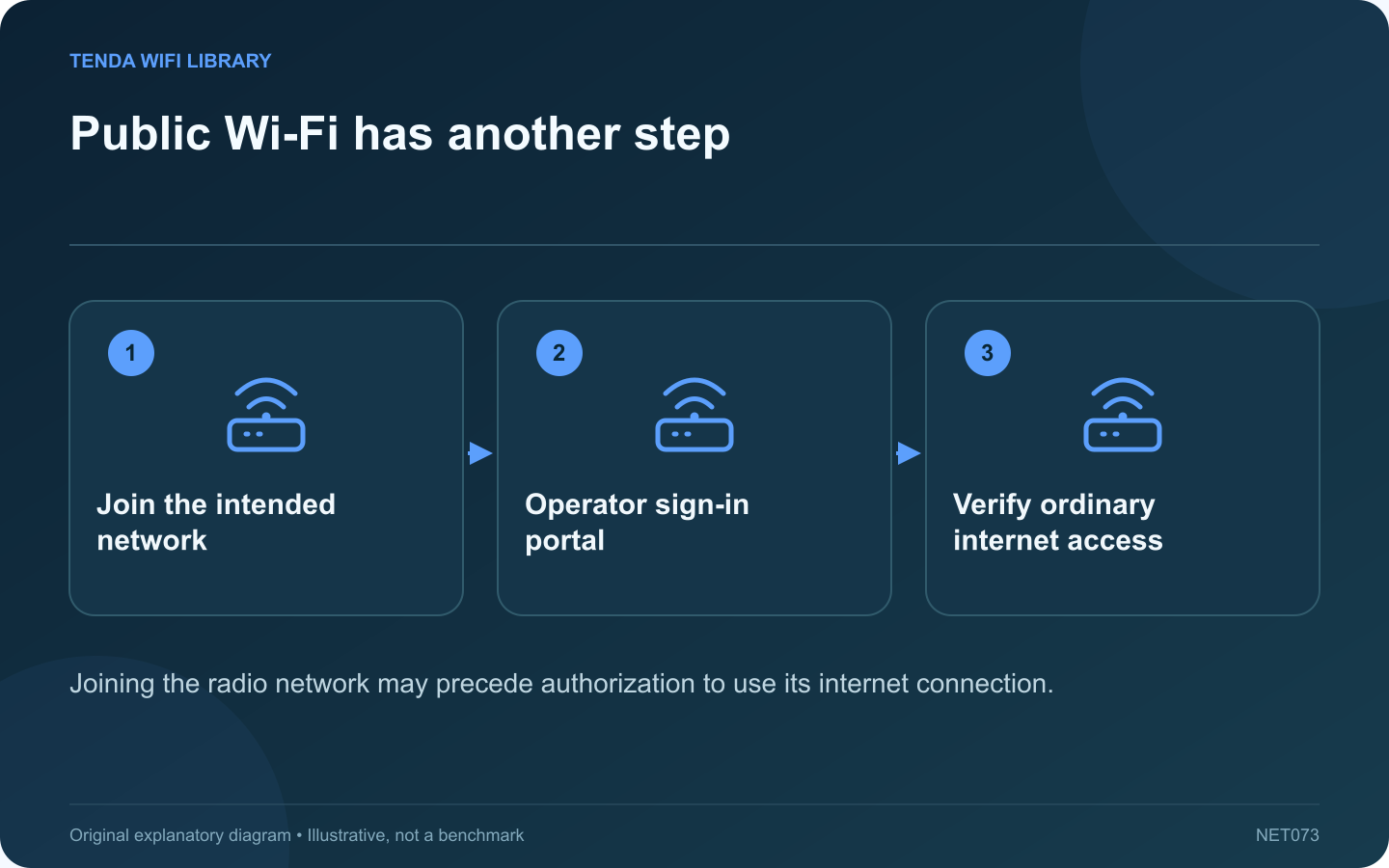
Public Wi-Fi may require a sign-in or terms page after the computer joins the wireless network. Windows can report that action is needed because local association has succeeded while ordinary internet access remains restricted.
Verify the network operator
Confirm the correct network name with the venue’s official instructions. A familiar-looking hotspot name is not proof of ownership. Avoid entering unrelated account credentials into an unexpected page simply because it appeared after joining Wi-Fi.
Use the normal sign-in prompt
Microsoft describes captive-portal detection as part of Windows’ connectivity checks. Open the supported network sign-in flow when it appears and review the operator’s requirements. The user should decide whether to accept any terms or charges.
Keep browser identity checks intact
A certificate warning is not a routine button to skip in order to obtain internet access. Confirm the portal address with the operator and ask for help if its secure page cannot be verified. Do not install an unknown certificate profile or disable protection to proceed.
Check the result
- Finish the authorized portal flow.
- Confirm Windows updates its connection state.
- Open a normal public destination.
- Start the approved VPN if your work policy requires it.
Handle a missing portal
Check that the computer joined the intended network and ask the venue for its supported login procedure. A browser, proxy or managed-device policy may affect the flow. Do not change organization controls without administrator guidance.
When leaving, review whether the device should automatically rejoin that network in the future. A public hotspot is a temporary access arrangement, not evidence that the home router needs repair. Keep the stages distinct: wireless connection, network authorization and ordinary application access. That makes a failed sign-in easier to explain without resorting to broad network resets.
Sources and editorial notes
Sources checked 8–9 October 2026. Independent guidance and original illustrations; product comparisons use published specifications rather than hands-on benchmarks. Check the exact model, revision and regional documentation before changing settings.