Independent router help & how-tosHelping you find your connection.
The guide library

Mac websites show certificate errors: check the clock without bypassing the warning

Explore the guide library · Browser and DNS help

Use the pattern of certificate failures and the Mac’s date and time to decide where the problem belongs.
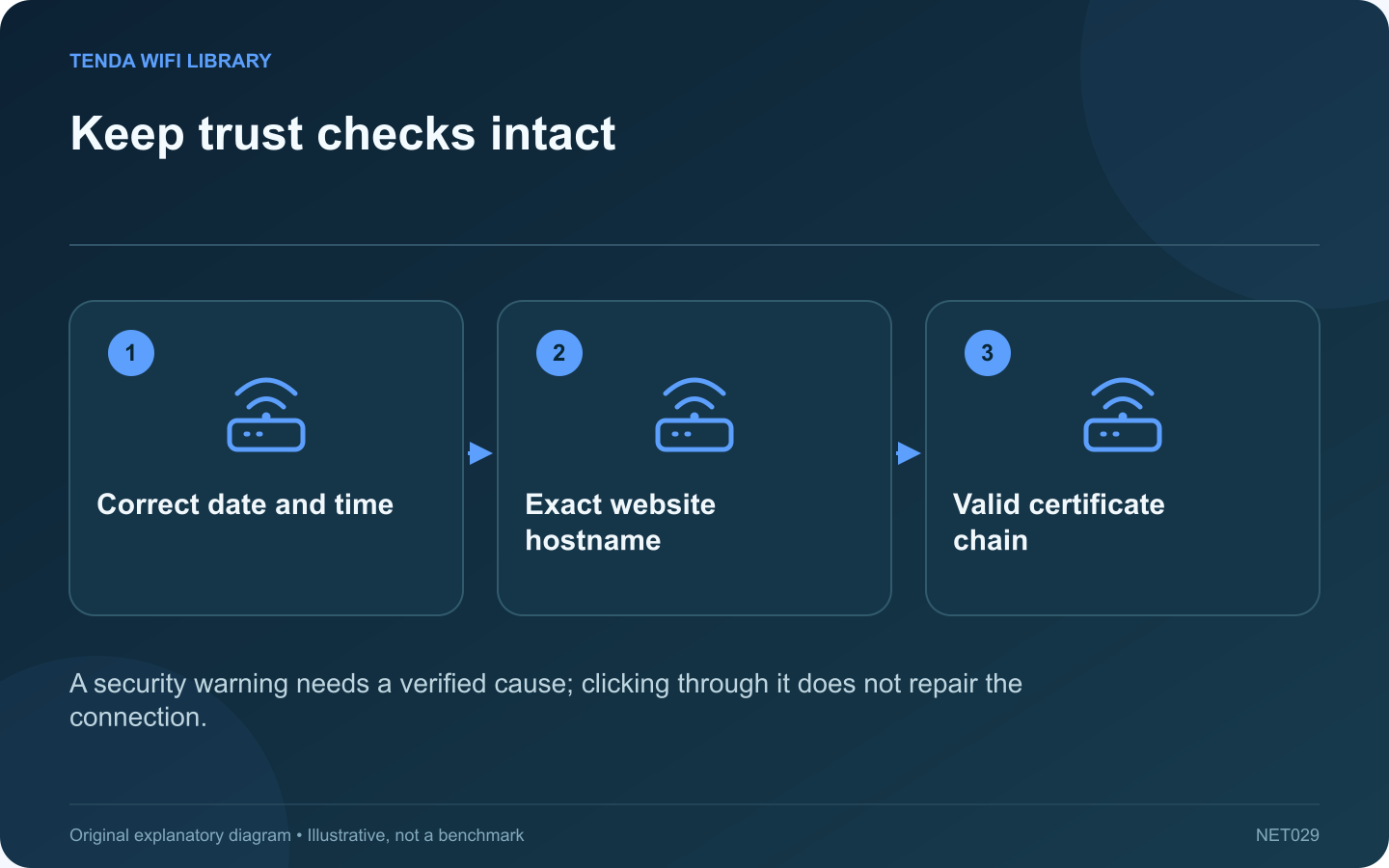
Keep trust checks intact: Correct date and time; Exact website hostname; Valid certificate chain
A security warning needs a verified cause; clicking through it does not repair the connection.

If several secure websites suddenly report certificate problems on one Mac, inspect its date and time before changing router settings. Certificate validity depends partly on time. A substantially incorrect clock can make otherwise valid certificates appear outside their allowed period.

Record the pattern

Note the browser’s exact message and whether the failure affects one site or many unrelated sites. Compare another device using the same network. Avoid entering credentials or payment details into a page while its identity cannot be verified.

Check the Mac’s clock

Apple includes correct date and time among its Wi-Fi internet troubleshooting checks. Inspect the displayed date, time and time zone and use the supported settings to correct an actual error. On managed equipment, let the administrator resolve restrictions or repeated synchronization failures.

Retry the exact hostname

After the clock is correct, revisit the intended address from a trusted bookmark or the organization’s official link. A certificate issued for one hostname may not validate a different address, even when both appear to reach related content.

Interpret what remains

  • One site fails on several devices: the site owner may need to repair its certificate or configuration.
  • Many sites fail only on this Mac: investigate its software and trust configuration.
  • Failures appear only on one network: ask its administrator about the connection path.

Preserve the protection

Do not mark an unknown certificate as permanently trusted, install a random certificate profile or disable validation to remove the warning. Those actions can conceal the very identity problem the browser is reporting.

If the warning persists, provide support with the public hostname, message and timing, excluding private browsing details. The goal is a normal trusted connection after a verified correction. The disappearance of the warning after a bypass would not establish that the original security problem had been solved.

Sources and editorial notes

Sources checked 8–9 October 2026. Independent guidance and original illustrations; product comparisons use published specifications rather than hands-on benchmarks. Check the exact model, revision and regional documentation before changing settings.

Related guides

300 FAQs across our guide libraries

Quick answers

100 practical questions from Tenda WiFi Library.

Browse all 100 FAQs
Could an incorrect Mac clock cause website certificate errors?

If several secure websites suddenly report certificate problems on one Mac, inspect its date and time before changing router settings. Certificate validity depends partly on time. A substantially incorrect clock can make otherwise valid certificates appear outside their allowed period. Note the browser's exact message and whether the failure affects one site or many unrelated sites. Compare another device using the same network. Avoid entering credentials or payment details into a page while its identity cannot be verified.

Read the full guide and sources
Why can Firefox Max Protection stop DNS fallback?

Firefox can stop a page from loading when its selected secure DNS resolver is unavailable. Under Max Protection, that behavior can be intentional. It is different from the Wi-Fi adapter failing to connect or the entire household losing internet access. Record whether Firefox reports a resolver connection problem or a missing address for the requested name. Check the exact hostname. Do not interpret every browser warning as a password or router signal issue.

Read the full guide and sources
Can saved website data cause a sign-in loop?

A website that loads its sign-in page repeatedly may have a browser-session or account problem rather than a Wi-Fi failure. If unrelated sites work, begin with the affected site's behavior and preserve useful browser data while investigating. Note the exact stage where the page returns to sign-in and whether an error message appears. Check the service's official support information. A rejected account, required verification or service outage cannot be repaired by changing the router's channel.

Read the full guide and sources
Why might Chrome DNS fail while Windows DNS succeeds?

A successful Windows name lookup and a failed Chrome page load can both be accurate observations. Chrome's Secure DNS configuration may select a different resolver path. Inspect that difference before assuming the router is returning inconsistent answers. Compare the exact name entered in Chrome with the name used in the diagnostic lookup. Redirected login services and subdomains can introduce additional names. A successful lookup for the main site does not prove that every dependent service resolves correctly.

Read the full guide and sources
Independent. Practical. Clear.

Tenda WiFi Library is an independent information website. We are not affiliated with or endorsed by Tenda. Product names belong to their respective owners.