Independent router help & how-tosHelping you find your connection.
The guide library

Chrome cannot find a site but Windows DNS works: inspect Secure DNS

Explore the guide library · Browser and DNS help

A browser may use a different name-resolution path from a command-line lookup on the same computer.
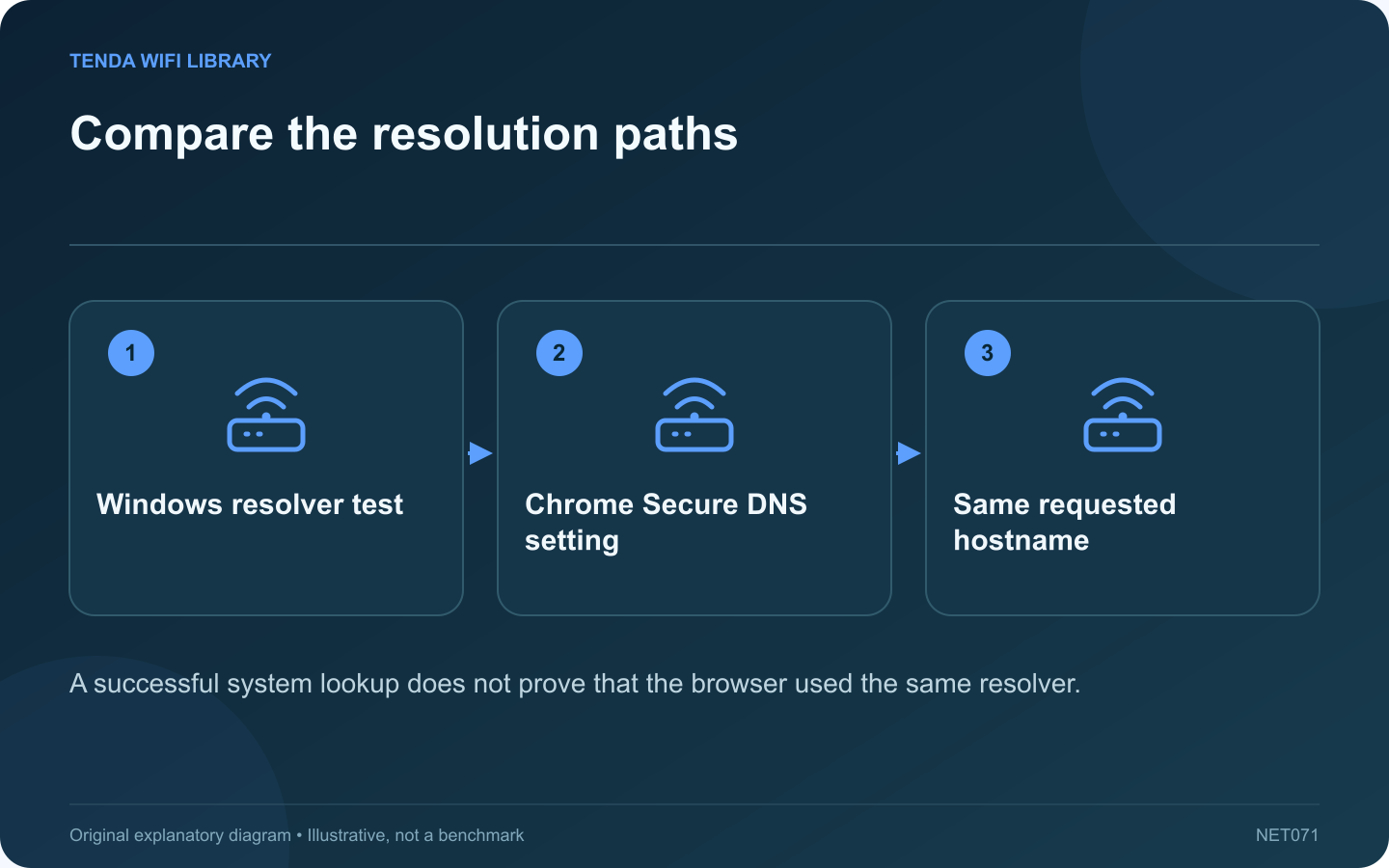
Compare the resolution paths: Windows resolver test; Chrome Secure DNS setting; Same requested hostname
A successful system lookup does not prove that the browser used the same resolver.

A successful Windows name lookup and a failed Chrome page load can both be accurate observations. Chrome’s Secure DNS configuration may select a different resolver path. Inspect that difference before assuming the router is returning inconsistent answers.

Use the same hostname

Compare the exact name entered in Chrome with the name used in the diagnostic lookup. Redirected login services and subdomains can introduce additional names. A successful lookup for the main site does not prove that every dependent service resolves correctly.

Read Chrome’s setting

Google documents Secure DNS under Chrome’s privacy and security settings. Check whether it uses the current provider or a custom provider. A manually selected provider has different fallback behavior from the ordinary automatic arrangement.

Check the intended configuration

Confirm that a custom choice came from the provider’s official instructions and still suits the network. On a managed device or a network using parental controls, follow the administrator’s policy. Do not bypass a restriction simply because another resolver returns a different result.

Separate DNS from the next stage

  • A name-resolution message concerns finding the destination.
  • A certificate warning concerns verifying the secure connection.
  • A login failure concerns the application’s identity or permissions.
  • A blank page can involve scripts or application state after connection.

Retest after a justified correction

Use the same destination and record the browser’s new message. Keep the original provider choice noted privately so a change can be reversed if it breaks an internal resource.

Do not turn off all browser security features as a group. The useful diagnosis is a particular resolver or configuration difference that explains the failure. If Chrome and Windows still disagree after the intended settings are confirmed, give support the hostname, time and relevant settings without sharing private browsing history or account data.

Sources and editorial notes

Sources checked 8–9 October 2026. Independent guidance and original illustrations; product comparisons use published specifications rather than hands-on benchmarks. Check the exact model, revision and regional documentation before changing settings.

Related guides

300 FAQs across our guide libraries

Quick answers

100 practical questions from Tenda WiFi Library.

Browse all 100 FAQs
Why might Chrome DNS fail while Windows DNS succeeds?

A successful Windows name lookup and a failed Chrome page load can both be accurate observations. Chrome's Secure DNS configuration may select a different resolver path. Inspect that difference before assuming the router is returning inconsistent answers. Compare the exact name entered in Chrome with the name used in the diagnostic lookup. Redirected login services and subdomains can introduce additional names. A successful lookup for the main site does not prove that every dependent service resolves correctly.

Read the full guide and sources
Could an incorrect Mac clock cause website certificate errors?

If several secure websites suddenly report certificate problems on one Mac, inspect its date and time before changing router settings. Certificate validity depends partly on time. A substantially incorrect clock can make otherwise valid certificates appear outside their allowed period. Note the browser's exact message and whether the failure affects one site or many unrelated sites. Compare another device using the same network. Avoid entering credentials or payment details into a page while its identity cannot be verified.

Read the full guide and sources
Can saved website data cause a sign-in loop?

A website that loads its sign-in page repeatedly may have a browser-session or account problem rather than a Wi-Fi failure. If unrelated sites work, begin with the affected site's behavior and preserve useful browser data while investigating. Note the exact stage where the page returns to sign-in and whether an error message appears. Check the service's official support information. A rejected account, required verification or service outage cannot be repaired by changing the router's channel.

Read the full guide and sources
Why might a server’s full name work when its short name fails?

An internal server may open when you use its full domain name but fail when you enter only its short name. That pattern suggests a name-completion issue worth investigating before changing the router's DNS provider. Obtain the intended name from the service owner or administrator. Do not guess internal domains or enter work credentials into a similarly named public site. Keep the comparison limited to a resource you are authorized to access.

Read the full guide and sources
Independent. Practical. Clear.

Tenda WiFi Library is an independent information website. We are not affiliated with or endorsed by Tenda. Product names belong to their respective owners.