Explore the guide library · Windows diagnostic tools
Identify the interface carrying your connection before interpreting its address, gateway and DNS information.
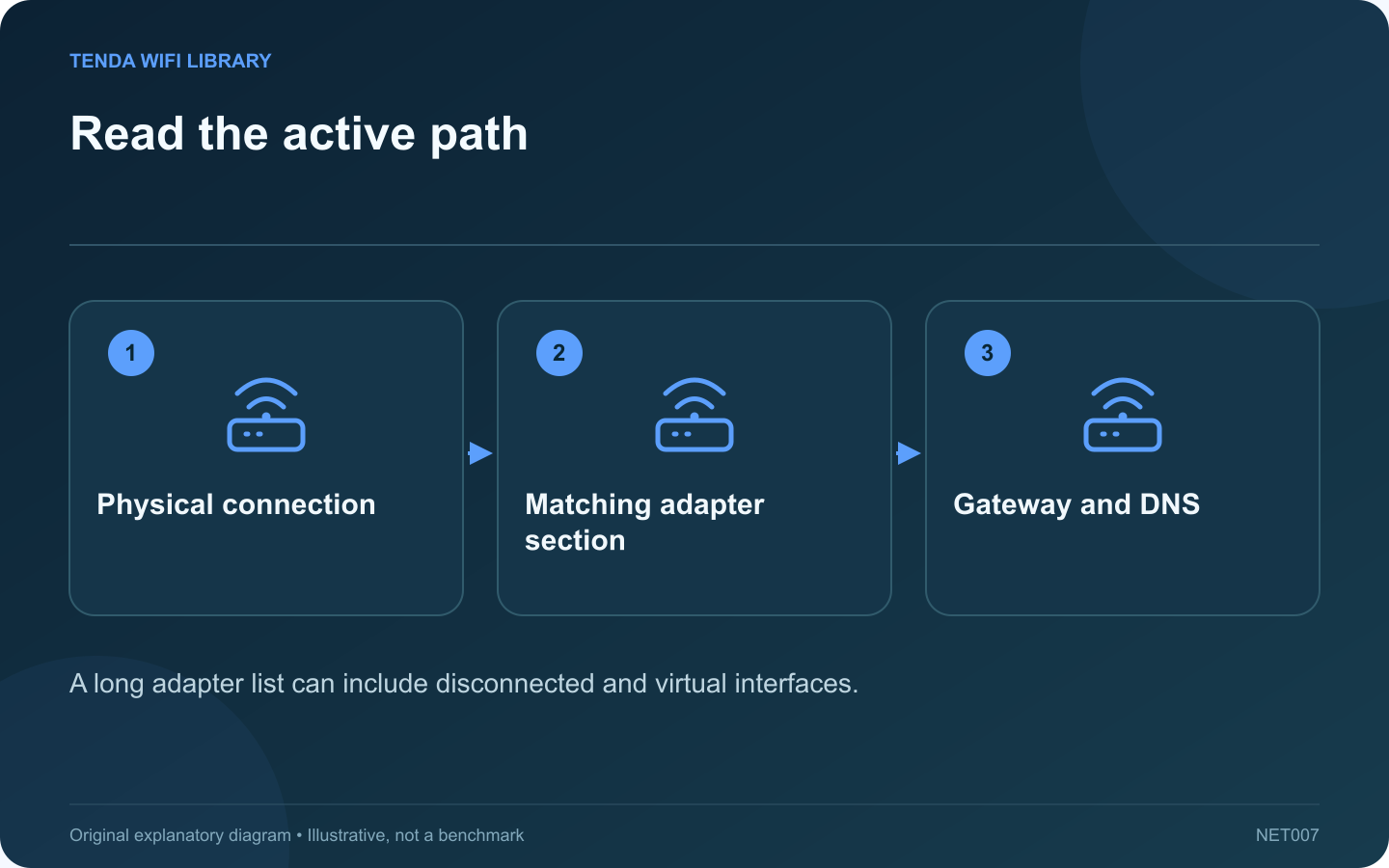
The output of ipconfig can contain several adapters, even on a laptop with one visible network connection. Find the section for the interface you are actually using before interpreting an address or default gateway.
Start with the physical connection
Decide whether the test uses Wi-Fi, built-in Ethernet or a USB dock. Note whether an approved VPN is active. A virtual adapter can be relevant to the application without being the physical link to the home router.
Read the basic output
Open a normal Windows command prompt and run ipconfig. Microsoft’s reference explains that the command displays address, subnet and gateway information. Use ipconfig /all only when the additional details are needed.
Match the section to the task
- Ignore a disconnected interface when diagnosing the current connection.
- Read the address and mask together.
- Note the default gateway associated with the relevant path.
- Use the extended output to inspect DNS or DHCP details when necessary.
Do not copy values into settings blindly
An address shown in a tutorial belongs to that example network. Reusing it manually can create a conflict or remove the correct gateway. If the client normally uses automatic configuration, understand why it received the current values before replacing them.
Use the result for a focused next test
If the expected physical adapter has no usable configuration, investigate its link and address assignment. If local configuration looks appropriate but one name fails, examine DNS or the application. If a VPN changes the route, involve its supported configuration rather than deleting the virtual adapter.
Redact hostnames, addresses and identifiers before sharing output publicly. Keep an unmodified private copy with the event time. The value of ipconfig is a clear picture of the client’s configuration, not a requirement to run every reset command found beside it in an online troubleshooting list.
Sources and editorial notes
Sources checked 8–9 October 2026. Independent guidance and original illustrations; product comparisons use published specifications rather than hands-on benchmarks. Check the exact model, revision and regional documentation before changing settings.