Explore the guide library · Windows diagnostic tools
Read the selected interface before using a successful test as proof that a new Ethernet adapter works.
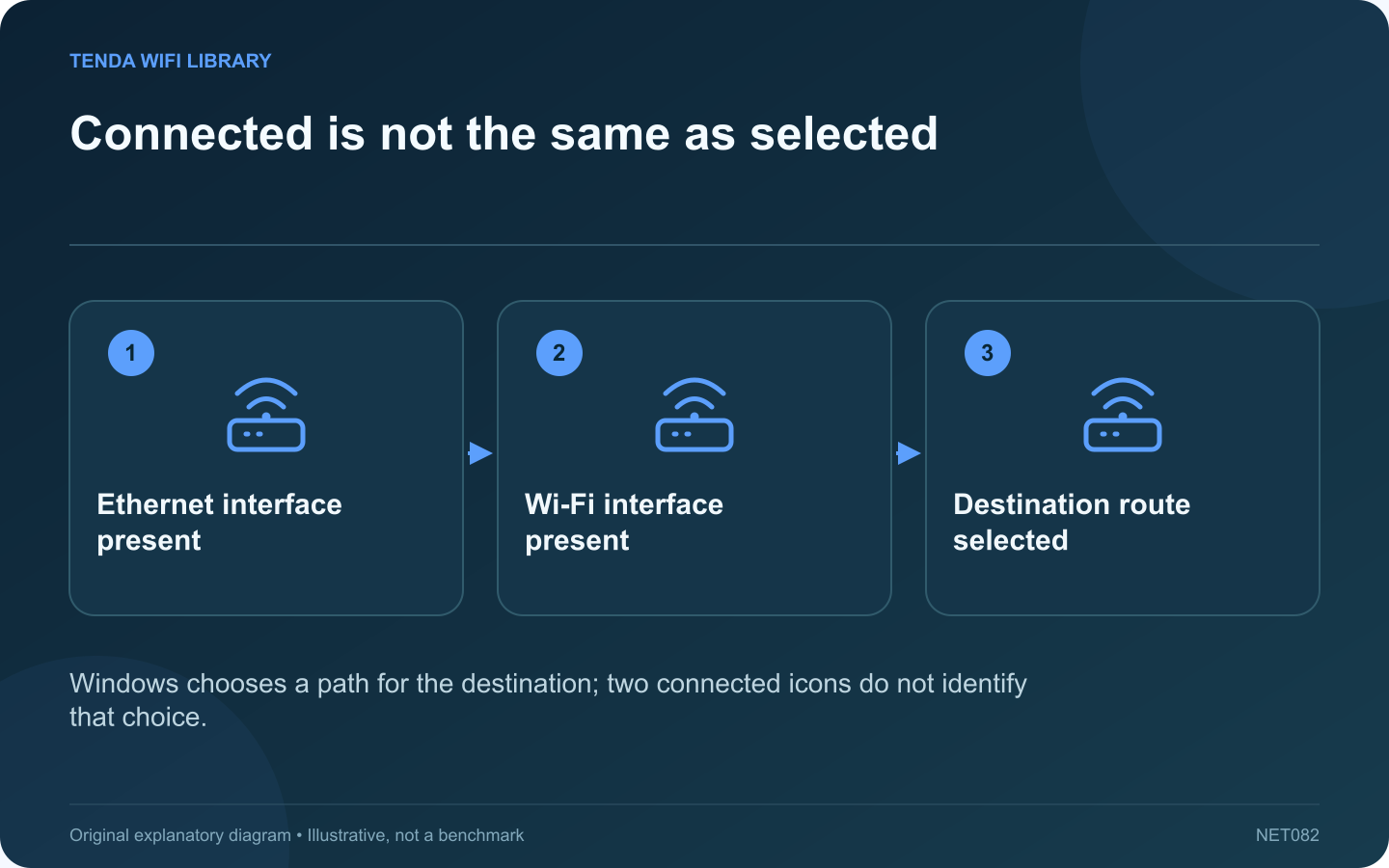
Plugging in an Ethernet adapter while Wi-Fi remains connected does not prove that your next internet test uses the cable. Windows selects a route for the destination, and a VPN can introduce another path. Check the selected interface before interpreting the result.
Identify the interfaces
Open the connection properties or use ipconfig to match the adapter names with their addresses. A docking station may appear under a generic Ethernet label. Write down which interface belongs to the new hardware so the later result is unambiguous.
Inspect a relevant connection
Microsoft’s Test-NetConnection command can report detailed information including the interface and source address used for a test. Select a destination and service relevant to your task. A result for a public website does not automatically describe the route to an internal work server.
Read the routing result carefully
The command also provides a route-diagnosis mode. That mode evaluates route selection; it is not interchangeable with a successful application transaction. Read what the output actually tested instead of treating every diagnostic field as proof that data transfer worked.
Keep the comparison controlled
- Use the same destination before and after connecting Ethernet.
- Record the selected interface and source address.
- Preserve required VPN and managed-device settings.
- Repeat the original application task.
Do not change metrics blindly
Manually adjusting route metrics can affect other destinations and persist after the experiment. If the intended route is wrong, identify the configuration owner and follow the documented correction rather than copying a generic priority command.
For a simple personal-device hardware test, an intentional temporary Wi-Fi disconnection can make the path clearer, provided it will not interrupt important work. Reconnect afterward if that is your normal setup. The key evidence is that the wired interface actually carried the tested connection, not merely that its icon appeared beside a working wireless connection.
Sources and editorial notes
Sources checked 8–9 October 2026. Independent guidance and original illustrations; product comparisons use published specifications rather than hands-on benchmarks. Check the exact model, revision and regional documentation before changing settings.