Independent router help & how-tosHelping you find your connection.
The guide library

Use the Windows wireless report to investigate repeated disconnects

Explore the guide library · Windows diagnostic tools

Match recorded wireless sessions to the time of a real failure and preserve the report before changing drivers or profiles.
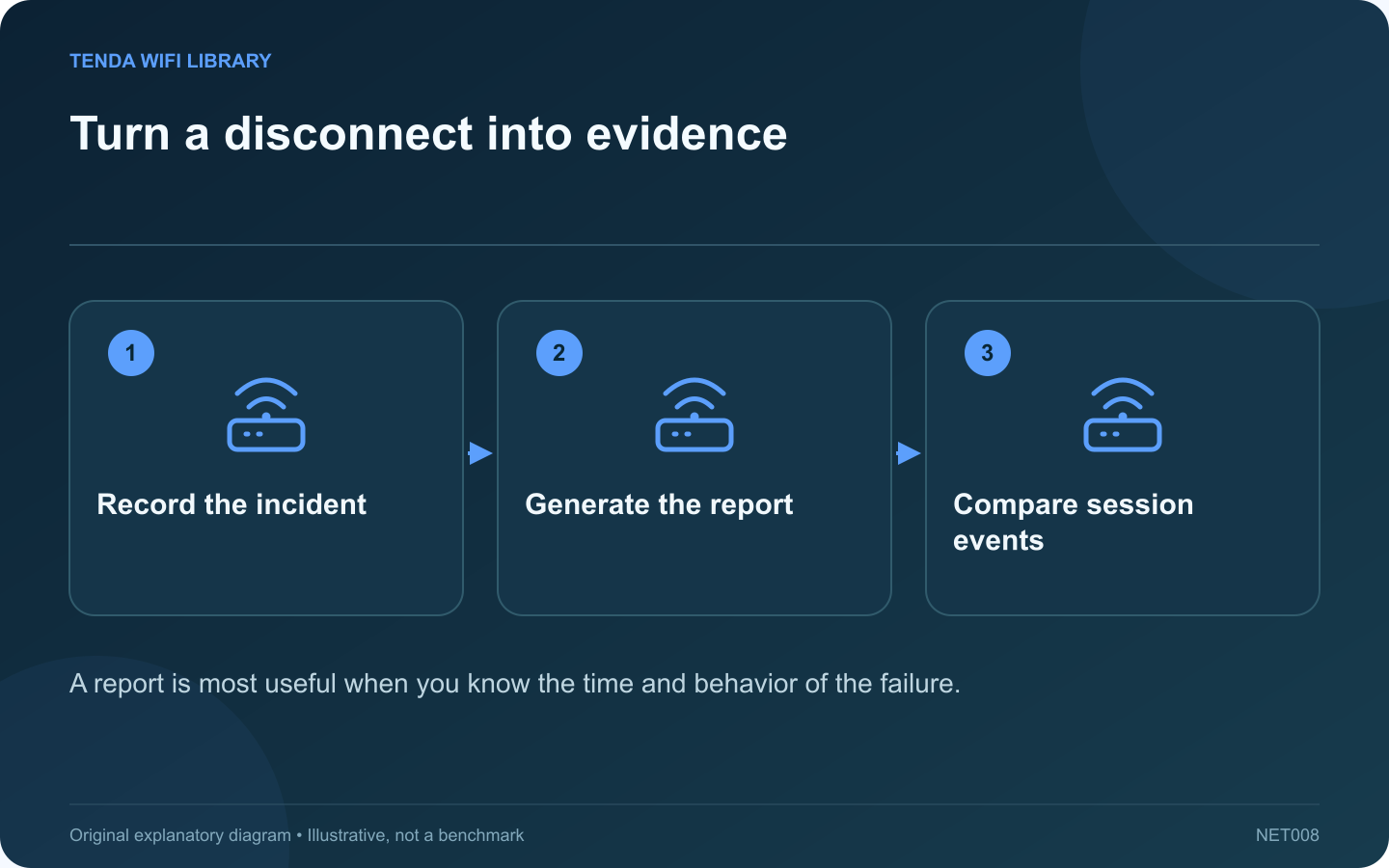
Turn a disconnect into evidence: Record the incident; Generate the report; Compare session events
A report is most useful when you know the time and behavior of the failure.

Repeated Wi-Fi disconnects are easier to investigate when the event has a timestamp and a connection history. Windows can generate a wireless network report that helps show sessions and related diagnostic information. Use it to narrow the failure stage before applying a broad reset.

Record the real-world event

Note when the call, game or transfer stopped, whether the Wi-Fi indicator changed and whether other devices were affected. Include sleep, dock changes or movement between rooms if they preceded the interruption.

Generate the report

Follow Microsoft’s documented procedure in an administrator command prompt and run netsh wlan show wlanreport. Open the generated HTML report at the location Windows reports. Do not assume another computer’s path or username applies to yours.

Inspect the relevant period

  1. Locate the session around the incident time.
  2. Review connection and disconnection events.
  3. Compare adapter and driver information with your device record.
  4. Look for a repeated sequence across several incidents.
  5. Keep your own application symptom alongside the report’s event description.

Avoid overinterpreting one entry

A disconnect reason can indicate the stage that failed without proving the root cause. A driver event, router restart or normal roaming action needs context. Compare the evidence with another client and the router’s own status when possible.

Share carefully

The report can contain device details, network names and other information about the environment. Keep the original private and provide a reviewed excerpt through an official support channel. Do not post the entire report in a public forum without inspecting it.

After a justified repair, reproduce the original conditions and compare the resulting sessions. A useful fix changes the observed failure pattern; simply generating a clean report during a quiet minute does not establish that an intermittent problem is resolved.

Sources and editorial notes

Sources checked 8–9 October 2026. Independent guidance and original illustrations; product comparisons use published specifications rather than hands-on benchmarks. Check the exact model, revision and regional documentation before changing settings.

Related guides

300 FAQs across our guide libraries

Quick answers

100 practical questions from Tenda WiFi Library.

Browse all 100 FAQs
What can the Windows wireless report reveal about disconnections?

Repeated Wi-Fi disconnects are easier to investigate when the event has a timestamp and a connection history. Windows can generate a wireless network report that helps show sessions and related diagnostic information. Use it to narrow the failure stage before applying a broad reset. Note when the call, game or transfer stopped, whether the Wi-Fi indicator changed and whether other devices were affected. Include sleep, dock changes or movement between rooms if they preceded the interruption.

Read the full guide and sources
What private details should I remove from a network report?

A network report can help support understand a failure, but it may also describe the computer, wireless networks and connection history. Review the contents before attaching the entire file to a public forum. If the issue is a disconnect at a particular time, the relevant event and adapter information may be sufficient. If a DNS lookup fails, a short result for the affected public hostname may answer the question. Avoid collecting every available diagnostic simply because a tool can generate it.

Read the full guide and sources
When is flushing the Windows DNS cache useful?

A DNS cache stores recently learned name information. Clearing it can help when Windows retains an obsolete answer after a legitimate service change. It is less useful when the actual failure is weak Wi-Fi, an unplugged cable or an unavailable website. Write down the affected hostname and whether other destinations work. Compare another device on the same network. If every application fails and the computer has no usable network address, resolve that earlier connection problem before treating DNS as the cause.

Read the full guide and sources
Do asterisks in tracert prove that the internet is broken?

A row of asterisks in a Windows route trace can look alarming. It means the expected diagnostic reply did not arrive within the waiting period. It does not, on its own, prove that the device at that stage is dropping your ordinary web traffic. The tracert command sends probes with increasing time-to-live values to reveal responding steps toward a destination. Microsoft explains that some routers do not return the expected expiration messages and therefore appear as asterisks in the output.

Read the full guide and sources
Independent. Practical. Clear.

Tenda WiFi Library is an independent information website. We are not affiliated with or endorsed by Tenda. Product names belong to their respective owners.