Independent router help & how-tosHelping you find your connection.
The guide library

Before sharing a network report: remove private details and keep the useful evidence

Explore the guide library · Windows diagnostic tools

Share a targeted extract with trusted support instead of posting an entire diagnostic archive publicly.
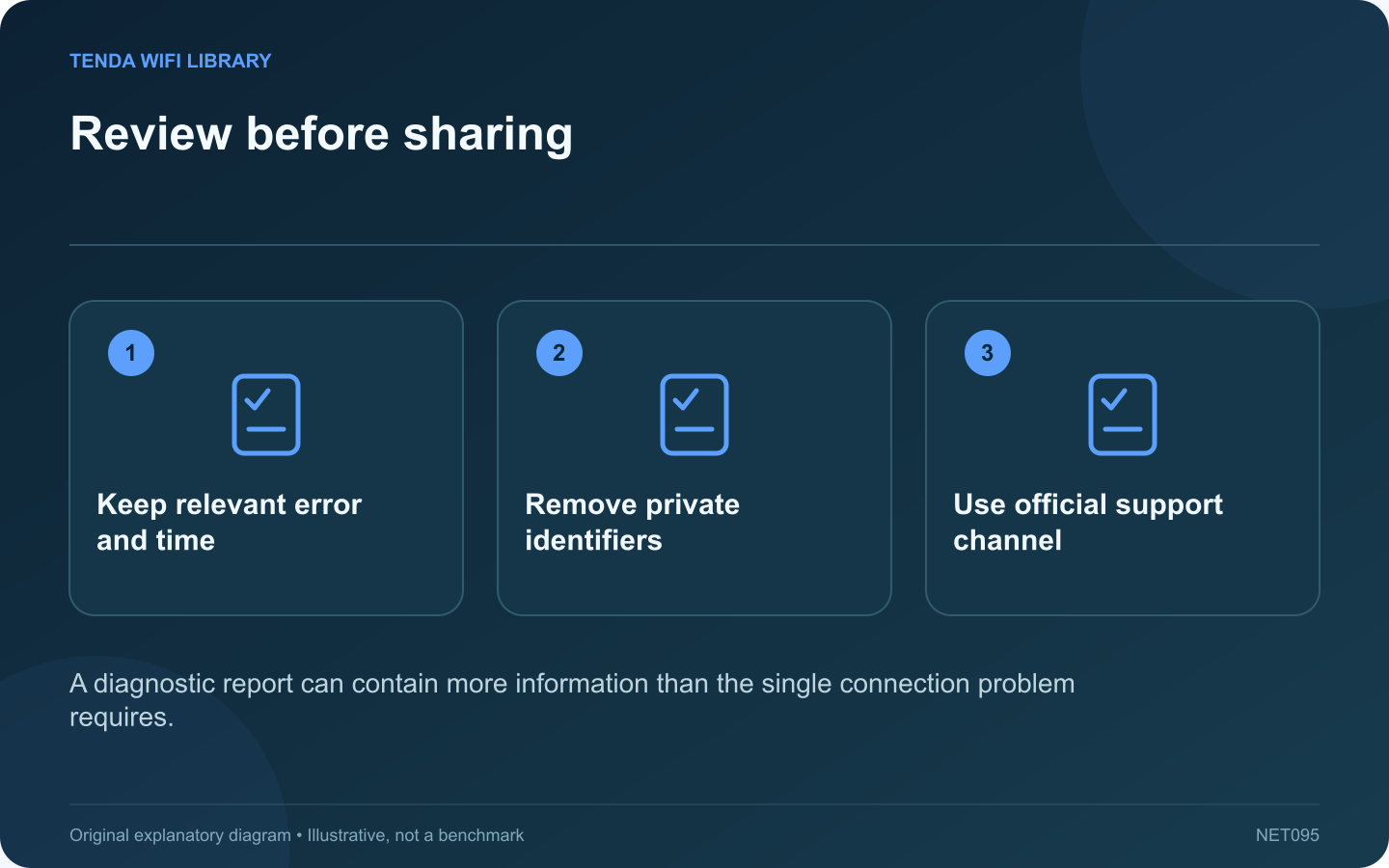
Review before sharing: Keep relevant error and time; Remove private identifiers; Use official support channel
A diagnostic report can contain more information than the single connection problem requires.

A network report can help support understand a failure, but it may also describe the computer, wireless networks and connection history. Review the contents before attaching the entire file to a public forum.

Start with the support question

If the issue is a disconnect at a particular time, the relevant event and adapter information may be sufficient. If a DNS lookup fails, a short result for the affected public hostname may answer the question. Avoid collecting every available diagnostic simply because a tool can generate it.

Inspect the report locally

Microsoft’s wireless report documentation describes system, adapter and session information included in the output. Open it on your computer and identify the sections that relate to the incident. Command output such as ipconfig can also reveal addressing and adapter identifiers.

Make a separate shareable copy

Keep the original privately for your own records. In the copy, remove unrelated account names, private hostnames, device identifiers and network names when they are unnecessary. Preserve error codes, timestamps and the relationship between relevant events.

Use visible redaction

  • Replace omitted values with a clear label such as “private hostname removed.”
  • Keep the same label for the same value throughout.
  • Check screenshots for other open tabs and notifications.
  • Never include passwords, recovery codes or authentication tokens.

Choose the destination carefully

Use the provider’s official private support portal when detailed information is required. Confirm the recipient and the reason for any additional requested data. A public discussion board should receive only the minimum reviewed extract needed to explain the symptom.

After redaction, read the extract as if you were the person diagnosing it. Does it still show which device failed, when and at what stage? Good privacy review retains those useful relationships while removing irrelevant exposure. If a support agent needs a specific missing field, supply that field privately rather than reposting the whole unfiltered archive.

Sources and editorial notes

Sources checked 8–9 October 2026. Independent guidance and original illustrations; product comparisons use published specifications rather than hands-on benchmarks. Check the exact model, revision and regional documentation before changing settings.

Related guides

300 FAQs across our guide libraries

Quick answers

100 practical questions from Tenda WiFi Library.

Browse all 100 FAQs
What private details should I remove from a network report?

A network report can help support understand a failure, but it may also describe the computer, wireless networks and connection history. Review the contents before attaching the entire file to a public forum. If the issue is a disconnect at a particular time, the relevant event and adapter information may be sufficient. If a DNS lookup fails, a short result for the affected public hostname may answer the question. Avoid collecting every available diagnostic simply because a tool can generate it.

Read the full guide and sources
How can I compare IPv4 and IPv6 without disabling either?

Some connectivity problems affect one address family more than another. Windows tools can collect IPv4 and IPv6 observations separately. Use that evidence to locate a problem rather than disabling IPv6 permanently because one generic guide recommends it. Use a public service relevant to the failure and confirm that it publishes the address records needed for the comparison. A service with no IPv6 address cannot serve as a fair test of your IPv6 internet path.

Read the full guide and sources
What can the Windows wireless report reveal about disconnections?

Repeated Wi-Fi disconnects are easier to investigate when the event has a timestamp and a connection history. Windows can generate a wireless network report that helps show sessions and related diagnostic information. Use it to narrow the failure stage before applying a broad reset. Note when the call, game or transfer stopped, whether the Wi-Fi indicator changed and whether other devices were affected. Include sleep, dock changes or movement between rooms if they preceded the interruption.

Read the full guide and sources
When is flushing the Windows DNS cache useful?

A DNS cache stores recently learned name information. Clearing it can help when Windows retains an obsolete answer after a legitimate service change. It is less useful when the actual failure is weak Wi-Fi, an unplugged cable or an unavailable website. Write down the affected hostname and whether other destinations work. Compare another device on the same network. If every application fails and the computer has no usable network address, resolve that earlier connection problem before treating DNS as the cause.

Read the full guide and sources
Independent. Practical. Clear.

Tenda WiFi Library is an independent information website. We are not affiliated with or endorsed by Tenda. Product names belong to their respective owners.