Independent router help & how-tosHelping you find your connection.
The guide library

Mbps vs MB/s in game downloads: compare the units before blaming Wi-Fi

Explore the guide library · Connection performance tests

Convert bits and bytes, then separate network transfer from installation and disk activity.
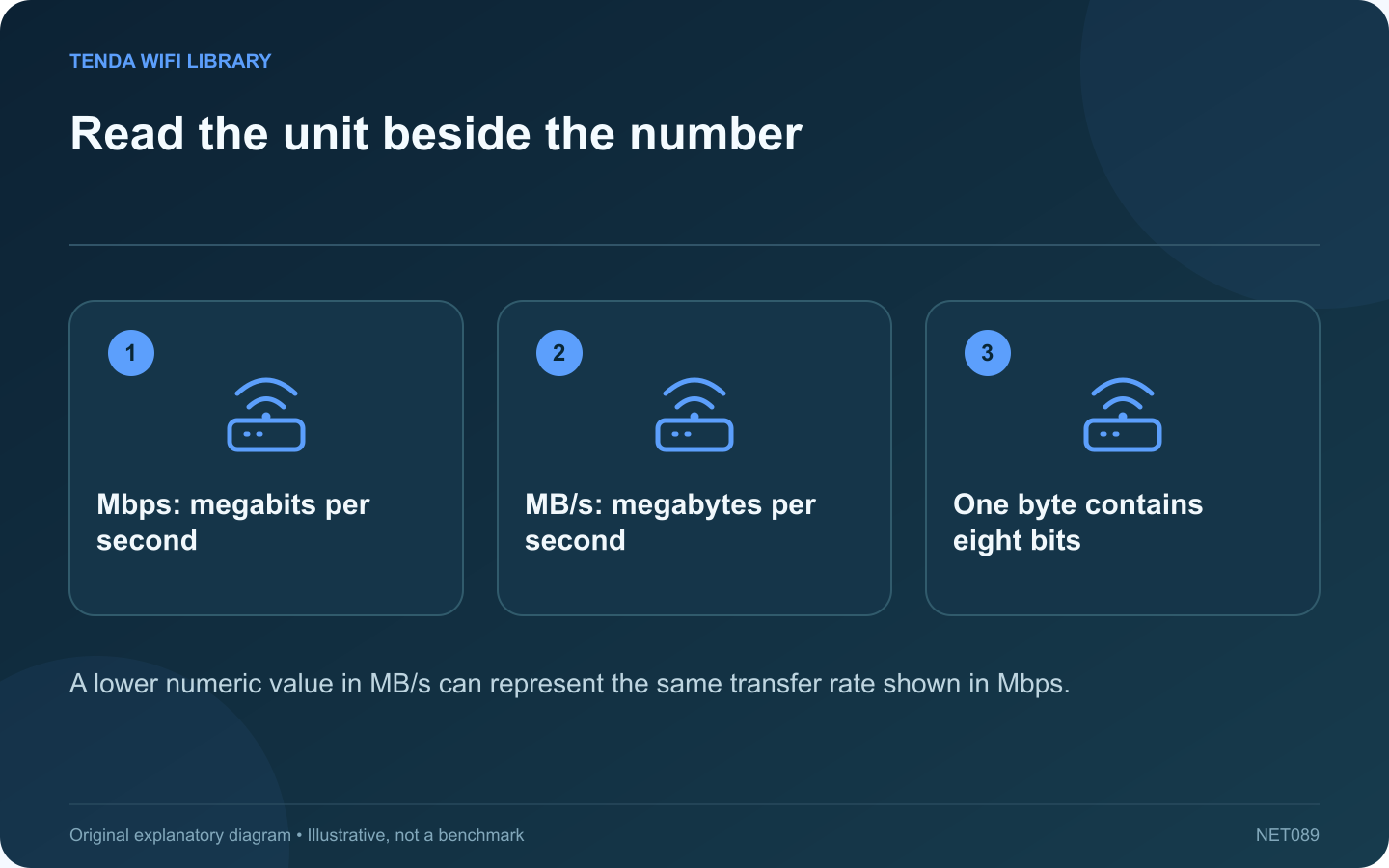
Read the unit beside the number: Mbps: megabits per second; MB/s: megabytes per second; One byte contains eight bits
A lower numeric value in MB/s can represent the same transfer rate shown in Mbps.

A game client reporting 50 MB/s is not necessarily underperforming on a 400 Mbps connection. The first number counts megabytes per second and the second counts megabits. One byte contains eight bits, so the units must be aligned before judging the result.

Use a simple conversion

Multiply a decimal MB/s value by eight to express it in Mbps. For example, 25 MB/s corresponds to 200 Mbps, while 100 MB/s corresponds to 800 Mbps. These are unit conversions, not predictions of what a particular connection will achieve.

Read the display setting

Check whether the current game client is displaying bits or bytes. Valve’s documentation discusses download-rate units and limits. A remembered setting or an old screenshot is less reliable than the label beside the number now visible.

Allow for other stages

Downloading a game can include decompression, verification and writing data to storage. A pause in network traffic while the disk remains busy is different from a lost Wi-Fi connection. Watch both indicators before changing network settings.

Compare an appropriate baseline

  • The internet plan describes the external service.
  • The adapter’s link rate describes a local connection.
  • The download client reports its current transfer.
  • The installation timer includes work beyond transmission.

Those values measure different things. They are not expected to match exactly even after converting the units.

Check configured limits

A download bandwidth cap or scheduled restriction may deliberately hold the client below the connection’s capacity. Review the existing setting and keep it if it protects other household activity.

If performance is still unexpectedly low after the unit check, compare the same client at another time and inspect its selected content region using official guidance. Avoid repeatedly reinstalling drivers to solve an arithmetic misunderstanding. Keep the rate, unit, disk activity and time together in your notes so the next diagnostic step addresses the actual limiting stage.

Sources and editorial notes

Sources checked 8–9 October 2026. Independent guidance and original illustrations; product comparisons use published specifications rather than hands-on benchmarks. Check the exact model, revision and regional documentation before changing settings.

Related guides

300 FAQs across our guide libraries

Quick answers

100 practical questions from Tenda WiFi Library.

Browse all 100 FAQs
How do Mbps and MB/s differ in game-download readings?

A game client reporting 50 MB/s is not necessarily underperforming on a 400 Mbps connection. The first number counts megabytes per second and the second counts megabits. One byte contains eight bits, so the units must be aligned before judging the result. Multiply a decimal MB/s value by eight to express it in Mbps. For example, 25 MB/s corresponds to 200 Mbps, while 100 MB/s corresponds to 800 Mbps. These are unit conversions, not predictions of what a particular connection will achieve.

Read the full guide and sources
Why can uploads remain slow when downloads are fast?

A connection can download quickly while taking much longer to upload a video or backup. The service may provide different capacities in each direction, and ongoing uploads can consume the smaller allowance before you start a test. Look up the upload speed included with the current plan. Do not infer it from the advertised download headline. Record the units and any provider guidance on expected performance so the target is based on the actual service.

Read the full guide and sources
How do I make a fair VPN speed comparison?

A VPN speed comparison becomes difficult to interpret when the laptop moves rooms, the test server changes and a different protocol is selected at the same time. Build a small controlled comparison so the result answers one question. On a work device, use only the organization's approved VPN configuration. Do not disconnect a required tunnel or bypass its traffic policy for a benchmark. On a personal service, compare options that meet your privacy and location requirements.

Read the full guide and sources
How do I fairly compare phone and laptop Wi-Fi speeds?

A phone outperforming a laptop on the same Wi-Fi does not prove that the laptop is broken. Different radios, antennas, supported bands and software can produce different results. Start by making the test conditions comparable. Place the devices near the same position and test them one after the other, not simultaneously. Keep the laptop lid in its usual working position. A phone beside the router and a laptop behind a metal desk are not measuring the same wireless conditions.

Read the full guide and sources
Independent. Practical. Clear.

Tenda WiFi Library is an independent information website. We are not affiliated with or endorsed by Tenda. Product names belong to their respective owners.